

Appearance settings
The Appearance page holds two preferences: the theme Priscale uses on your screen, and the language the app is displayed in. To get there, open the menu with your name on it in the sidebar (in the header on a small screen) and choose Settings, then Appearance from the list of settings pages.
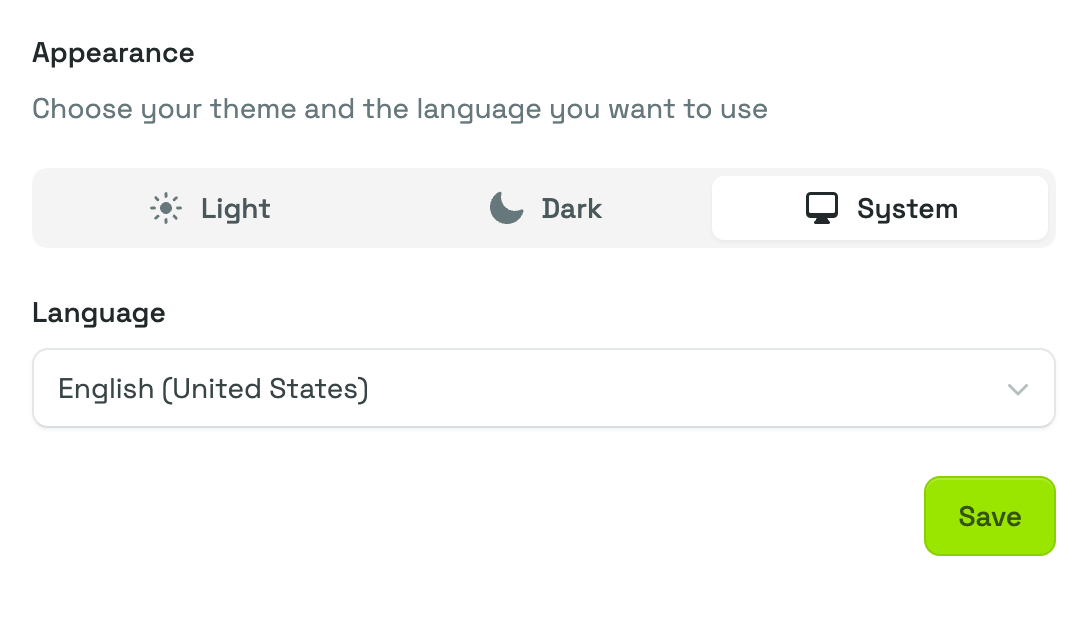
Choose a theme
The theme selector at the top of the page has three options:
- Light — a bright background, best in a well-lit room or outdoors.
- Dark — a dark background, easier on the eyes in low light.
- System — follows whatever your device is already set to, including devices that switch automatically between day and night.
The change happens as soon as you pick an option. There is nothing to save, and you can switch back and forth as often as you like.
TIP
On a computer, the same three options sit as small sun, moon, and screen icons just above your name in the sidebar, so you can switch the theme without leaving the page you are on. The theme is remembered for the browser you are using, so if you also open Priscale on your phone or on a second computer, set it there as well.
Choose your language
The Language dropdown lets you pick the language Priscale is displayed in. Two options are available:
- English (United States)
- Spanish (Mexico)
Pick the one you want and select Save. A short Language updated. message confirms the change, and the page reloads right away in the new language. Every screen you visit afterwards, from the Dashboard to your estimates, uses it too.
Your language choice is stored with your account rather than with the browser, so it stays in place when you sign in from another device.
WARNING
Changing the language changes the wording of the app itself, such as menus, labels, and buttons. Anything you typed in yourself, like service names, client details, and notes, stays exactly as you wrote it.
Related pages
- Profile settings covers your name, email, and the rest of your personal account details.
- Dashboard is the screen you land on after signing in.