

Plans & billing
Priscale comes in three plans: Part-Timer, Freelancer, and Business. They all share the same app. What changes between them is how much you can create, which features you can use, and how your burn rate is worked out. This page covers what each plan includes, how the free trial works, how to subscribe and pay, where to change or cancel a subscription, and what the lock icons and plan counters around the app are telling you.
Billing lives on the Organization page. Open the menu with your name on it at the bottom of the sidebar, or the circle with your initials in the header on a small screen, choose Organization, and look for the Billing card. Only the account owner sees that menu item and that page, so if it isn't there, someone else on your team holds the subscription.
What each plan includes
Two different things are going on in the table below. Some rows are caps: a number you can fill up and free again. Others are locks: a feature the plan does not include at all. Part-Timer and Freelancer cap how many services and products you can have; Business caps nothing. Estimates carry no cap of their own on any plan, because each service holds at most one estimate, so your services cap is also as many estimates as you can have.
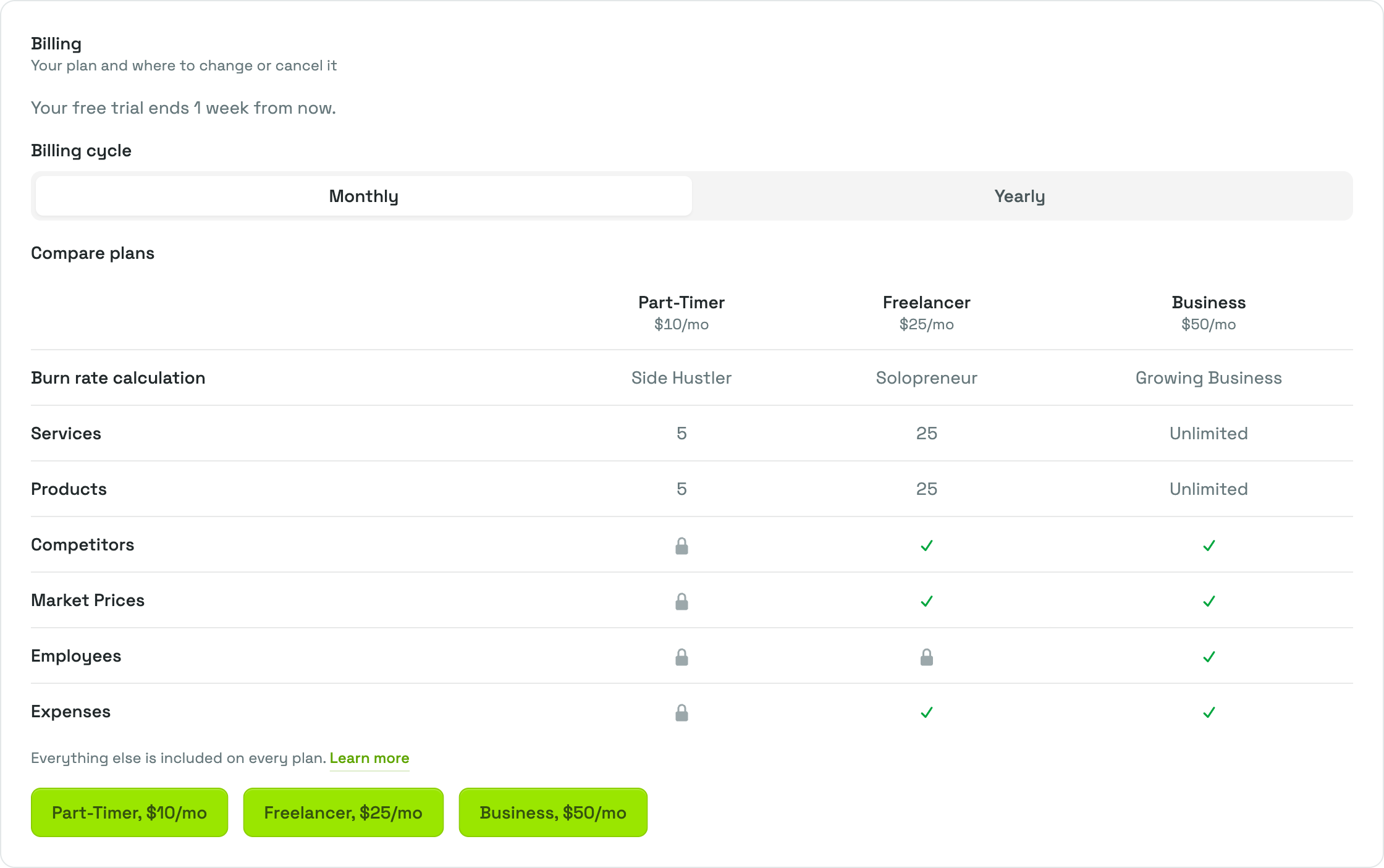
You do not have to come back to this page to check any of it while you are deciding. The Billing card carries a shorter version of the same comparison, a Compare plans table sitting right above the plan buttons, whenever your account is on a trial or waiting for you to subscribe. It shows the caps, the locks and the burn rate calculation for the three plans side by side, priced at whichever billing cycle you have selected. The table below adds the detail around it.
| Part-Timer | Freelancer | Business | |
|---|---|---|---|
| Services | 5 | 25 | Unlimited |
| Products | 5 | 25 | Unlimited |
| Estimates | One per service | One per service | One per service |
| Expenses | Locked | Included | Included |
| Employees | Locked | Locked | Included |
| Market Prices | Locked | Included | Included |
| Competitors | Locked | Included | Included |
| Burn rate calculated as | Side Hustler | Solopreneur | Growing Business |
| Everything else | Included | Included | Included |
"Everything else" is the rest of the app, and it works the same on all three plans: customers and companies, tags, your task, material, fee, agreement and payment link presets, the pricing spectrum, and the whole estimate flow, including sending it out for review.
The counts are limits on what you have, not on what you do over time. Deleting a service frees a slot for a new one, so a Part-Timer account can keep pricing new work indefinitely, as long as no more than five services are on the list at once. Freeing a slot means deleting the service, and a deleted service does not come back.
How your plan calculates your burn rate
Your burn rate is the hourly cost of running your business, and every price Priscale recommends is built on it. Each plan works it out the way that fits the kind of business it is sold to, which is also why each plan includes the pages that calculation needs.
| Plan | Calculation | What it uses |
|---|---|---|
| Part-Timer | Side Hustler | Your revenue goal for the year, divided by the hours you have available to work. No expenses or employees needed. |
| Freelancer | Solopreneur | Your expenses for the year, personal and business, divided by the hours you have available to work. |
| Business | Growing Business | Your payroll plus your expenses for the year, divided by your team's billable hours. |
You do not pick the calculation, and there is no setting for it anywhere: your plan decides it. That is why Expenses is included from Freelancer up, and Employees only on Business. Change plans and Priscale asks you to review your burn rate before you carry on, which is covered under Managing your subscription.
TIP
If the only thing pushing you to a bigger plan is a full list, look for records you no longer need before you upgrade. Managing services, Managing products, and Managing estimates each cover deleting.
Your free trial
Every new account starts on a 10-day free trial, and no card is asked for. The trial gives you everything the Business plan gives you, so you can try Expenses, Employees, Market Prices and Competitors, and see the Growing Business burn rate, before you decide which plan fits.
The Billing card on the Organization page tells you where you stand, for example "Your free trial ends 6 days from now." Nothing is charged when the trial runs out; the account simply stops accepting changes until you subscribe, which is covered in When a trial or subscription ends.
Subscribing
While you are on a trial, or after one has lapsed, the Billing card shows a Billing cycle control set to Monthly or Yearly, then a Compare plans table, then one button per plan. Each button carries the plan's name and its price for the cycle you picked, so switching between Monthly and Yearly re-prices all three buttons at once and you can compare before committing.
The Compare plans table above the buttons is the short version of what each plan includes: one column per plan, headed by its name and its price for the cycle you selected, and a row each for the burn rate calculation, the services and products allowances, and whether Expenses, Employees, Competitors and Market Prices are included or locked. Underneath it, a line confirms that everything else is included on every plan. It re-prices with the Billing cycle control, so the comparison always matches the buttons below it.
Monthly charges you once a month and is the easier one to leave. Yearly charges once for the twelve months ahead, which is fewer payments to think about, and the yearly figure on each button is what you can weigh against twelve of the monthly ones. Either way you are not stuck with the choice: the billing cycle can be changed later from the billing portal.
- Choose Monthly or Yearly.
- Select the button for the plan you want.
- Priscale hands you off to a secure checkout page hosted by our payment provider, where you enter your card details. Priscale never handles your card itself.
- When the payment goes through you land back on the Organization page with Payment received. Your access updates in a few moments.
That last message is worth reading literally. Your new plan is confirmed in the background a moment after the payment, so if the card still shows the old state, wait a few seconds and reload the page.
Backing out of the checkout page is safe. You return to the Organization page with Checkout canceled. You have not been charged. and nothing about your account changes.
TIP
Subscribing during a trial does not throw away the days you have left. If more than about two days remain, the rest of the trial carries into your subscription and your first charge falls on the day the trial would have ended. With less than that left, billing starts right away.
Managing your subscription
Once you are subscribed, the Billing card swaps the comparison table and the plan buttons for a summary: a green Subscribed badge, your plan name, and your billing cycle, with a Manage Subscription button underneath.
Manage Subscription opens the billing portal our payment provider hosts for your account, and every change to an existing subscription happens there rather than in Priscale:
- Move to a different plan.
- Change how often you are billed, monthly to yearly or back.
- Update the card on file and your billing details.
- Cancel the subscription.
The Billing card says as much underneath the button: "To switch plans or change how often you are billed, use Manage Subscription."
When you cancel, access does not stop that day. The Billing card shows a Subscription canceled notice with the date your access runs to, and you keep working normally until then. Changing your mind before that date is a matter of opening Manage Subscription again and resuming the plan; nothing is lost in the meantime.
WARNING
Moving to a smaller plan never deletes anything. If the new plan's limits are below what you already have, your records stay right where they are and stay readable, but you cannot add new ones until you are back under the limit, and features the smaller plan doesn't include become read-only.
After a plan change, review your burn rate
Because each plan calculates your burn rate differently, changing plans in either direction means the way your hourly figure is worked out changes too. Priscale does not quietly swap the number: the next page you open takes you to Burn Rate, where a notice explains that your plan changed how this is calculated, and the form already shows what the new calculation needs. Fill in anything that is missing and press Set Burn Rate. Until you do, the rest of the app keeps sending you back to that page.
If you are not the person who can edit the burn rate, you will see a message asking you to have an owner or administrator set it up again.
Your expenses, employees, services, estimates and everything else are untouched by this. Only the way the hourly figure is worked out changes. See Burn rate for what each calculation asks for.
When a trial or subscription ends
If a trial runs out without a subscription, or a subscription ends and is not renewed, the account goes read-only. This is a pause, not a deletion: everything you built stays exactly as it was.
In the read-only state:
- Every page still opens and every record is still readable, so you can look things up, check old estimates, and pull the numbers you need.
- Creating and editing stop. A new record's form still opens, but a Subscription required notice comes up over the page when you try to save it, and opening an edit screen brings you back to the Organization page with a note that reads Your trial has ended. Subscribe to keep making changes.
- Deleting still works, so you can clean up before you come back.
- A banner sits at the top of the app reading Your trial has ended or Your subscription has ended. Account owners get a View plans button on it that goes straight to the Billing card; everyone else is asked to check with the owner, since only the owner can subscribe.
- Your own settings are untouched. You can still update your profile and your security settings, and account owners can still edit their organization details.
Subscribing at any point lifts all of it at once, with your data as you left it.
Locked features and plan limits around the app
You will meet your plan in three places while you work.
A lock icon in the sidebar
On Part-Timer, Expenses, Employees, Market Prices and Competitors carry a small lock. On Freelancer, only Employees does. Hovering over the lock says which plan opens the feature, for example "Available on the Freelancer plan" or "Available on the Business plan".
An upgrade notice on the page itself
Open a locked feature and the page carries an Upgrade to unlock this feature callout that names the plan you need, such as "This feature requires the Freelancer plan or higher." The Create New button isn't offered, and account owners get a View plans button in the callout. What is already on the list stays readable, so a locked feature never hides your history. See Market prices for how that page behaves on a plan that doesn't include it.
A counter next to Create New
On plans with a limit, a small "3 / 5" style counter sits beside the Create New button on Services and Products. It turns amber as you close in on the limit and red once you reach it. From then on, a new record is turned away with a note along the lines of "You have reached your plan limit for Services. Upgrade your plan to add more." Delete something to free a slot, or move up a plan.
Related pages
- Organization covers the rest of the Organization page, where the Billing card lives.
- Managing services and Managing estimates show the plan counters in context.
- Market prices, Competitors, Expenses and Employees are the features that depend on your plan.
- Burn rate explains the calculation your plan gives you and what it asks for.
- Sending estimates covers sending an estimate for review, available on every plan.