

Payment links
A payment link is an address at Stripe or PayPal where your customer can pay you. You create the link at your payment provider, save it in Priscale, and add it to the estimates it applies to. Your customer then gets a button on the estimate you send them, and selecting it opens your payment page.
Priscale stores the address and shows the button. It does not take the money and it never knows whether a payment was made, so approving an estimate and paying it stay two separate things. This page covers setting a link up, the Payment links card on an estimate, reusing the links you have saved, and what your customer sees.
Before you start: create the link at your provider
Priscale saves an address you already have, so make the link at Stripe or PayPal first. Everything about the payment itself is decided there: the amount, the currency, and whether the same link can be used more than once. A fixed-amount link works well for a deposit you charge on every job of a certain size, and an open-amount link suits a balance the customer types in themselves.
The address has to meet a few conditions before Priscale will save it:
- It has to start with https://. A plain http:// address is not accepted.
- It has to be the complete address, with no port number and nothing in front of the site name.
- It has to belong to the provider you pick. Stripe links come from buy.stripe.com or donate.stripe.com, and PayPal links from paypal.com, www.paypal.com, or paypal.me. A PayPal address will not save under Stripe, and a lookalike address will not save at all.
TIP
Copy the address straight from your provider rather than retyping it. Stray spaces and the invisible characters that ride along when you copy out of an email are cleaned off for you, so a pasted link still works.
Adding a payment link to an estimate
Payment links live on the Payment links card, the last card on an estimate's Adjust Estimate page, below Agreements. The card is available while the estimate is still open for changes. Until you add one, it shows No payment links yet and invites you to use an existing payment link or create a new one for this estimate.
Creating a new one
- Select Create new.
- Enter a Name. This is how you will recognize the link later, so name it for the job it does, like "Deposit — 40% to schedule the install" or "Monthly maintenance autopay". Names have to be unique across your business; reusing one is refused with a note that a payment link with the same name already exists.
- Pick the Provider, either Stripe or PayPal.
- Paste the URL.
- Select Create & add.
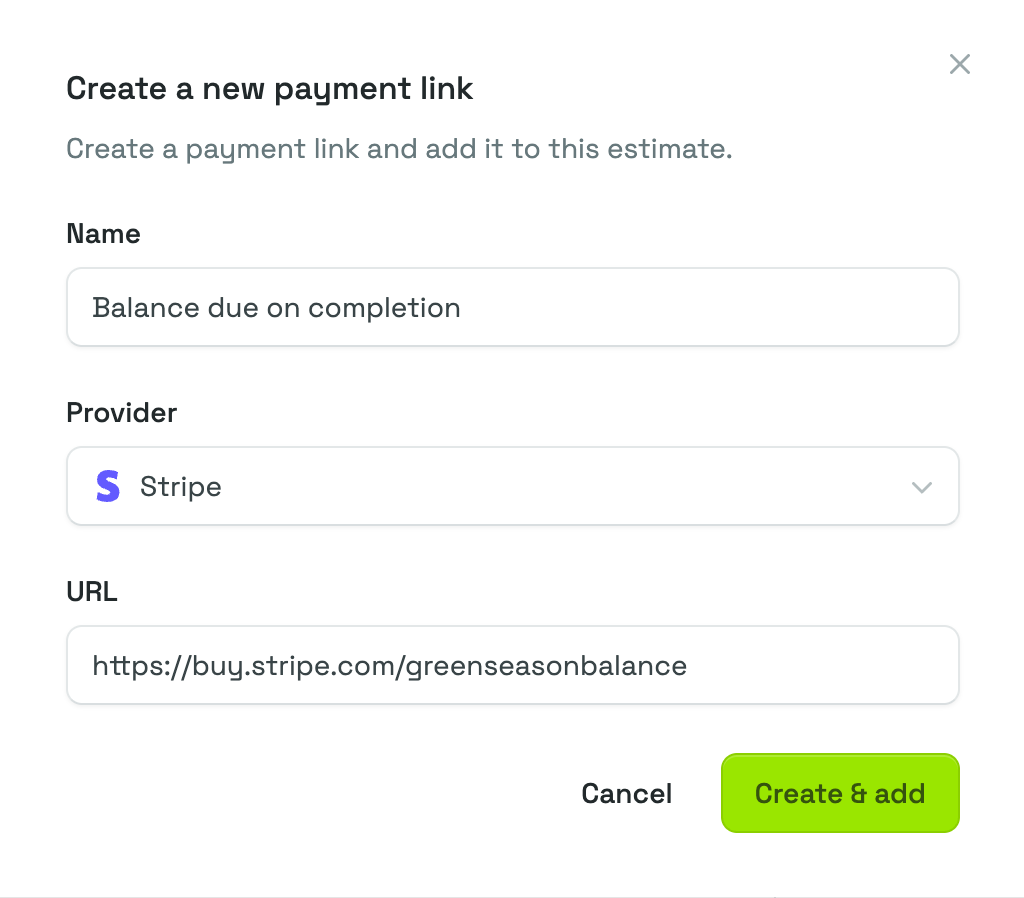
The link goes onto this estimate and into your saved list in the same step, so the next estimate can pull it in without any retyping. If the address is not accepted, Priscale says which of the conditions above it missed, and the flyout keeps what you typed so you can correct it.
Using one you already saved
Use existing opens Use an existing payment link, where the Payment link picker lists everything you have saved, by provider and name, with a search box for longer lists. Choose one and select Add payment link.
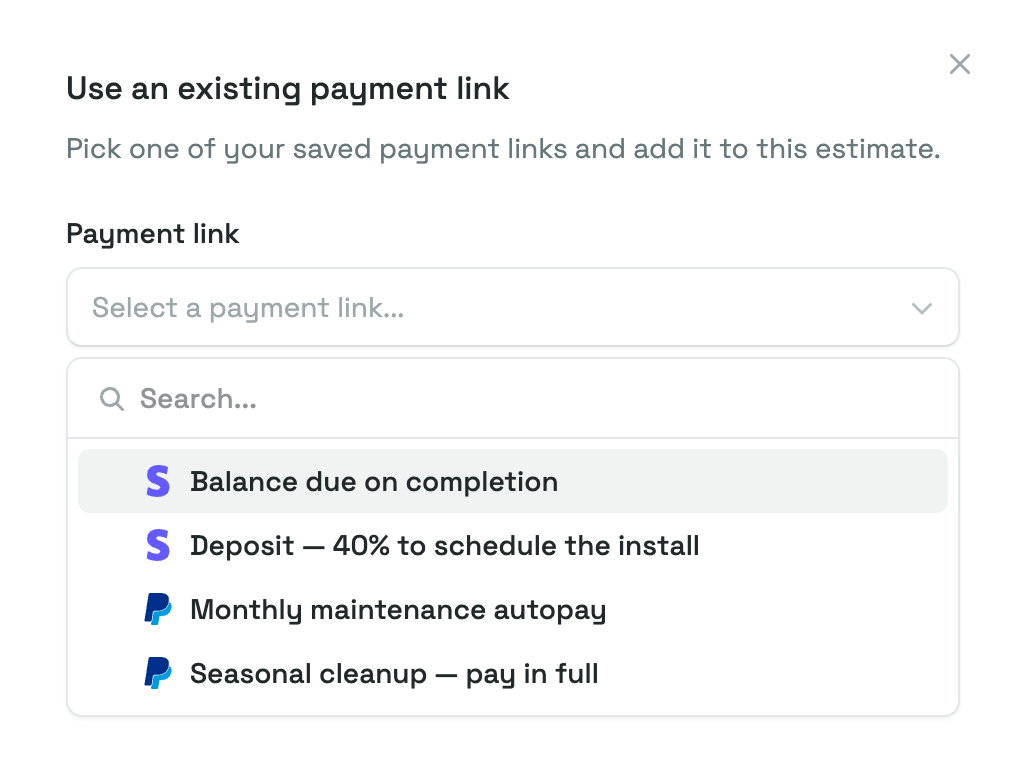
Use existing only appears when you have a saved link that is not already on this estimate. That means it is missing on the very first estimate you ever add a link to, and it disappears again once every link you have saved is already attached to the estimate in front of you.
Your saved payment links
Creating a link on an estimate saves it for every estimate that comes after, which is the whole point of naming it well. There is no separate list to maintain: your saved links are built up and drawn from right here on the card.
What lands on the estimate is a copy of the address, not a live pointer to the saved one:
That copy is yours to adjust. Edit payment link, the pencil button on the row, changes the name, provider, or address carried by this estimate alone, and your saved link and every other estimate keep what they had. The remove button asks you to confirm before it takes the payment link off the estimate, and the saved link stays in your list for next time.
Because a saved link stays available once you create it, give each one a name you will still recognize months from now, and create a new one rather than reusing an old name when a payment address changes.
WARNING
If you replace a link at your provider, the estimates that already carry the old address keep it, which is what preserves the record of what each customer was sent. For any estimate still open for changes, update its copy with the pencil button.
The card at a glance
Once at least one link is attached, the card lists each one by Name, Provider with its logo, and URL, with three buttons on every row.
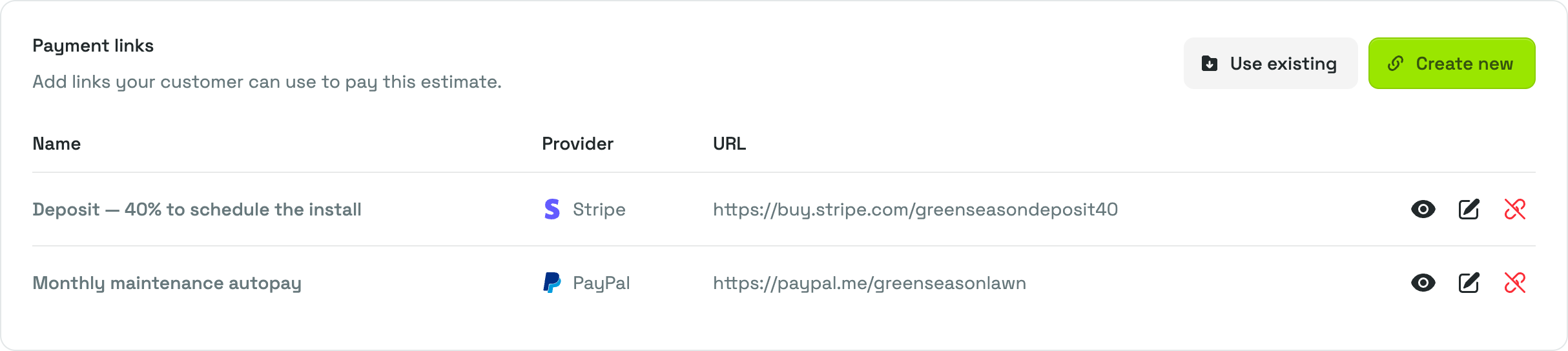
- The eye button, View payment link details, opens the link's full name and address along with an Open link button, so you can test the address yourself before the customer does.
- The pencil button opens Edit payment link.
- The remove button takes the link off this estimate.
Long names and addresses are shortened in the table to keep the columns readable. The eye button always shows the whole thing.
WARNING
Payment links can only be added, edited, or removed while an estimate is still open for changes. Once it is Complete (including a canceled one) or Past Due, its payment links are locked as they were sent. See Managing estimates for what re-opening an estimate does.
What your customer sees
On the private review page your recipient opens from their email, one button per payment link sits above the estimate, reading Pay with Stripe or Pay with PayPal with the provider's logo. Selecting one opens your payment page in a new tab. Approve sits in the same row when you allowed that recipient to approve.

The button is labelled by provider, not by the name you gave the link; the name shows when the customer hovers over it. Two Stripe links on the same estimate therefore give your customer two buttons that look identical, so attach only the link that applies to the job, or split them across providers, when you want the choice to be unambiguous.
On the printed or downloaded PDF the addresses appear in full instead, in a Payment section listing each link's provider, name, and address. That section is on the PDF only, since recipients reading online get the buttons. Sending estimates covers the whole customer side.
Related pages
- Adjusting an estimate covers the rest of the Adjust Estimate page and everything else that gets sent with an estimate.
- Sending estimates covers the email, the review page, approval, and the estimate PDF.
- Agreements covers the other thing that travels with an estimate: your terms as wording rather than as a link.
- Managing estimates explains the statuses that decide when an estimate is still open for changes.