

Tags
A tag is a short label for a kind of work, like "Logo Design" or "Kitchen Remodel". On its own a tag does very little. Used consistently across your services, products, and market prices, it becomes the link that lets Priscale answer the question that matters when you are setting a price: what does work like this actually sell for?
This page covers creating tags, applying them, and the comparisons they unlock.
Why tagging is worth the effort
Priscale never guesses which of your logged prices are comparable to the service you are pricing. It matches on the tags you applied. When you open the Market Value step of a service or product, the list of market prices can be narrowed to only those that carry the same tags, so you compare a kitchen remodel against other kitchen remodels rather than against every price you have ever recorded.
If you tag nothing, the table of market prices still lists every price you have logged, it just has no way to tell which of them cover work like yours.
Creating a tag
Tags live under Market in the sidebar.
- Open Tags and select Create New.
- Enter a Tag Name. Keep it to the kind of work, not the client or the date. "Logo Design" is a good tag; "Logo Design for Acme, March" is not, because nothing else will ever share it.
- Pick a Tag Color. The color is used on the tag's badges throughout Priscale, so you can spot tagged work at a glance.
- Write a Description explaining when the tag applies. This is required on purpose: it is what keeps the tag used the same way six months from now.
- Select Create Tag, or Save & Create Another if you are setting up several in one sitting.
Tag names have to be unique within your business, and Priscale tells you if one already exists.
TIP
Aim for a small set of broad tags rather than a long list of narrow ones. A tag only earns its place when several services, products, and market prices share it, because a tag used once can never match anything.
Applying tags to your work
The Tags field appears on services, products, and market prices. It works the same way in each:
- Start typing to search your existing tags, then select the ones that fit.
- You can apply up to 3 tags to any one record.
- If the tag you need does not exist yet, choose Create new tag from the list. The tag form opens on top of the one you are filling in, and once you save, the new tag is applied without you losing anything you had already entered.
- To take a tag off, select the small × on the tag itself.
Tagging is optional on every form, but it is worth the few seconds while the work is fresh in your mind.
Some market prices are tagged for you. When an estimate is completed with an Accepted outcome, Priscale logs the estimate's Total as a market price and copies that service's tags onto it. Approved products do the same with the product's tags. Tagging a service or product early therefore pays forward into your price history automatically.
Comparing prices with tags
On a service or product's Market Value step
The Market Value page of a service or product lists the market prices you have logged, with each price's tags shown beside it. When the service or product has at least one tag, a Same tags as this service switch (or Same tags as this product) appears above the list, already turned on. With it on, the list shows only market prices that share at least one tag with the record you are pricing. Turn it off to see everything you have logged.
From there, Use this on any row sets that price as the market value, or you can enter your own with Enter your own market value. Use this is available while the service or product can still be changed.
On the Market Prices page
The Insights section of the Market Prices page has its own tag filter, set to All tags by default. Choose one or more tags and the Market prices logged, Average Price, and Median Price figures all narrow to that kind of work. The Average price by tag chart below compares your most-used tags side by side, up to eight at a time; pick specific tags in the filter to compare others. It is a quick way to see where a whole category of your work sits before you price the next one.
For the wider picture of what those numbers mean, see Determining market value.
Reviewing where a tag is used
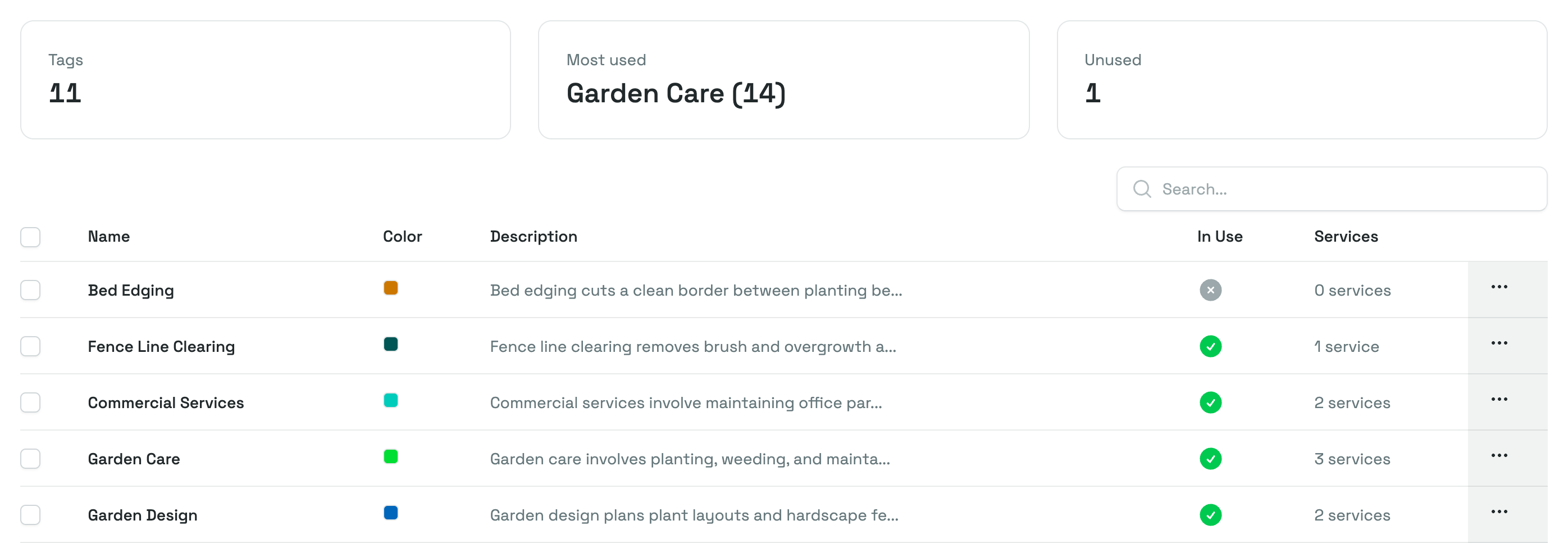
The Tags list shows every tag with its color, description, whether it is In Use, and how many services carry it. Above the list, three figures summarize your tagging at a glance: the total number of tags, the Most used tag with its usage count, and how many tags are Unused. A high unused count usually means you have more tags than you need.
Select any tag to open it. The tag's page lists, in three sections, the Services, Products, and Market Prices that carry it, and each section has its own search box.
- To detach a single record, select Remove on its row.
- To detach several at once, select their checkboxes, then choose Actions and Remove.
- Removing a tag from a record deletes neither the record nor the tag itself.
One exception: market prices that Priscale created from an accepted estimate or an approved product can't be changed by hand, so their tags stay as recorded. Those rows have no Remove action, and a bulk removal skips them.
Editing and deleting tags
Edit on a tag's page (or from the list) reopens the name, color, and description. Renaming a tag keeps it attached to everything that already carries it, so you can tidy up your wording at any time without breaking your comparisons.
WARNING
Only unused tags can be deleted. If a tag is still applied to a service, product, or market price, Priscale won't delete it, which protects your price history from quietly losing the labels your comparisons depend on. Detach the tag from those records first, then delete it.
Related pages
- Market prices covers what a market price records and where the prices come from.
- Service market value and Product market value walk through the step where tagged comparisons are used.
- Determining market value explains how to judge what your work is worth in the first place.