

Profile settings
Your profile holds the personal details behind your account: the name you go by, the username that identifies you, the email address you sign in with, and the timezone every date and time in Priscale is shown in. It is also where you close your account for good. Profile settings are only about you as a person. Your password and two-factor authentication are on the Security page, and your business details on Organization.
To get there, open the menu with your name on it at the bottom of the sidebar, or the circle with your initials in the header on a small screen, and choose Settings. Settings opens on Profile, with Security, Connected accounts and Appearance listed alongside it.
Updating your details
The Profile section holds four fields you can edit:
- Name is how you are addressed in the app and how you appear to your team.
- Username identifies you inside Priscale. It has to be unique, so if someone already uses the one you want, Priscale asks you to pick another. Letters, numbers, dashes and underscores only. Priscale saves it in lower case, so AlexR is stored and shown as alexr.
- Email is the address you sign in with and where Priscale sends verification, password reset and notification emails. Each address can belong to only one account.
- Timezone is a searchable list of United States and Mexico time zones, such as Central Time – Chicago. Start typing a city or a zone name to narrow the list.
Select Save when you are done. A short Profile updated. message confirms the change. Nothing is saved until you select Save, so leaving the page with edits in the fields discards them.
TIP
Your timezone decides how dates and times appear throughout Priscale, so it is worth correcting as soon as you move or if the app guessed wrong when you signed up. It has nothing to do with the language of the app, which you pick on the Appearance page.
Under the fields you will find two details you cannot edit: your Account ID and your Roles. Whoever created the organization is normally listed as Owner. The Account ID is shortened on screen; select it to copy the full value to your clipboard, which is handy when the support team asks which account you are writing about.
Changing your email address
You can change your email address at any time. The new address has to be verified before you can carry on using the rest of the app.
When you save a new address, Priscale marks it as unverified and a note appears under the Email field reading "Your email address is unverified." Select Click here to re-send the verification email. and Priscale confirms that a new verification link is on its way. Open the email at the new address and follow its link to finish the change.
WARNING
Until the new address is verified, Priscale sends you to the Verify your email screen when you try to open other pages, and the Delete account section is hidden from your profile. Verifying puts everything back. If the verification email does not arrive, check your spam folder, then confirm the new address is one you can receive mail at before requesting another.
If you signed up with Google or GitHub, the Email field is greyed out and Priscale explains that your address is managed by a connected social account. The address can only be edited after every social account is disconnected, which is covered on the Connected accounts page.
Deleting your account
At the bottom of the page, the Delete account section permanently deletes your account and everything in it. Select Delete account and a confirmation window opens.
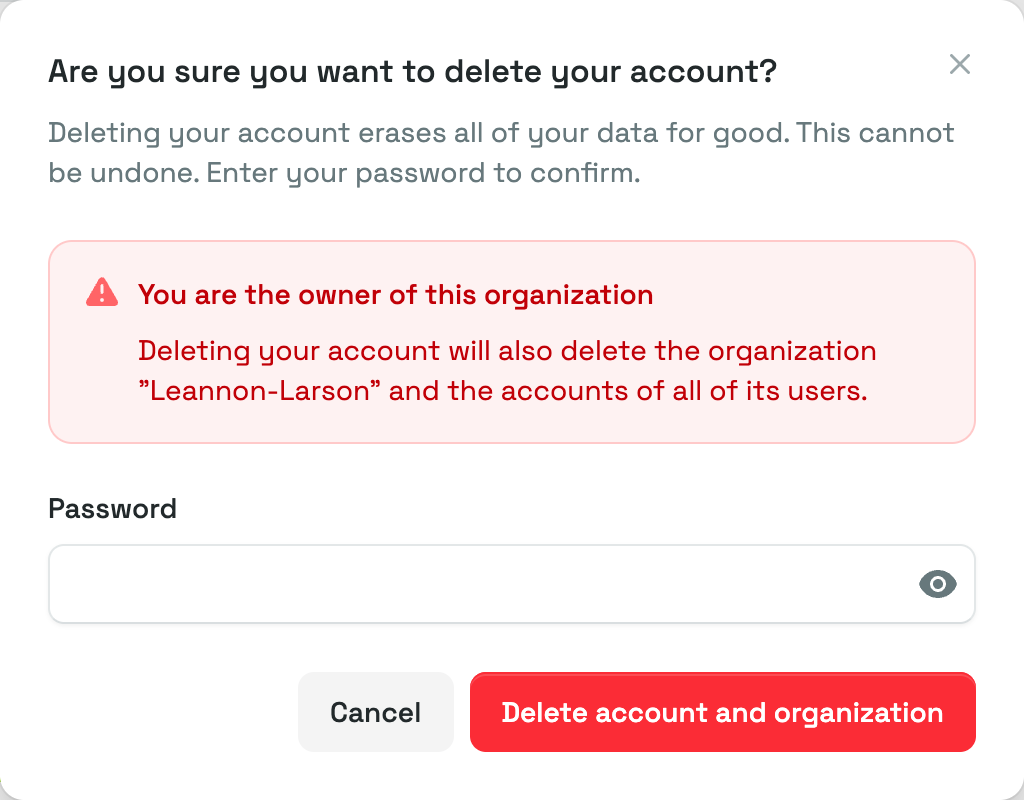
The window asks "Are you sure you want to delete your account?" and warns that deleting erases all of your data for good and cannot be undone. To go ahead you have to type your current password, then confirm; Cancel closes the window and changes nothing. If you signed up with a social account and have never created a password, create one on the Connected accounts page first, since the confirmation window will not accept an empty password.
DANGER
If you are the owner of your organization, the window shows an extra warning naming your organization, and the confirm button reads Delete account and organization. Deleting your account also deletes the whole organization, along with the accounts of everyone in it, not just yours. There is no undo and no export step afterwards, so save anything you still need first.
Once you confirm, Priscale signs you out, deletes the data and returns you to the public site. If what you actually want is to stop paying rather than to disappear, look at your subscription on the Plans & billing page first, since deleting is final.
Related pages
- Security settings covers your password, two-factor authentication and recovery codes.
- Connected accounts covers linking and unlinking Google and GitHub sign-in.
- Appearance is where you switch the theme and the language of the app.
- Organization holds your business details and your current plan.