

Employees
If you have people on payroll, their pay is part of what the business has to earn before it makes a cent of profit. The Employees page, under Spending in the sidebar, is where you record what each person costs you for the year and how much of their time you can actually charge to customers. Those two numbers do more work than they look like they do: together with your expenses, they are what your hourly Burn Rate is built from on the Growing Business calculation.
Employees come with the Business plan
Employees is a Business-plan page, and every free trial includes it. On Part-Timer and Freelancer it carries a lock in the sidebar and the Create New button is not offered, because neither of those plans' burn-rate calculations reads your team. The page itself also carries an Upgrade to unlock this feature notice naming the plan that unlocks it, with a View plans button if you are the organization's owner. Anyone you recorded on a larger plan stays visible and readable. See Plans & billing.
This page covers adding an employee, what each record works out on your behalf, and how the totals reach your pricing.
Adding an employee
Open Employees and click Create New. A panel slides in from the right with three short sections to fill in. There is no cap on how many people you can add: the plan that includes this page includes it without a limit.
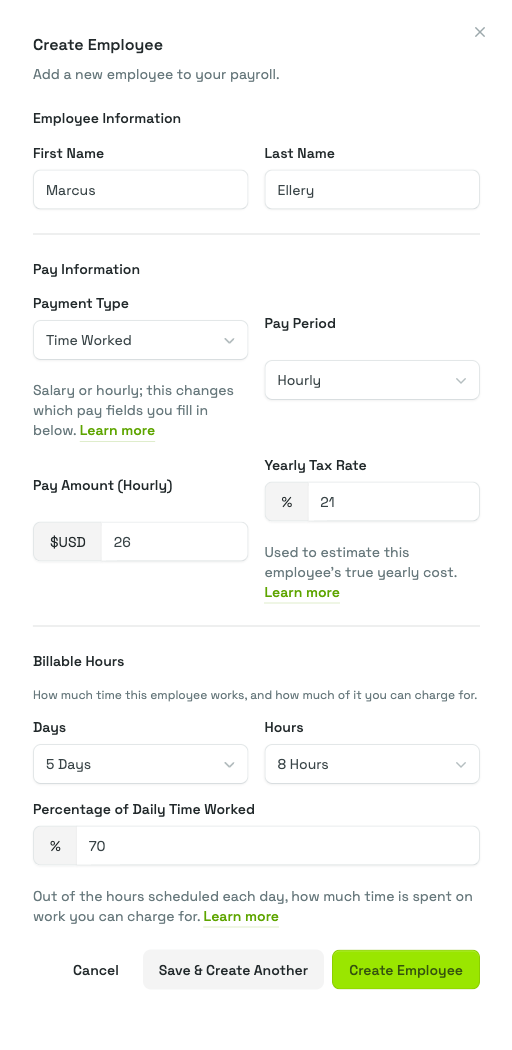
Employee Information
First Name and Last Name. Both are required, and they are what you will search the list by later.
Pay Information
Payment Type decides which of the fields below apply:
- Salary is for someone on a fixed annual wage. The Pay Period field greys out, because a salary already covers the year, and the amount field becomes Pay Amount (Yearly Salary).
- Time Worked is for anyone paid per period worked. Choose a Pay Period (Hourly, Daily, Weekly, Bi Weekly, Monthly or Yearly) and the amount field renames itself to match, so Pay Amount (Hourly) is clearly the rate per hour rather than a yearly figure.
New employees start on Time Worked, so switch it to Salary first if that is what you need.
Pay Amount is the amount for that period, and Priscale annualizes it to match the pay period you chose. Hourly and daily amounts are multiplied out over the Days and Hours you schedule further down, on a fixed basis of 52 weeks a year. Weekly, bi-weekly, monthly and yearly amounts are annualized from the period itself, so the schedule does not change them.
Yearly Tax Rate is the percentage of the employee's pay that goes to taxes, anywhere from 0 to 100. The Pay Amount you enter is already the full cost the business has to earn, and the tax rate splits that figure into the taxes and the take-home pay shown as Net Yearly Pay. Changing the rate does not change Gross Yearly Pay, your yearly cost total, or your burn rate.
Billable Hours
This section is where you describe the working week.
- Days is how many days a week the employee is scheduled, from 1 to 7.
- Hours is how many hours they work on each of those days, from 1 to 24.
- Percentage of Daily Time Worked is the share of those scheduled hours that goes into work you can charge a customer for, from 1 to 100.
That last field is the one worth thinking hardest about, and it is covered in its own section below.
Saving the employee
Finish with Create Employee, or use Save & Create Another to keep the panel open with a blank form when you are entering the whole team in one sitting.
TIP
Count yourself as an employee. On the Growing Business calculation your own pay and your own billable hours belong in the totals like everyone else's, and leaving yourself out understates both what the business costs and how many hours it has to sell.
Choosing a realistic billable percentage
Nobody bills eight hours out of an eight-hour day. Meetings, quoting, invoicing, driving between jobs, fixing the printer: all of it is time you pay for and cannot charge for. Percentage of Daily Time Worked is where that reality gets recorded.
A high percentage inflates your billable hours, and because those hours are the divisor for your yearly costs, the resulting burn rate comes out lower than the truth. Every price built on it is then quietly too cheap, and you only find out when the year closes short.
WARNING
A generous billable percentage does not create extra hours in the day. It only hides costs inside a burn rate that looks healthier than your business actually is.
If you are unsure, take a recent typical week and count the hours that actually ended up on an invoice. Your own week is better evidence than any rule of thumb, and you can adjust the percentage later once you have watched a few more.
What each employee record works out for you
Click any row in the list to open that person's page. Beyond what you typed in, Priscale fills in the figures that matter for pricing.
Under Pay Information:
- Gross Yearly Pay is the Pay Amount annualized: the full amount the business has to earn for that person over the year, taxes included. This is the figure that counts as cost.
- Net Yearly Pay is what the employee takes home once the tax rate is taken out of that figure.
Under Billable Hours:
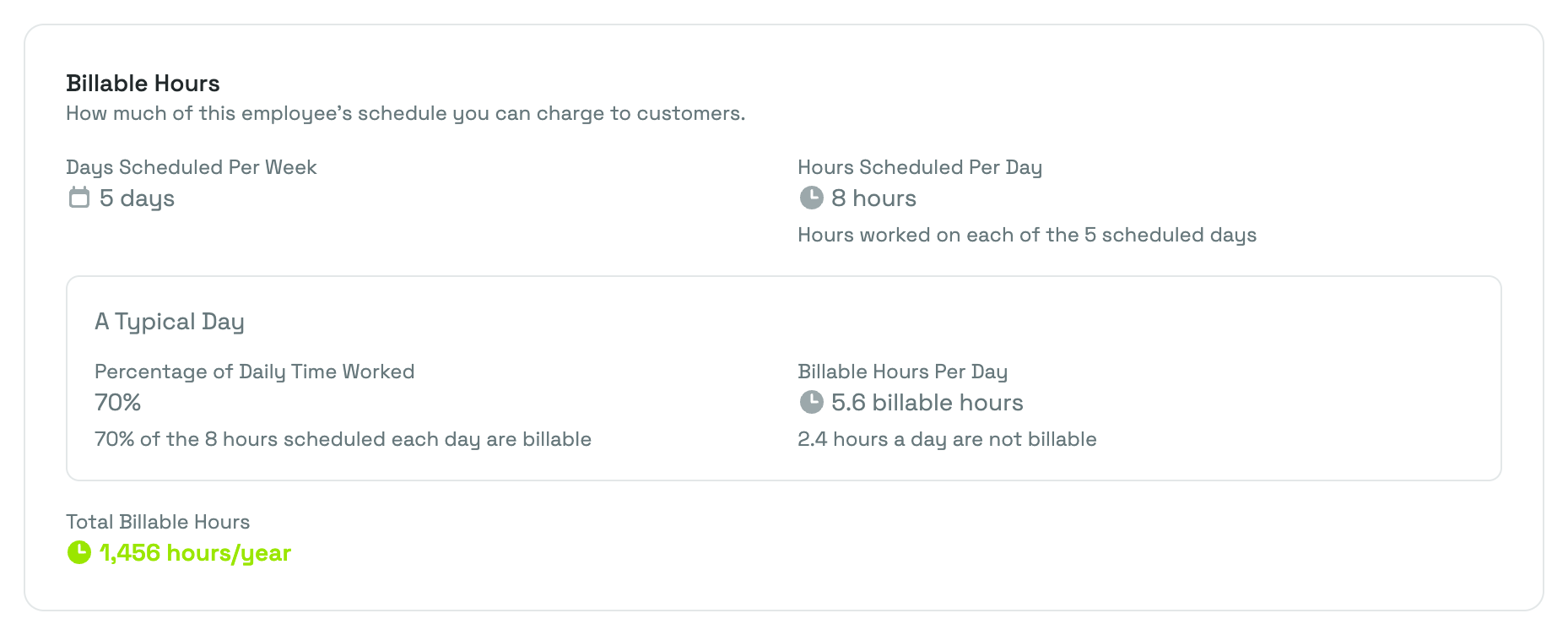
- A Typical Day breaks a single working day into Billable Hours Per Day and the hours that are not billable, so you can see the split in plain numbers rather than a percentage.
- Total Billable Hours is the yearly figure: billable hours a day, across the scheduled days, across the year. This is the number that reaches your burn rate.
Back on the list, three tiles above the table total the team up: how many Employees you have, their Yearly cost, and their Billable hours per year. They update the moment you add, edit or remove someone.
How employees feed your burn rate
The Growing Business calculation, which is what the Business plan and every free trial give you, works your burn rate out as your total yearly cost divided by the hours you have to sell. Employees sit on both sides of that division, and that is the reason this page belongs to that plan.
Their Gross Yearly Pay joins your expenses to form the total the business has to cover. Their Total Billable Hours become the divisor, and the same hours also make up your year's sellable time, which is the bar near the bottom of the sidebar described under available hours.
Two consequences follow, and both surprise people:
- Adding an employee does not automatically push your burn rate up. Their pay raises the total, but their billable hours raise the divisor, so the rate can just as easily fall. The Burn Rate page says this out loud: the more billable hours your team has, the thinner each hour's share of the cost.
- Until at least one employee exists with billable hours, the Growing Business calculation has nothing to divide by, so no burn rate appears. Add your first employee and it calculates itself.
The Burn Rate page shows the whole derivation, payroll plus expenses divided by billable hours across your team, along with a breakdown of billable against non-billable hours. See Burn Rate for how to read it, and Expenses for the other half of the total.
TIP
If you are a one-person business, the Solopreneur and Side Hustler calculations take the hours behind your burn rate from your Burn Rate page instead of from employee records. The sidebar's Available hours bar follows the same split: on both of those calculations it is built from the working time you set on your Burn Rate page, so it works on a Freelancer plan with no employee records at all. Only the Growing Business calculation builds it from employee billable hours, which is why it fills in once your team is on file on a Business plan or a free trial, where you can add an employee record that is simply yourself, and keeps working for an organization that moved down from Business with its earlier records still in place. Workflows by business type shows which path fits you.
Working with the list
As the team grows, the table gives you a few ways to get around it.
- Search matches first and last names.
- Filters narrows the list by Payment Type, or to employees added within a date range, including a custom range you set yourself.
- Sortable columns cover names, billable percentage, billable hours, gross and net yearly pay, and tax rate, so you can line the team up by whatever you are checking.
Every row opens the employee's page when you click it. The menu at the end of a row offers Open, Edit and Delete, and the same Edit and Delete buttons sit at the top of the detail page. To remove several people at once, tick their checkboxes and use Actions, then Delete. Both kinds of delete ask you to confirm first.
Editing an employee recalculates everything downstream straight away, so a pay rise or a change to someone's schedule is reflected in your burn rate as soon as you click Save changes.
WARNING
Changing an employee moves your burn rate, but work you already priced keeps the rate it was priced with. After a payroll change, revisit any open work whose price still needs to hold up. When you adjust an estimate that was built on a different burn rate, Priscale points out the gap between the two.
Related pages
- Expenses covers the other half of what the Growing Business calculation adds up.
- Plans & billing covers which plan includes this page and which calculation each plan gives you.
- Burn Rate explains the number your employees feed, and why it is the floor under every price.
- Workflows by business type puts employees in the wider setup order for a growing business.
- Dashboard is where your team's billable hours show up as the year's available hours.