

Companies
A company is the business your customers work for. Customers are the people you email and send estimates to; the company is the organization behind them. Linking the two keeps every contact at the same business together in one place, so you can see at a glance who you deal with there, who the main contact is, and which work belongs to that business.
Companies are entirely optional. A customer can exist on their own forever, and nothing in Priscale requires a company before you can create services, products or estimates.
When a company is worth creating
Create a company when the business, not the person, is your real client. That is usually the case when:
- You deal with more than one person at the same business, for example an office manager who approves the budget and a supervisor who is on site.
- Contacts change over time but the account stays. The company keeps the history together when the person you deal with leaves.
- You want work named after the business rather than after an individual, so your services and estimates read "Acme Landscaping Service" instead of a contact's name.
- You send estimates out for review and want everyone at that business to be one click away as a recipient.
Skip the company when you sell to individuals. Homeowners, private clients and one-off jobs are cleaner as plain customers with no company attached.
TIP
If you are not sure, leave the company off. You can create one later and link the customer to it at any time without losing any of their work.
The companies list
Companies in the sidebar opens every business you have on file. Three counts run across the top:
- Companies counts how many you have.
- High priority counts the ones set to High or Critical priority.
- Customers in companies counts how many of your customers are linked to a company.
Below the counts, the table lists each company with its Priority, Name, Website and Created date. Clicking the Priority, Name or Created heading sorts the list by that column, and the search box filters on the name and the website, so a web address finds the row just as well as a name does.
Clicking a row opens that company. The menu at the end of each row offers Open, Edit and Delete without leaving the list.
Create a company
- Open Companies from the sidebar.
- Click Create New.
- Fill in the Create Company panel:
- Priority sets how important this business is to you: Low, Medium, High or Critical. New companies start at Medium.
- Company Name is the only required field. It is the name that shows up on estimates and other related records, so use the name you would put in front of the client.
- Website is optional. When you add one it becomes a link you can open from the list and from the company page.
- Click Create Company to save, or Save & Create Another to keep the panel open and add the next one.
You can also create a company without leaving a customer form. In the Company field on a customer, choose Create new company, fill in the short panel, and the new company is selected for that customer as soon as it saves.
Link customers to a company
A customer belongs to one company at a time, and you can make that link from either side.
From the company
Open the company and use the Customers section:
- Use existing attaches someone you already have. The list only offers customers who are not linked to a company yet, so this button is hidden when every customer already belongs to one. You can record their Position while you attach them.
- Create new adds a brand new person and links them to this company in one step, with fields for their name, email, phone and position.
Both panels have a Set as primary customer checkbox, which is covered below.
From the customer
When you create or edit a customer, the Company field lets you pick the business they work for. Leave it on No company if they do not belong to one. As soon as you choose a company, a Position field appears so you can note their role, such as CEO, Owner or Manager.
Changing that field is how you move someone between businesses: pick a different company and the customer moves across, or clear it to leave the company altogether.
The primary customer
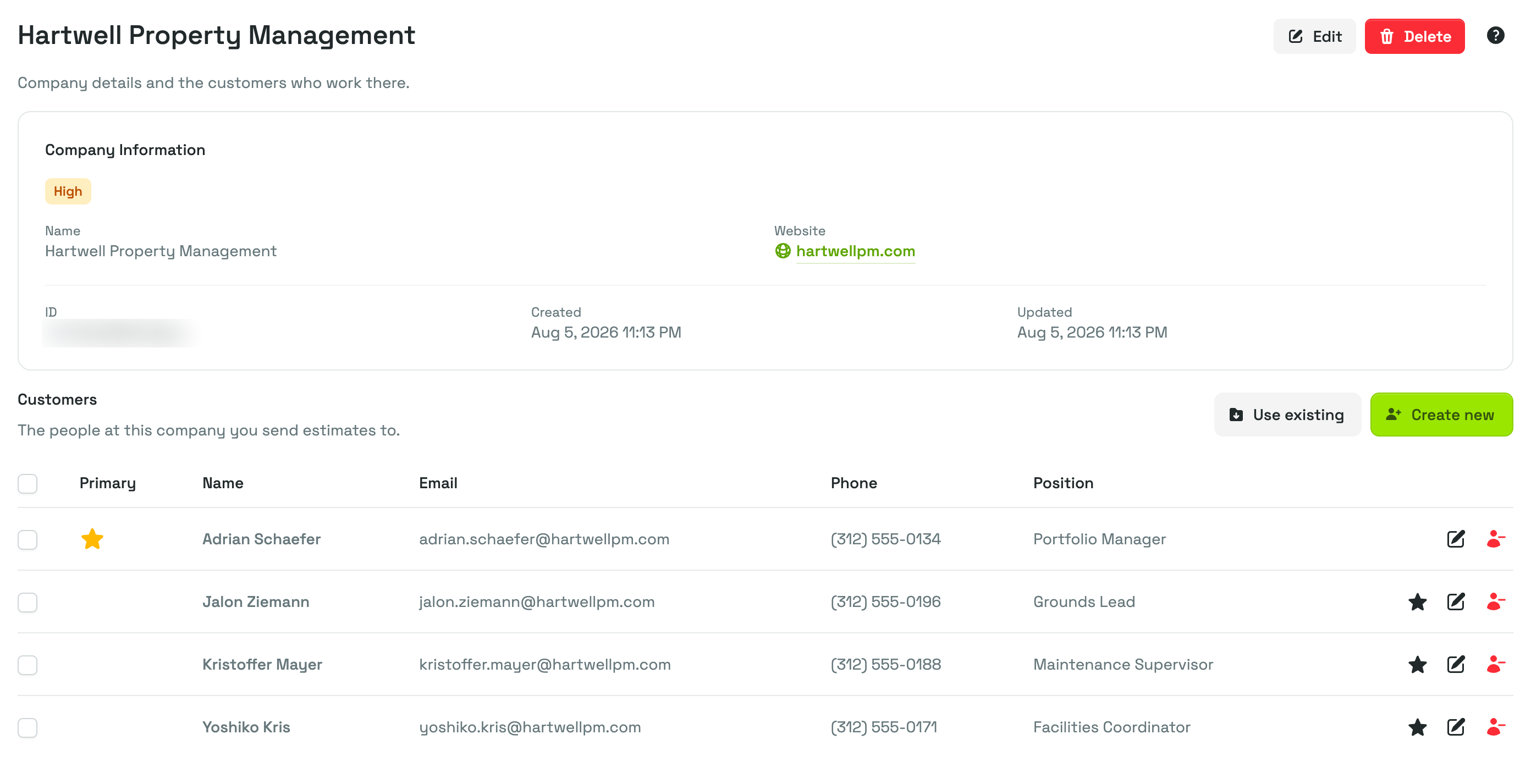
Each company has one primary customer, marked with a star in the Customers table. Think of them as the main point of contact: the person you deal with by default at that business.
- The first customer you link becomes the primary automatically.
- To change it, promote someone else: click the star action on their row, tick Set as primary customer while adding them, or tick Primary customer when editing them from the company page. Promoting is the only way the primary moves, so unticking that box on its own does not demote anyone.
- If the primary leaves the company or is deleted, the longest-standing remaining customer takes over automatically, so a company is never left without a main contact while it still has customers.
What the company page shows
The company page has a Company Information card and, for roles that can see them, a Customers table.
Company Information holds the details you entered, including the priority badge, the name, the website, a reference ID you can copy, and the dates the record was created and last updated. Two buttons sit at the top of the page: Edit opens the same fields you filled in when you created the company, and Delete removes it.
Customers lists everyone at that business, primary contact first, with their name, email, phone and position. Each row has actions to make that person primary, edit their details without leaving the page, or remove them from the company.
The Customers table only appears if your role can see the Customers page — the same rule that hides the Services and Estimates lists on a customer's page. And unless your role can edit the company, the table is read-only: the Use existing, Create new and Actions buttons, the row checkboxes, and the row actions Make primary, Edit customer and Remove from company are all hidden.
Where companies show up elsewhere
Once a customer belongs to a company, that company follows their work around the app:
- Names are prefilled with the company. When you create a service or a product for a customer who belongs to a company, the suggested name uses the company's name instead of the person's. A service is suggested as the company name plus "Service" and the start date, for example "Acme Landscaping Service" followed by the date, while a product is suggested as the company name plus "Product", with no date. It is only a starting point, so you can type over it whenever a different name fits better.
- The company is shown on the work itself. Service, product and estimate pages display a Company field next to the customer, and the estimates list shows the company under each customer's name. On service and product pages the company name is a link straight to the company page; on estimates it is shown for reference only.
- Everyone at the business is offered as a reviewer. When you send an estimate for review, Priscale offers the company's customers as ready-made recipients under Available Company Customers, rather than only the one customer on the estimate. Contacts who already received that estimate, or who have no email address, are left out of the list.
Remove a customer or delete a company
Removing a customer from a company is not the same as deleting the customer or the company, and Priscale treats them as separate actions on purpose.
- Remove from company on a customer row only breaks the link. The customer, along with all of their services and estimates, stays exactly where it is and simply no longer belongs to a company. The Position you recorded for them is cleared at the same time, so re-enter it if you link them again later.
- Deleting a company removes the company record only, and you can do it from the Delete button on the company page, from the row menu in the Companies list, or by ticking several rows in that list and choosing Delete from the Actions menu that appears. Unlike the bulk delete on the Customers list, this one has no guard: every company you tick is deleted, whether or not it still has customers linked to it. Its customers are not deleted; they stay in your Customers list without a company, and their work is untouched. The deletion itself cannot be undone, so you would need to create the company again and re-link the customers.
WARNING
The bulk Actions → Delete inside a company's Customers table deletes the selected customers outright, together with their services and estimates. It is not the same as removing them from the company. If you only want to break the link, use the remove action on the row instead.
For the same reason, customers who belong to a company are skipped when you bulk delete from the Customers list. Remove them from their company first, then delete them.
Related pages
- Customers covers the contact records themselves and how they feed your estimates.
- Workflows by business type shows where companies fit for contractors, agencies and other service businesses.