

Materials
Most jobs need something you have to buy or rent: paint, filters, cable, a rented lift. The Materials page, under Presets in the sidebar, is where you save those items once, with the price you normally pay, so you never have to retype them. Every saved material is available to any service, product or estimate you build afterwards.
What a saved material stores
A material is deliberately small. It holds three things:
- Name is what you call the item. Names have to be unique in your account, so if you reuse one, Priscale tells you that a material with the same name already exists and asks for a different one.
- Cost is the price you usually pay for one unit. This is a starting point, not a fixed price: it is the default cost when you add the material to a service, and you can adjust it per service any time.
- Description holds optional notes about the item, such as the supplier, the size, or the finish. You can format it with bold, italic and strikethrough, bulleted and numbered lists, and links.
There is no quantity on a saved material. Quantity belongs to the job, so you enter it when you add the material to a service, product or estimate.
Saving a material
There are two ways a material ends up on your list, and both leave you with the same thing.
From the Materials page
Open Materials and select Create New. The Create Material panel opens with the three fields above. Select Create Material to save it, or Save & Create Another to keep the panel open and enter the next item straight away, which is the fastest way to enter a whole supplier list.
While you build a service, product or estimate
You don't have to prepare your material list in advance. The Materials card on a service, a product and an estimate gives you the same two buttons:
- Use existing pulls in a material you already saved. Pick it from the list and Priscale fills in its cost for you; change that cost if this job's price is different, then set the Quantity and select Add material.
- Create new lets you enter a Name, Cost, Quantity and description on the spot. Select Create & add and the material is added to the job and saved to your Materials list at the same time, ready for Use existing next time.
That second button is why the Materials page fills up on its own. Many businesses never create a material from the Materials page at all; they build their list job by job and only come back here to tidy it up or update a price.
TIP
A material that is already on the job is filtered out of the Use existing list, so you never add it twice. Use existing only appears while you still have a saved material that isn't on this job yet. Otherwise Create new is the only button on the card.
How copies keep jobs independent
When you add a material to a service, product or estimate, Priscale copies its details onto that job. The copy is what that job is priced from; the saved material stays where it is.
This is what keeps one job's pricing from disturbing another:
- Changing the Cost or Quantity of a material on a service, product or estimate affects that job alone. Your saved material keeps its own cost.
- Editing a saved material later does not change the services, products and estimates that already use it. Their copies keep the numbers they were priced with.
- Removing a material from a job never deletes the saved material.
So a one-off supplier price on a rush job stays on that job, and a price increase you record today doesn't quietly rewrite an estimate you sent last month. When you do want an existing job to use the new price, open that service, product or estimate and edit the material there.
The Materials list
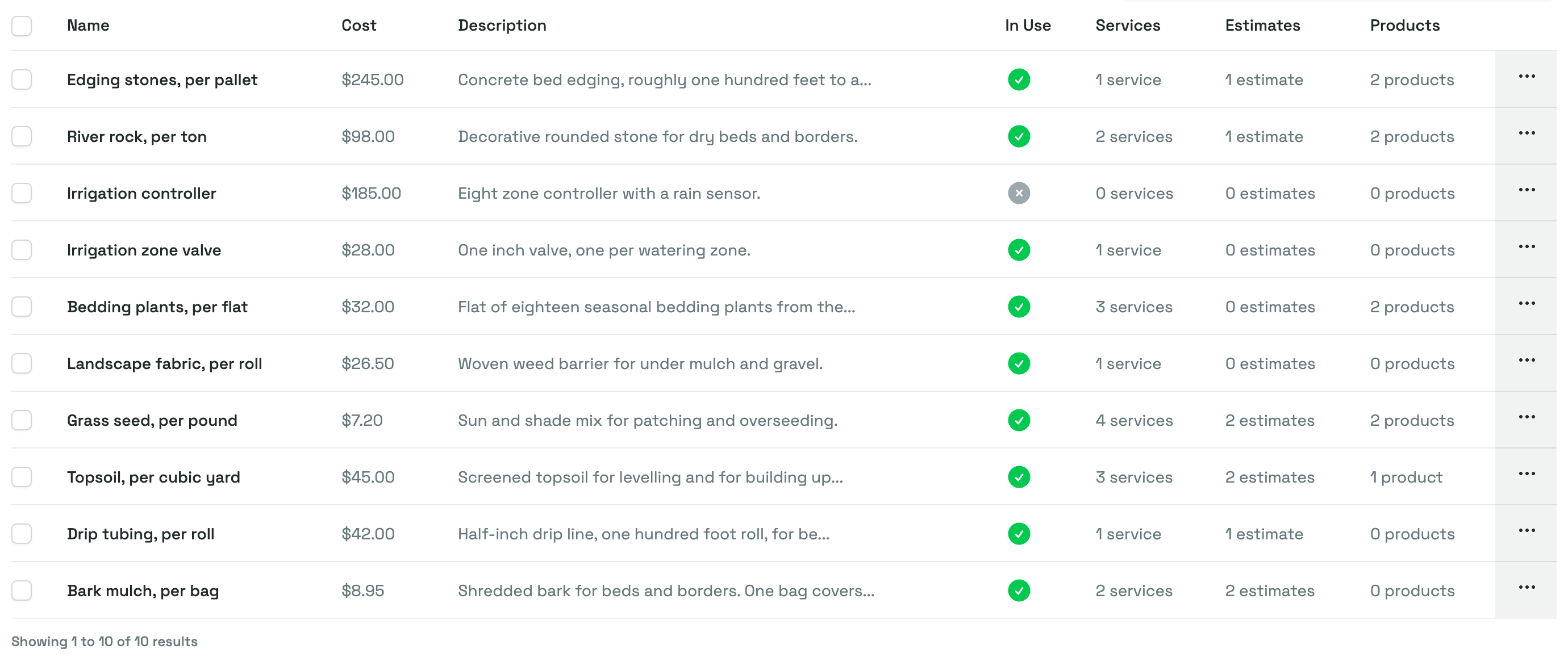
The list shows every material you have saved, with its Name, Cost and a short preview of its Description. Beside those, four columns tell you where it is being used: In Use shows a green check as soon as the material appears anywhere, and Services, Estimates and Products count how many of each it is on.
Search the list by name, and sort it by Name or Cost. Clicking a row opens that material. The menu at the end of a row offers Open, Edit and Delete, and you can tick several rows and choose Actions → Delete to clear out a batch.
WARNING
A material that is in use cannot be deleted. If you try, Priscale tells you that only unused materials can be deleted and leaves it alone, so the work it is priced into stays intact. Remove it from the services, products and estimates that use it first, or simply edit it instead of deleting it.
A material's own page
Opening a material shows Material Information: its name, cost and description, exactly as they are saved. In the card next to it sits the material's ID, which you can copy if you ever need to reference it with support, plus its Created and Updated dates.
Below that, three tabs show every place the material is used:
- Services lists the services it is on, with each service's customer, status, dates and budget.
- Estimates lists the estimates it appears on.
- Products lists the products it is part of.
Each tab has its own search box. View on a row opens that service, estimate or product, and Remove takes the material off it, so you can do it from here instead of opening that job. Remove is unavailable on a service, estimate or product that can no longer be edited. If you tick several rows and use Actions → Remove, those rows are skipped and Priscale tells you.
The buttons at the top of the page are Edit, which reopens the same three fields, and Delete, which follows the in-use rule above.
Related pages
- Tasks covers the other half of a service's cost: the work itself and the time it takes.
- Fees covers the saved charges you add on top of costs, such as permits or delivery.
- Building a service shows where materials sit in a service's Production Cost.
- Building a product does the same for the things you make and sell.