

Adjusting an estimate
Adjusting an estimate is where you decide what it charges for and what gets sent along with it. Everything happens on the estimate's Adjust Estimate page, the first step of the estimate flow. The tasks and materials you already built into the service are waiting for you there, and the price you picked for that service sits at the top as the Target Price you are aiming at.
This page covers the Target Price you are working toward, the estimate's details, the tasks, materials, and fees behind the price, adjusting a cost by hand, what gets sent to your customer, what to do when your burn rate is out of date, and what deleting the estimate does.
WARNING
An estimate can be adjusted only while it is Draft or In Progress. Once it is Complete (including a canceled one) or Past Due, the first step of the flow becomes View Estimate and everything on it is locked. Managing estimates covers statuses, outcomes, and how to re-open one.
Tracking your Target Price
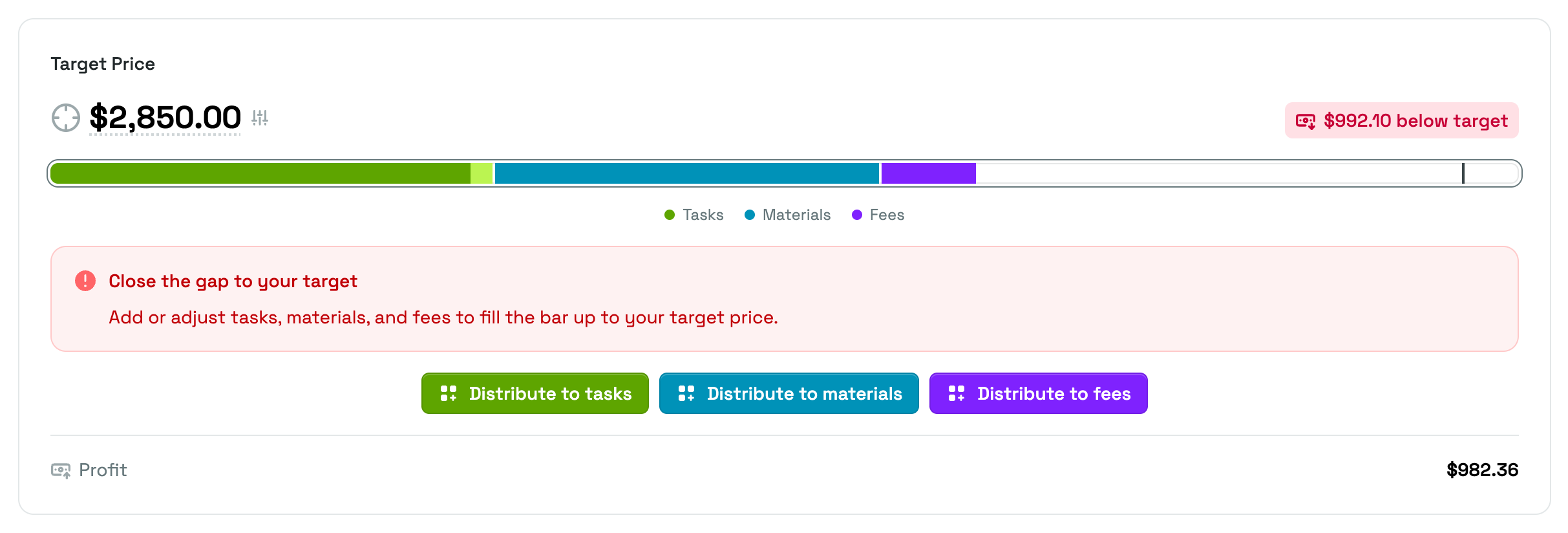
The Target Price card sits at the top of the page and shows whether what you are charging adds up to the price you decided on.
The figure itself is the price you selected for the service, and it is a link. Click it to go back to the pricing page and pick a different one. Opposite it, a badge tells you how far away you are and which side of the target you are on. See Pricing a service for how that number is chosen.
The bar underneath is the estimate total, split into a segment per source so you can see which part of the price is work, which is goods, and which is extra charges. Hover a segment for its breakdown into Unadjusted, Adjusted, and Total; the lighter shade inside a segment is the amount you added by hand on top of what the rows were worth. Lowering a cost has no lighter shade: the segment simply gets shorter, and the breakdown's Adjusted line stays at zero. A tick mark shows exactly where the target falls, so an estimate that overshoots visibly runs past it.
Below the bar, Priscale says what to do about it:
- Close the gap to your target means you are under. Add or adjust tasks, materials, and fees to fill the bar up to your target price.
- Good to send means the estimate matches the target and you can send it as is.
- Above your target price means sending it as is charges more than you decided to charge for this service.
While you are under target, Distribute buttons also appear under the legend so Priscale can spread the difference across a card for you. Auto-distributing the remaining amount, further down this page, covers them.
The card closes with a Profit line: the estimate total minus what the service costs you to deliver. If the work costs more than you are charging, it reads Loss in red instead, which is the clearest sign that the estimate needs another pass.
WARNING
If the service this estimate came from has no price yet, the card reads No target price yet and offers a Price the service button instead. The estimate has no goal to measure against until you set one.
Estimate details
The Estimate Details card holds what the estimate is called and what your customer reads.
The top half is there for reference only: the Service this estimate came from, the Customer, their Company if they belong to one, and the current Status.
Underneath, three things are yours to change:
- Estimate Name, which is what you and your customer see on the estimate.
- Expiration Date, the date this estimate stops being valid for your customer.
- Notes For Customer, an optional message that is sent with the estimate. Your customer sees it, so keep it to what you want them to read.
Click Save Estimate when you're done. The card shows an Unsaved changes flag and highlights Save Estimate until you save, so it is clear when an edit is still pending. Leaving the page before you save discards it.
What the estimate charges for
Three cards make up the money side of the estimate: Tasks, Materials, and Fees. Each one is color-matched to a segment of the Target Price bar, so you can see at a glance which part of the total a card is responsible for.
Tasks
Tasks is the work this estimate charges for. Each task bills its time at your burn rate, so a longer task costs more.
If the estimate came from a service, its tasks were copied over when the estimate was created. They are copies: changing one here does not touch the service, and the service's tasks stay exactly as you built them. Building a service covers how that list is put together in the first place.
You can shape the copied list however this particular job needs:
- Use existing pulls in one of your saved tasks and fills in its saved time. This button only shows up while you still have a saved task that isn't on the estimate yet.
- Create new writes a task from scratch with a Name, a Time to Complete, and an optional description. It is saved for reuse at the same time, so the next estimate can pull it in.
- The pencil button on a row opens Edit task time, and the remove button takes the task off the estimate.
- Reset discards your changes and copies the service's tasks in again, fresh. Priscale asks you to confirm first, because any task change you made on this estimate is lost. Because it rebuilds the whole list, Reset needs the same permission as adding and removing rows one at a time; if your account does not have it, Priscale refuses the reset.
Time is entered as two fields, hours and minutes. Under the table, Total Time and Total Cost add up all the work on the estimate.
Materials
Materials is the goods the job uses up. Each material adds its cost times quantity. The list was copied from the service the same way the tasks were, and the same controls shape it:
- Use existing brings in a saved material with its saved cost. It shows up while you still have a saved material that isn't on the estimate yet.
- Create new adds a material and saves it for reuse at the same time.
- The pencil button on a row opens Edit material, where you can change the Cost (the price of one unit) and the Quantity for this estimate only.
- The remove button takes the material off the estimate.
- Reset re-copies the service's materials and drops your changes. Because it rebuilds the whole list, Reset needs the same permission as adding and removing rows one at a time; if your account does not have it, Priscale refuses the reset.
Your saved material keeps its own cost, so a one-off supplier price on this job won't follow you to the next one.
Fees
Fees are the extra flat charges on top of the work, like rush delivery, travel, or permits. They are not part of a service and are never copied from one; a fee exists on an estimate only.
- Use existing picks a saved fee and fills in its saved amount. It shows up while you still have a saved fee that isn't on the estimate yet.
- Create new writes a Name, an Amount, and optional Details your customer can read next to the charge. New fees are saved for reuse as well.
- The pencil button on a row opens Edit fee amount.
- The remove button takes the fee off the estimate.
Total Fees under the table adds them up, and Fees covers building the saved list.
TIP
Anything already on the estimate is filtered out of the Use existing list, and if the name of something you create matches one you already have, Priscale asks you for a different name. Your saved lists stay clean no matter how many estimates you build from them.
Adjusting costs
There are two ways to move the estimate total without rewriting the work behind it: set a row's cost yourself, or let Priscale spread a remaining amount across a whole card. Both produce the same adjusted row.
Adjusting a cost by hand
Every row in the three cards has an Adjust cost button, and it is the quickest way to move the estimate total by hand. Use it when the arithmetic is right but the number isn't: a task you would rather round up, a material you're absorbing part of, a fee you're trimming to win the job.
Adjust task cost, Adjust material cost, and Adjust fee cost all ask for one number, and all of them state plainly that you are setting your own total to raise or lower the estimate. The task version also shows your Current Burn Rate for reference while you decide.
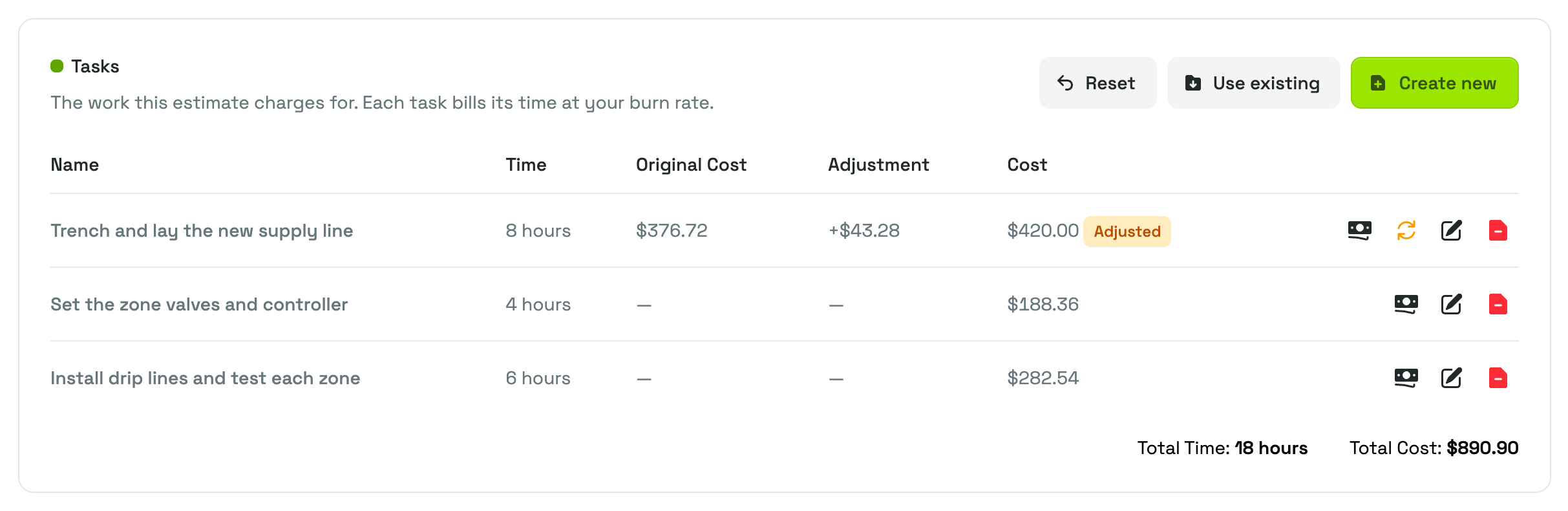
Once a row is adjusted, the table breaks out the whole change:
- Original Cost keeps what the row was worth before you touched it.
- Adjustment shows the difference, with a plus or minus sign.
- The final column carries the new amount with an amber Adjusted badge next to it.
An adjusted row also gets a Reset cost button. On a task it puts the cost back to what the burn rate says the time is worth; on a material, back to cost times quantity; on a fee, back to the amount it was carrying before. On the Fees card, a Reset button appears in the header as soon as one fee is adjusted; it clears every fee adjustment at once and restores each original amount.
TIP
Adjusting a cost here never changes your saved task, material, or fee, and never changes the service the estimate came from. It only moves this estimate.
Auto-distributing the remaining amount
When the estimate is under its target and there is something to spread the money over, Distribute to tasks, Distribute to materials, and Distribute to fees appear under the Target Price legend, each in its segment's color.
Any of them opens Auto-distribute remaining amount, which shows the Amount Needed to Reach Target and starts with the full gap filled in. A slider sets what percentage of that gap you want to use, and the Amount to Distribute updates alongside it, so you can close the gap entirely or only part of it. Click Distribute and the amount is spread across the rows on that card.
Distributed amounts land as adjustments, so every row that receives one shows its Original Cost, its Adjustment, and an Adjusted badge, and you can still reset any of them one by one afterwards.
What gets sent with the estimate
Two more cards decide what your customer receives alongside the price.
Agreements are the terms and conditions you want sent with this estimate:
- Use existing pulls in a saved agreement.
- Create new writes one and saves it for reuse.
- The eye button shows the full text as your customer will read it.
- The pencil button edits the wording carried on this estimate.
- The remove button takes the agreement off the estimate.
Editing an agreement here changes the copy on this estimate only, so tailoring the wording for one client leaves your saved version untouched. Agreements covers building that saved list.
Payment links are the links your customer can use to pay this estimate. Use existing pulls in a saved payment link, and Create new takes a Name, a Provider, and the URL, saving it for reuse at the same time. As with agreements, editing a payment link here changes the copy on this estimate only.
The Provider you pick is the name on the Pay with button your customer sees. Payment links covers the whole card, the links you save for reuse, and what your customer gets.
Together with the Notes For Customer from the details card, these are everything that travels with the price. Sending estimates covers what your customer actually sees when it arrives.
When your burn rate is out of date
A service keeps the burn rate it was carrying when you built it, and the tasks on an estimate are priced from that same rate. The service does not follow your organization's current rate around on its own, which is deliberate: an old job shouldn't silently change price every time your costs move.
When the two no longer match, a red Outdated Burn Rate callout appears at the top of the page. It names both numbers, tells you whether the rate behind this estimate is higher or lower than your actual one, and warns that profit margins and production costs may be affected. An Update Burn Rate button appears alongside the other actions at the top of the page.
Clicking it asks you to confirm, then updates the service this estimate came from to your organization's current rate, recalculating that service's task costs, its production cost, and its price list before dropping you back here.
Two things to check afterwards:
- The estimate's own tasks are copies, so they keep the costs they had. Use Reset on the Tasks card to re-copy them from the service at the new rate. Note that this discards any task changes you made on this estimate.
- The service's price list was rebuilt, but its selected price did not move. If the estimate's target no longer looks right for the new costs, go back to Pricing a service and choose again.
WARNING
An out-of-date burn rate makes an estimate look more profitable than it is. If your expenses, payroll, or hours have changed, update your Burn Rate first, then update the estimate's service, then check the target.
Deleting the estimate
Delete sits with the actions at the top of the page. It asks you to confirm, then permanently removes the estimate along with any review inquiries you sent for it — there is no undo. The service it came from is updated too: it goes back to In Progress, ready to be priced and quoted again with a fresh estimate.
Related pages
- Managing estimates covers statuses, outcomes, and completing an estimate.
- Sending estimates covers getting the finished estimate in front of your customer.
- Building a service explains the tasks and materials this estimate inherited.
- Fees and Agreements cover the saved lists these cards draw from.
- Burn Rate explains the hourly number your task time is priced at.