

Market prices
A market price is a single price you have seen in your market: what a competitor asks for a job like yours, or what a customer actually paid you. Every price you collect becomes evidence, and Priscale turns that evidence into the market value you set on your services and products. This page covers what a market price records, the three ways prices end up on the list, the insights the page gives you, and how those prices reach your pricing.
Where market prices live
Open Market Prices under the Market group in the sidebar. Insights sits at the top of the page once you have logged a price, with the full list below it.
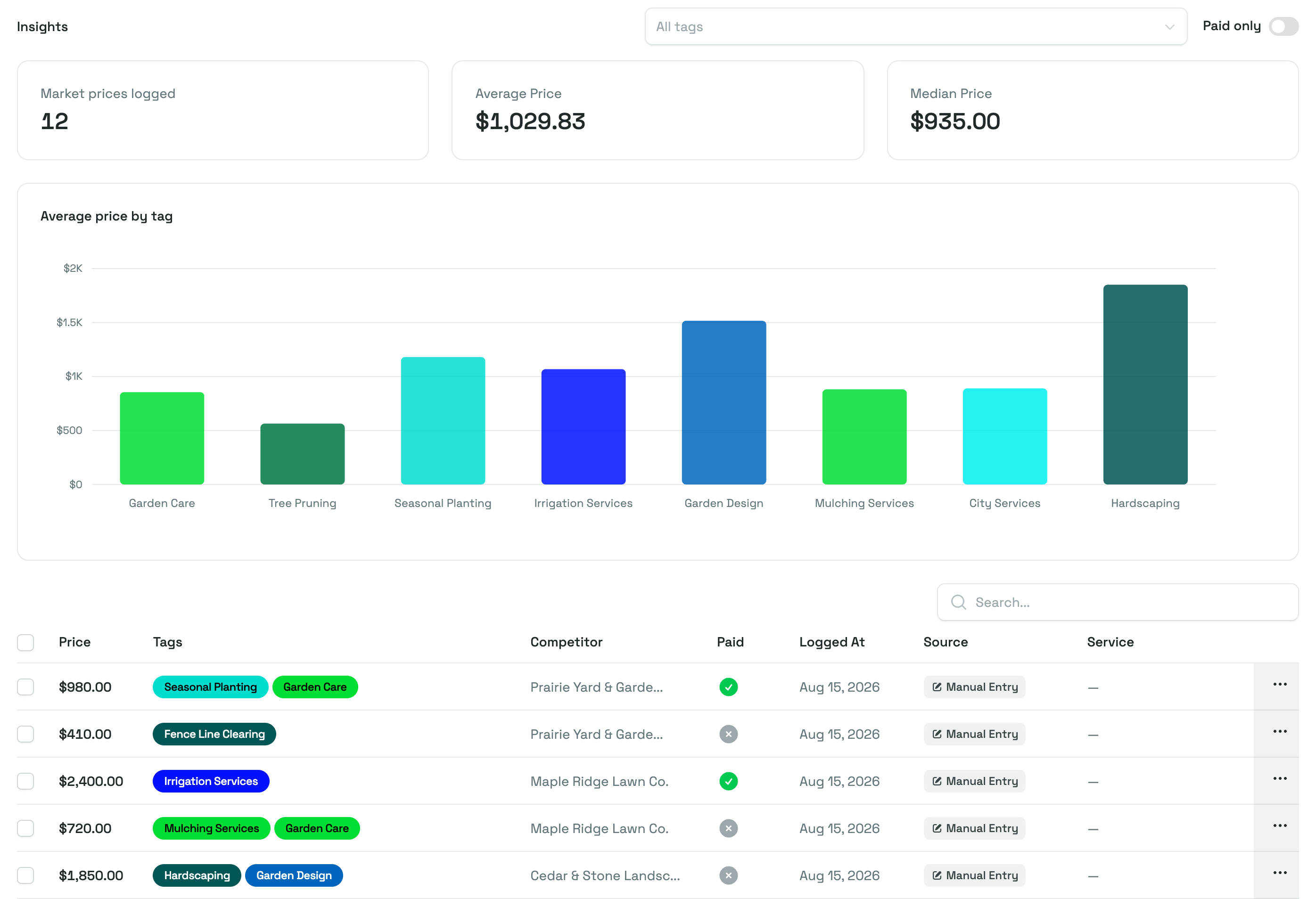
The list gives you a row per price with these columns:
- Price: the amount that was quoted, listed, or paid.
- Tags: the labels attached to the price, so you can see at a glance what kind of work it covers.
- Competitor: who the price came from, if you recorded one.
- Paid: a green check when a customer actually paid the amount and a grey cross when nobody did. Hover the mark for the reminder "Did a customer pay this price?"
- Logged At: the date the price was recorded.
- Source: where the record came from, either Manual Entry, From estimate, or From product. The last two link straight to the estimate or product behind them.
- Service: the service the price is linked to, if any.
Select any row to open that price. The menu at the end of each row offers Open, plus Delete on prices you logged by hand. Sort the list by Price, Paid, or Logged At by selecting the column heading, and use the search box to find prices by competitor name. Twenty prices fit on a page; use the pager below the table for the rest.
Before you have logged anything, the page shows No market prices yet with the prompt "Log your first market price! Prices you record here feed the market value of your services."
What a market price records
Open a price and the Market Price Information card shows everything held against it:
- Price: the amount.
- Paid: a green Paid badge when a customer paid this amount. When nobody did, the grey badge reads Competitor offer only on prices you logged by hand, and Unpaid on prices that came from an estimate or a product.
- Competitor: a link to the competitor's record, when one is set.
- Service: a link to the service the price is linked to, when one is set.
- Tags: the labels on the price.
- Source: Manual Entry for prices you logged by hand, or a link to the estimate or product the price came from. Estimate-based prices also show the customer, and the customer's company underneath; product-based prices show the product's name underneath.
Linking a price to one of your own services is what lets you compare like with like later: it tells you what the market charges for that kind of work, next to what you charge. Tags do the same job more loosely, and they are what the comparisons on your market value pages are built on.
TIP
The Paid mark is the most important field on the record. A price a customer actually paid is proof the market will bear it. A competitor's advertised price only tells you what the market is being asked for, which is useful, but weaker.
Where market prices come from
Three things put a price on this list, and the Source column tells you which.
Prices you log by hand
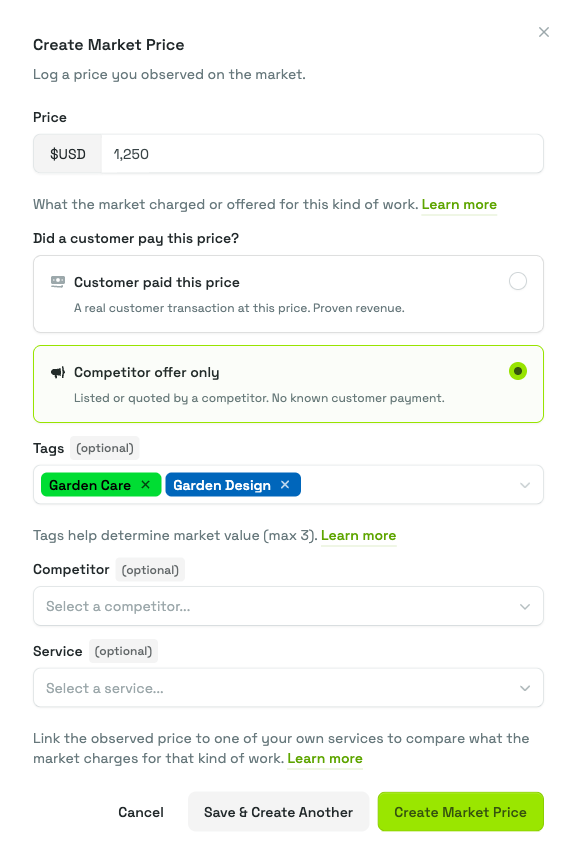
Select Create New to open the Create Market Price panel and fill in what you observed:
- Price: what the market charged or offered for this kind of work. This is the only required field.
- Did a customer pay this price?: choose Customer paid this price for a real customer transaction, or Competitor offer only for something a competitor listed or quoted with no known customer payment. New prices start on Competitor offer only.
- Tags (optional): up to three labels. You can create a new tag without leaving the panel.
- Competitor (optional): pick who the price came from, searching the list by name, or use Create new competitor to add one on the spot.
- Service (optional): link the price to one of your own services to compare what the market charges for that kind of work.
Select Create Market Price to save and close, or Save & Create Another to keep the panel open with a fresh form, which is the quicker route when you are working through a competitor's price list in one sitting.
You can also log a price from a competitor's own page, in the Market Prices section there. Prices created that way arrive with that competitor already filled in.
Prices from an accepted estimate
Accepted and Denied appear in the Outcome list once the estimate has been sent to the customer for review; before that the only outcomes offered are Canceled and Ghosted. When you complete an estimate and record Accepted as the outcome, Priscale logs the estimate's Total as a market price for you, marked as paid. The price is linked to the same service as the estimate, and it picks up that service's tags so it lands in the right comparisons from the start. Its Source reads From estimate.
This is the highest-quality evidence you can get, and you get it without doing anything extra: every job you win adds to the record of what your market really pays.
If that estimate later stops being accepted, the record stays on your list as history but loses its Paid mark, so it no longer counts as a price a customer paid.
Prices from an approved product
Approving a product does the same thing. When you select Approve on a product's price, Priscale warns you that "It will be logged as a paid market price", and the product's selected price appears on this list marked as paid, carrying the product's tags, with a Source of From product.
If the product goes back to being planned later, for example because you select a different price for it, the record stays but loses its Paid mark.
Editing and deleting prices
Prices that came from an estimate or a product are records of something that happened, so they aren't editable. On those prices the Edit and Delete buttons don't appear, and if you include them in a bulk delete, Priscale deletes the rest and tells you that "Prices that came from an estimate or a product can't be deleted, so they were skipped."
Prices you logged by hand are yours to change: open one and use Edit to correct it, or Delete to remove it. To clear several at once, tick their checkboxes, then choose Actions → Delete.
Insights on your prices
Once you have logged at least one price, an Insights section appears above the list with three figures covering every price that matches the filters below the Insights heading:
- Market prices logged: how many there are.
- Average Price: the average of their amounts.
- Median Price: the middle amount, which is the more reliable summary when one or two prices sit far above or below the rest.
Two controls decide which prices those figures cover. The tag box narrows them to the tags you pick, and the Paid only switch drops everything a customer didn't actually pay, which is the fastest way to see what your market genuinely pays rather than what it is being asked for. Both controls change the figures and the chart only, never the list of prices underneath, and the list's own search box works the other way around: it filters the list without changing the figures.
Below the figures, Average price by tag charts the average price for up to eight of your busiest tags, so you can see what different kinds of work go for side by side. Filter by tag and the chart narrows to exactly those tags. When only one tag has prices, the card shows that tag's name and amount as a single figure instead of a chart, since a one-bar chart compares nothing. If your prices have no tags yet, the card reads "Add tags to your market prices to compare average prices by tag."
TIP
The chart is only useful if you tag consistently. Decide on a small set of tags that describe the kinds of work you sell, apply them to your services, products, and prices alike, and the comparisons will line up on their own. See Tags for how to set them up.
How market prices become market value
Logged prices are the raw material; market value is what you do with them. On the Market Value step of any service or product, the Market Prices card lists what you have collected, highest price first, and the Use this button on a row adopts that amount as the market value for that service or product.
Two things make that list manageable. A Same tags as this service switch (or Same tags as this product) limits it to prices sharing a tag with what you're pricing, and it is already on when the service or product has tags. The search box narrows by competitor name. If no logged price fits, Enter your own market value lets you type a number instead.
From there, the market value feeds the pricing spectrum that recommends what to charge. The full mechanics live on Service market value and Product market value.
TIP
Log prices as you meet them, not when you need them. The market value step is far easier when there is already a list of comparable prices waiting on it.
What your plan includes
Market Prices is part of the Freelancer and Business plans, and neither one caps how many prices you can log.
On the Part-Timer plan the feature is locked. A lock icon sits next to Market Prices in the sidebar, with the tooltip "Available on the Freelancer plan", the page carries an Upgrade to unlock this feature notice, and the Create New button isn't shown. Account owners get a View plans button with the notice. What the lock takes away is logging new prices and editing existing ones. The prices already on your list stay readable, and where the Market Prices card appears on the Market Value step, Use this still adopts one of them as the market value. Entering your own number works on every plan too. Service market value and Product market value cover what that step shows on each plan.
See Plans & billing for what each plan covers and how to change yours.
Related pages
- Competitors covers recording the businesses these prices come from.
- Tags explains the labels that drive the comparisons on this page.
- Determining market value is the practical guide to working out what your work is worth.
- Service market value and Product market value cover the step where these prices get used.