

Connected accounts
Connected accounts decide which accounts you can use to sign in to Priscale. You can link Google and GitHub, use whichever is most convenient, and unlink either of them later. This page covers connecting and disconnecting a provider, what changes once one is linked, and how to create a password if you signed up socially and never had one.
You will find the list in Settings, then Connected accounts in the list of settings pages. Both providers are always listed, whether you use them or not: each row shows either Not connected or how long ago it was connected, with a Connect or Disconnect button on the right.
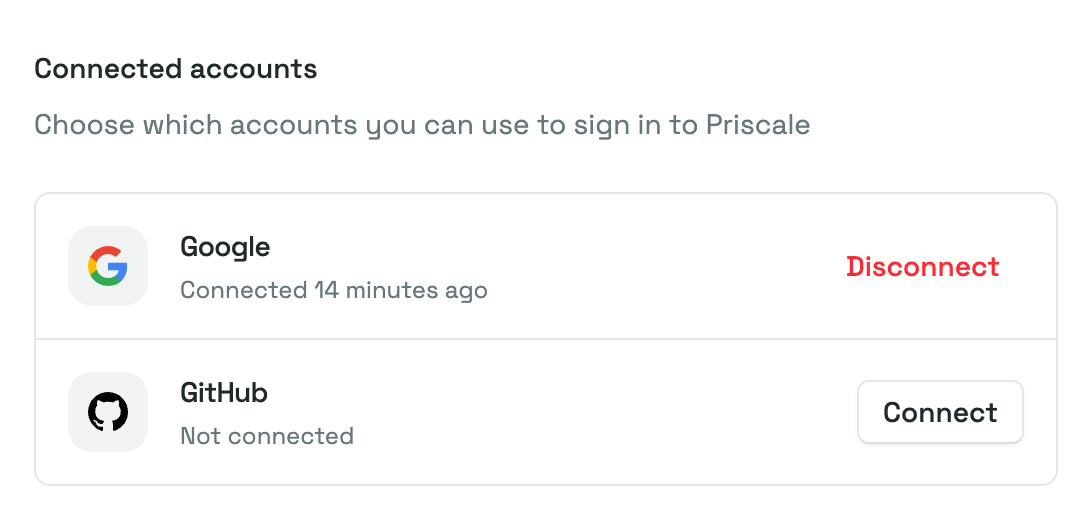
Connect an account
- Go to Settings, then Connected accounts.
- Find the provider you want to add and select Connect.
- Priscale sends you to that provider's own sign-in screen. Sign in there and approve access.
- You come straight back to the Connected accounts page, with a confirmation message at the top and the provider now showing as connected.
You never type a Priscale password during this, and Priscale never sees your provider password. If you change your mind on the provider's screen, or close it before approving, nothing is linked. You leave the connect flow at that point, so go back to Settings, then Connected accounts, to try again.
Each provider account belongs to one Priscale account. If you try to connect a provider account that is already linked to someone else's Priscale account, the page tells you so and nothing is changed. Sign in to that provider with the account you actually want to link, or disconnect it from the other Priscale account first.
What changes once an account is connected
- You get an extra way in. On the sign-in page, selecting the provider you connected signs you straight into your account, with no password to type.
- Your email address becomes fixed. While any social account is connected, the Email field in your profile settings is locked, because the provider is the source of that address. To change it, disconnect your social accounts first, then edit the field.
WARNING
Signing in through a connected provider does not ask for your two-factor authentication code. The provider has already confirmed it is you. Two-factor still protects the email-and-password route, so keep the provider account itself well secured, ideally with its own two-factor step.
Disconnect an account
- On the Connected accounts page, select Disconnect next to the provider.
- A Disconnect account dialog asks you to confirm, and reminds you that you will no longer be able to sign in with that provider.
- Select Disconnect to confirm, or Cancel to keep it.
The row goes back to Not connected straight away, and a short confirmation appears. Nothing else about your account changes: your organization, estimates and customers are untouched, and you can reconnect the same provider later.
WARNING
You cannot disconnect your last connected account while your Priscale account has no password, since that would leave you with no way to sign in. If you try, the dialog closes and a message asks you to create a password first. Create one in the section below, then disconnect.
That is the only restriction. If your account has a password, you can disconnect every provider and go back to signing in with your email address. If you have two or more providers connected and no password, you can still disconnect one, as long as at least one stays.
Create a password
When your account was created by continuing with Google or GitHub, it starts without a password. In that case a Create a password section appears at the bottom of the Connected accounts page.
- Enter your new password in Password, and the same one again in Confirm password. The eye icon at the end of each field lets you check what you typed.
- Select Create password.
A confirmation appears and the section disappears, because your account now has a password. From then on you can sign in with your email address and that password, and you can disconnect any provider you like, including the last one.
Your password needs to be at least 12 characters and include upper and lower case letters, numbers and symbols. Priscale also checks it against known data breaches, so a password that has leaked elsewhere is rejected even if it meets every other requirement.
TIP
Creating a password is worth doing even if you plan to keep signing in with a provider. It gives you a second way into your account if you ever lose access to the provider, and it unlocks your security settings, which ask you to confirm your password before they open. Until your account has one, two-factor authentication and passkeys stay out of reach.
To change a password you already have, use Update password in your security settings instead. That form asks for your current password, which is why the section here is only for accounts that have none yet.
Related pages
- Create your account covers signing up with a provider, signing in and resetting a forgotten password.
- Security settings is where you change your password, turn on two-factor authentication and manage passkeys.
- Profile settings is where you update your name, email address and timezone.