

Expenses
Expenses are what it costs to keep your business, and in many cases your household, running for a year. Priscale adds them up and turns that yearly total into an hourly figure, so every price it recommends already covers what you spend. This page covers recording an expense, the difference between Personal and Business, how recurring costs are counted, and how the total reaches your Burn Rate.
Expenses come with the Freelancer and Business plans
On the Part-Timer plan, Expenses carries a lock in the sidebar and the Create New button is not offered, because that plan's Side Hustler burn rate is worked out from your revenue goal instead of your costs. The page itself also carries an Upgrade to unlock this feature notice naming the plan that unlocks it, with a View plans button if you are the organization's owner. Anything you recorded on a larger plan stays visible and readable. See Plans & billing.
The short version: record everything you pay for, mark it accurately, and keep it current. An expense you leave out does not disappear, it just quietly comes out of your profit.
Personal or Business
Every expense carries a Type, and there are two:
- Personal is what your life costs: rent or mortgage, groceries, fuel, health care, insurance, debt payments, savings.
- Business is what the work costs: software subscriptions, tools, materials you keep in stock, office space, marketing, accounting, licenses.
The split matters because different businesses lean on different halves of it. If you work for yourself and there is no separate paycheck covering the personal side, your rate has to cover both. If the business pays salaries, the personal side belongs to those salaries instead. Both of the calculations that read expenses at all add the two halves together. That is covered further down.
TIP
When a cost is genuinely split, such as a phone plan or a car you use for both, record the share the business pays as Business and the rest as Personal, rather than guessing at one label for the whole thing.
Record an expense
- Open Expenses from the sidebar.
- Click Create New.
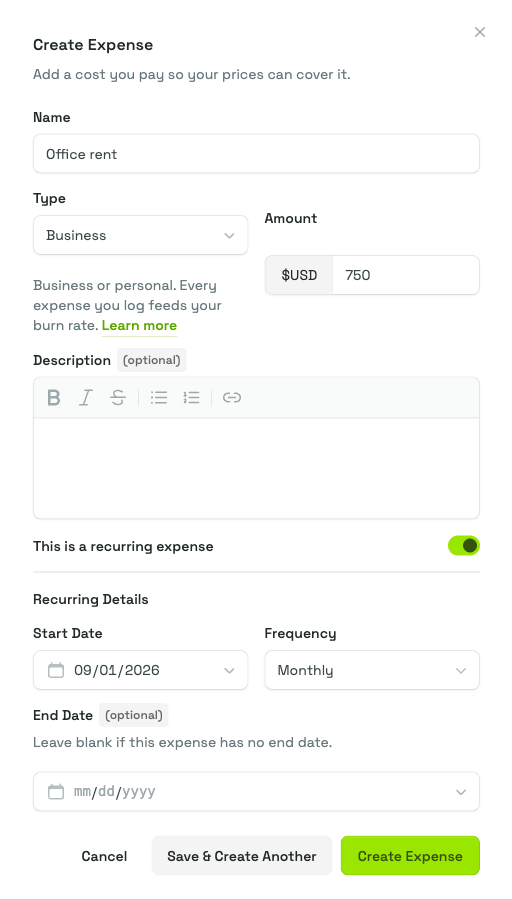
- Fill in the Create Expense panel:
- Name is required, and it has to be different from every other expense you have recorded. If you reuse one, Priscale answers "An expense with the same name already exists."
- Type is required: Personal or Business. The helper under this field normally reads "Business or personal. Every expense you log feeds your burn rate.", which is what happens on both plans that include this page. There is one window where it says something else: if you have just moved up from Part-Timer and have not yet re-saved your burn rate, it still reads "Business or personal. Your burn rate comes from your revenue goal, so expenses are kept for your records." — the Side Hustler wording, left over because the helper follows your saved calculation rather than your new plan. Press Set Burn Rate on the Burn Rate page and it catches up. Either way the expense is recorded correctly; only the sentence is behind.
- Amount is required. It is what you pay each time, not the yearly figure. Priscale works the year out for you.
- Description is optional, and useful for the detail you will not remember in six months, such as which plan a subscription is on.
- Decide whether this cost repeats, using the This is a recurring expense switch. The fields below it change to match.
- Click Create Expense to save, or Save & Create Another to keep the panel open and enter the next one. Entering your costs in one sitting is much faster with the second button.
One-time expenses
Leave the switch off and Priscale asks for a single date, Occurred On: the day you paid it. It defaults to today.
A one-time expense counts toward your totals only in the year it happened. Last year's equipment purchase is history as far as this year's burn rate is concerned, which is what you want, but it also means a one-time cost you expect to repeat every year is better recorded as a yearly recurring expense.
Recurring expenses
Turn the switch on and a Recurring Details section appears:
- Start Date is required. It is the date the expense starts repeating, and every later occurrence is counted from it.
- Frequency is required, and there are five: Hourly, Daily, Weekly, Monthly and Yearly.
- End Date is optional. Leave it blank if the expense has no end in sight, and Priscale keeps counting it indefinitely.
Priscale then works out the Yearly Cost by counting how many times the expense actually falls inside the current year and multiplying by the amount. That counting is literal, which is the point: a monthly expense that starts in September contributes four payments to this year, not twelve, and a recurring expense whose end date has already passed contributes nothing further.
WARNING
An end date must be on or after the start date. If you set it earlier, the expense will not save.
The expenses list
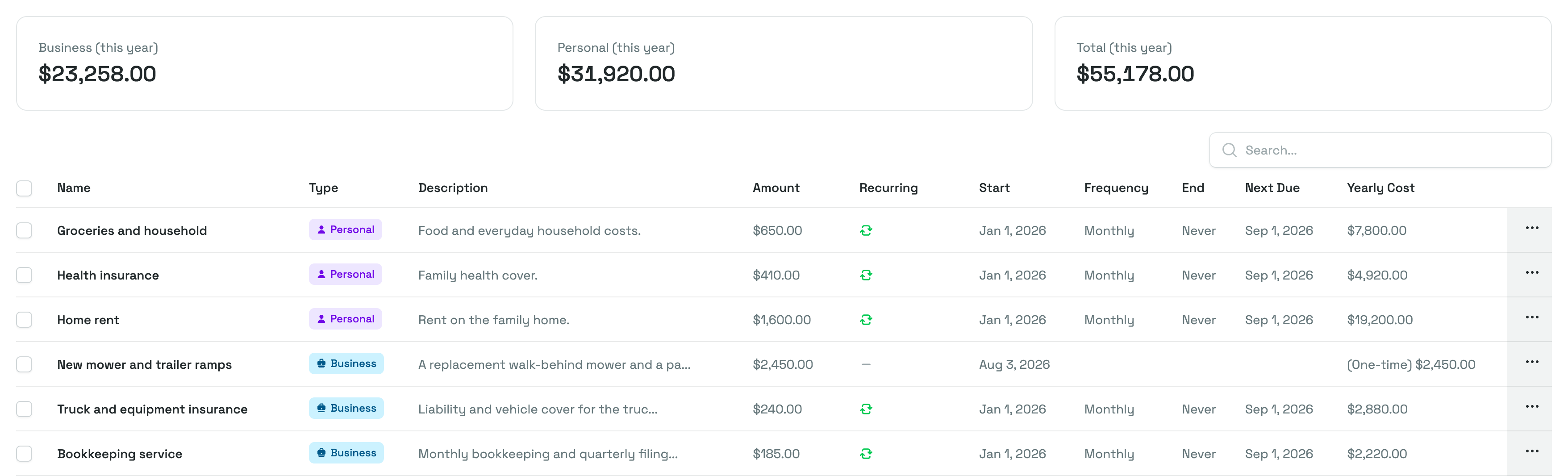
Expenses in the sidebar opens everything you have on file. Three totals run across the top, and all three cover the current year:
- Business (this year)
- Personal (this year)
- Total (this year)
Below them, the table lists each expense with its Name, Type, Description, Amount, whether it is Recurring, its Start date (the day a one-time expense happened, or the day a recurring one starts), its Frequency, its End date, the Next Due date, and the Yearly Cost. Clicking the Name, Amount, Recurring or Yearly Cost heading sorts by that column, and the search box filters on the name.
A few cells are worth knowing:
- End reads Never on a recurring expense you never gave an end date to.
- Next Due shows Ended once a recurring expense has passed its end date.
- Yearly Cost shows the full year's cost for a recurring expense. For a one-time expense it shows (One-time) alongside the amount, because that is all it will ever cost.
Clicking a row opens that expense. The menu at the end of each row offers Open, which takes you to the expense, plus Edit and Delete without leaving the list, and ticking one or more rows brings up an Actions menu with a bulk Delete.
The expense page
Opening an expense gives you the whole record on one page, under Expense Information, the schedule, and Cost Information.
The schedule card changes with the expense. A one-time expense shows Expense Date with the day it occurred. A recurring one shows Repeat Schedule with its Start Date, its Next Due date once the schedule has begun, and its End Date, which reads No End Date when you left it blank. Each date is labeled with where it sits relative to today, so you can tell at a glance whether a schedule is Scheduled to begin, has Started, or has Ended.
Cost Information shows the Amount, described as a one-time cost or the cost each time it repeats. On a recurring expense it also shows the Frequency and the Yearly Cost, which is the number your burn rate is actually built from. Alongside all of this sits a reference ID you can copy, plus the dates the expense was created and last updated.
Edit or delete an expense
Edit and Delete sit at the top of the expense's page, and both are also on the row menu in the list. Editing opens the same fields you filled in when you created the expense, and Save changes puts the new values in straight away.
Deleting asks you to confirm first and cannot be undone. Both actions recalculate your totals and your burn rate as soon as they are saved, so the number on your Burn Rate page always reflects what is currently on file.
WARNING
Deleting an expense does not change work you have already priced. Services and products keep the burn rate they were built with, so an old estimate will still carry the old number until you update it. Recording your expenses before you price your first job keeps your prices on the current number.
How expenses reach your burn rate
Two of the three calculations total every expense that applies to the current year and divide that total by a number of hours. Which hours divide them depends on the calculation your plan gives you, which is stated on your Burn Rate page and covered in Plans & billing.
- Side Hustler, on the Part-Timer plan, does not use expenses at all. That rate comes from the revenue goal you set for the year and the time you have available, because a day job is already covering the bills. It is also why the Part-Timer plan does not include this page.
- Solopreneur, on the Freelancer plan, uses both halves. Your personal and business expenses for the year are added together and spread across the hours you have available to work. Leaving the personal side out is a common cause of prices that come in too low.
- Growing Business, on the Business plan, uses both halves too, and then adds what your team costs on top. The combined figure is divided across everyone's billable hours rather than your own availability, so your employees shape the result as much as your expenses do.
TIP
Your totals cover the current year, so it is worth a short review each January: last year's one-time costs drop out on their own, and any recurring expense that has quietly ended stops counting.
Related pages
- Employees covers the salaries and billable hours that join your expenses on the Growing Business calculation.
- Burn Rate explains the hourly number these totals turn into, and the floor it puts under every price.
- Quick Setup is where you can enter your first expenses.
- Plans & billing covers which plans include this page, and which calculation each one gives you.
- Workflows by business type shows where expenses fall in the order of work for a side hustler, a solopreneur and a growing business.