

Workflows by business type
There is no single right order to set up Priscale, because a person freelancing on weekends and a company with six people on payroll do not need the same things first. What they do share is a destination: a price you can defend, built on top of what your work actually costs you.
This guide is the long-form version of the Business Workflows panel you can open from the Dashboard. It walks through all three recommended paths, explains why each one starts where it does, and links each step to the page that covers it in full.
Where the panel lives
The How to get started button at the top of the Dashboard opens the Business Workflows panel. It shows three short columns, one per business type, and every line in them is a link, so you can work straight down a column without hunting through the menu. Close it with Got it when you are done. It is always one click away from the same button.
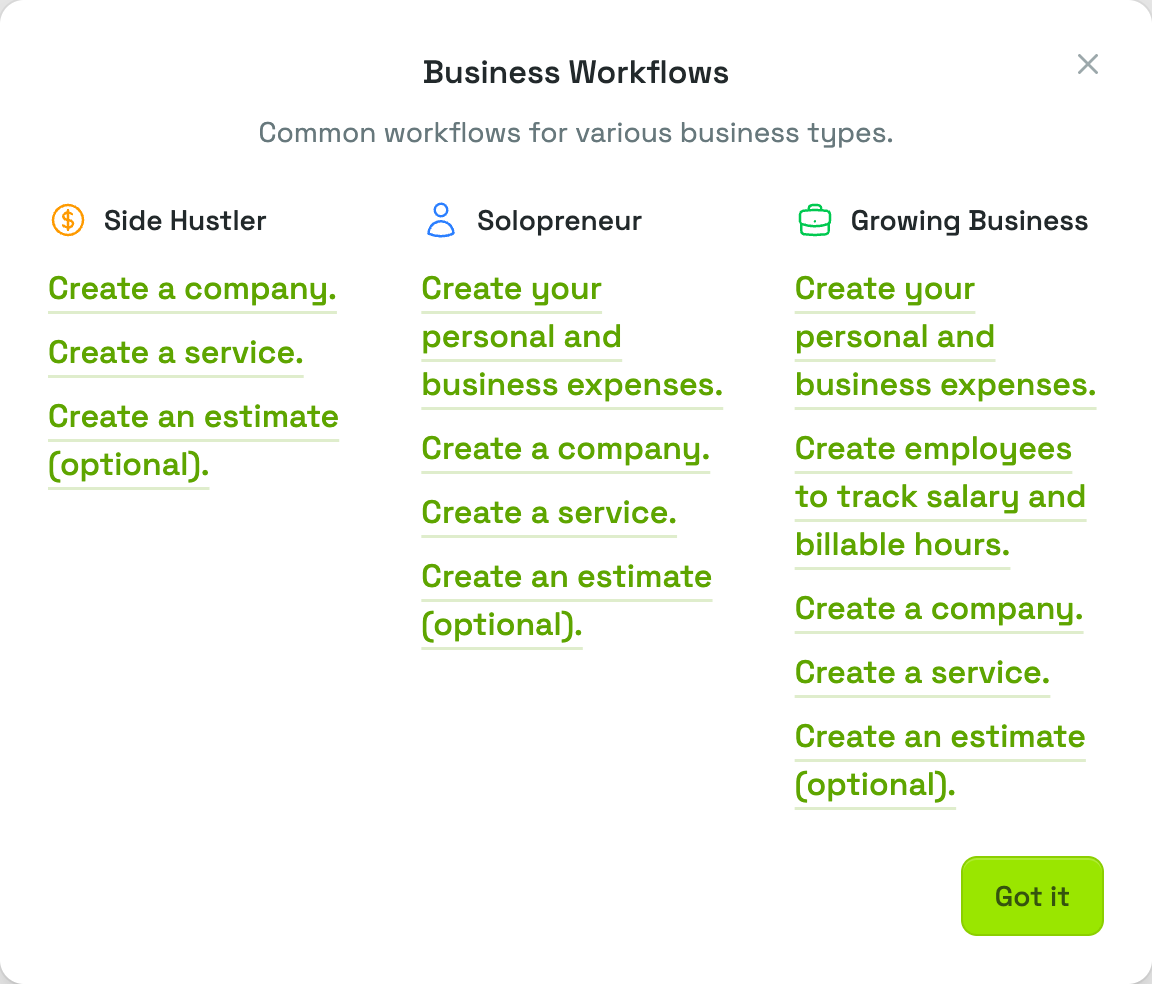
Pick the column that matches you
- Side Hustler, on the Part-Timer plan: you have a job, and this work is extra income on the side.
- Solopreneur, on the Freelancer plan: this business is your full-time work and your main source of income, and it pays both your personal and your business bills.
- Growing Business, on the Business plan and on every free trial: the business has employees, and it covers its own expenses along with everyone's pay.
These columns are named after the three ways Priscale can calculate your Burn Rate, and your plan decides which one you get rather than you picking it. Open your Burn Rate page to see the one you are on, then follow the column that matches it. Plans & billing covers the pairing.
Every path ends the same way, with a service and, if you want to send one, an estimate. What changes is how much has to be in place before those numbers mean anything.
Side Hustler
This is the shortest path, and it is short for a reason. As a side hustler, your price floor comes from the extra income you want to earn this year and the time you have available to work, not from your household expenses. Your day job already covers the rent. That means you can skip straight past expenses and start entering real work — and the Part-Timer plan leaves those pages out for the same reason: Expenses and Employees carry a lock in the sidebar and offer no Create New on that plan. Anything you recorded on a larger plan stays visible.
Begin with the company, because a service is always sold to a customer and the company is what keeps that customer's work together. Then create the service, and send an estimate if the job calls for one. All three steps are covered in detail further down, under What the shared steps involve.
TIP
If your side work grows into your main income, move up to the Freelancer plan, which switches you to the Solopreneur calculation, and follow that path from the top. Priscale walks you through your Burn Rate page once on the way. Your existing companies, services and estimates all stay where they are. See Plans & billing.
Solopreneur
- Create your personal and business expenses
- Create a company
- Create a service
- Create an estimate (optional)
This path starts with expenses because, on the Solopreneur calculation the Freelancer plan gives you, your expenses are your burn rate. Priscale takes everything the business and the household have to cover in a year and spreads it across the hours you have available to work, and the result is the minimum you need to earn per hour before you have made any profit at all.
Record both kinds of cost and mark each one as Personal or Business. Rent, groceries, fuel and insurance belong there alongside software, tools and subscriptions, because when you work for yourself there is no separate paycheck covering the personal half. Leave the personal side out and your burn rate comes out low, which makes every price built on top of it too cheap.
Once the expenses are in and your burn rate has a real number behind it, carry on with the company, the service, and the estimate exactly as above.
WARNING
Enter expenses before you price your first service, not after. A service you priced against an incomplete burn rate keeps the number it was priced with, so it is easier to get the costs in first than to revisit the work later.
Growing Business
- Create your personal and business expenses
- Create employees to track salary and billable hours
- Create a company
- Create a service
- Create an estimate (optional)
A growing business has two things to cover, not one: what the business spends, and what its people are paid. So this path adds a step. Expenses go in first, then the team. Both pages come with the Business plan, and with the free trial every new account starts on, which is why a brand-new account can walk this path from day one.
Each employee record holds how they are paid along with the days and hours they work and the Percentage of Daily Time Worked that is genuinely billable. Those hours matter twice over. They are what the total cost of running the business gets divided by to reach your burn rate, and they are also where your year's sellable hours come from, which is the bar you see near the bottom of the sidebar. Count yourself as an employee, because your own time is part of both figures.
TIP
Be honest about the billable percentage. Nobody bills eight hours out of an eight-hour day once meetings, quoting and admin are taken out. A realistic percentage gives you a burn rate that holds up when the year is over.
With expenses and the team in place, the last three steps are the same for everyone: the company, the service, and the estimate.
What the shared steps involve
The tail end of all three paths is identical, and each step feeds the next.
The company
A company groups the customers who work for the same business. Creating it first means that when you add the customer, you can attach them to it straight away, which keeps every service and estimate for that client together in one place. The company is optional on a customer record, so you can leave it blank for a private individual, but it is worth adding when there is one. See Companies.
The service
A service is the job you are selling, it is where the actual pricing happens, and it is the heart of Priscale. Each one is created against a customer, so make sure the customer exists (you can add one without leaving the form). When you create a service you also decide how it will be priced, under How do you want to price this service?:
- Quote it with an estimate builds an estimate from the service's tasks and materials so you can send it to your customer.
- Price only prices the work directly, with nothing sent to the customer.
That single choice is why the estimate step is marked optional on all three paths. See Managing services.
The estimate
An estimate is what the customer actually receives. Every estimate is built from one service, and its tasks and materials are copied over so you can adjust them without touching the original. Only services you set to Quote it with an estimate, and that do not already have one, appear in the list when you create an estimate. See Managing estimates.
After the panel
Finishing your path gets you a price that covers your costs. Making it a price the market will pay is the next piece of work.
- Determining market value covers how to find out what your work is actually worth to buyers, using your own win-and-loss history and what your competitors charge.
- Understanding client budgets covers how to find out what a particular client can pay before you spend hours building their estimate.
Your burn rate tells you the price you cannot go below. Those two guides tell you how far above it you can reasonably go.
Related pages
- Dashboard is where the Business Workflows panel lives.
- Quick Setup is the wizard that gets your account ready before any of these paths begin.
- Burn Rate explains the number every one of these workflows is quietly building toward.