

Building a product
Building a product means writing down the work it takes to make it and the things you have to buy for it, so you can see what one finished product actually costs you before you put a price on it. All of that happens on the Adjust Product page, the first step in a product's flow, and the number it produces is the product's Production Cost.
WARNING
A product can be built while it is a Draft and while it is Planned. It stops being editable once you approve it: from that point the first step of the flow becomes View Product and the tasks and materials are locked. Picking a new price on an approved product sends it back to Planned, which makes it editable again. Managing products covers statuses in full.
Fill in the product details
The first card on the page holds the details that describe what you're making.
Under Customer, you can pick a customer if this product is being made for someone in particular, or choose Create new customer if they aren't in your list yet. It is optional: most products are made for whoever buys them, not for one named client, so leaving it empty is normal.
Under Product, set the Product Name, add up to three Tags, and write a Description if it helps. Tags are optional, but they help Priscale determine the product's market value, so they're worth adding. Click Save changes when you're done; the page flags unsaved changes so you don't lose them.
TIP
A product carries no budget and no dates. Those belong to services, where a client hands you a budget and a deadline. A product is judged against what it's worth on the open market instead, which is why the market value matters so much here.
Add the tasks it takes to make it
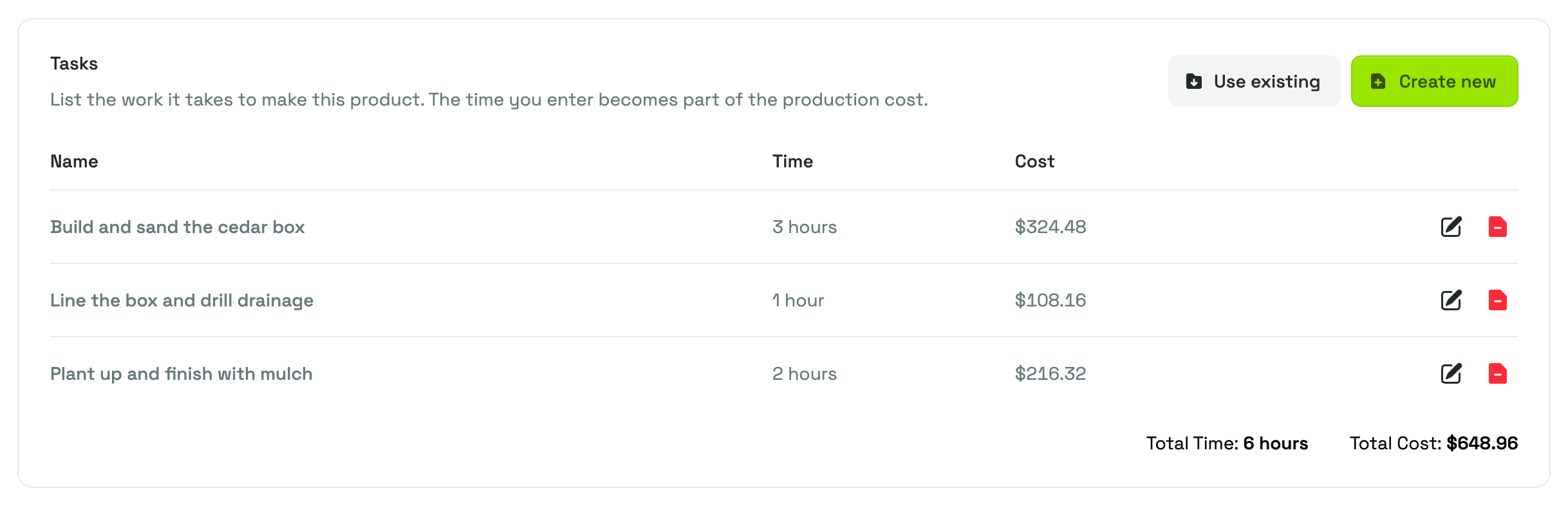
The Tasks card is where the work goes. Each task carries the time it takes, and that time becomes money at your burn rate.
You have two ways to add one:
- Use existing pulls in a task you already saved. Pick it from the list and Priscale fills in the preset time for you. Change the time if this particular product needs more or less of it; the saved task keeps its own preset time, so adjusting it here only affects this product.
- Create new lets you write a task from scratch, with a Name, a Time to Complete and an optional description. The task is saved for reuse at the same time, so the next product can pull it in with Use existing.
TIP
Time is entered as two fields, hours and minutes. An hour and a quarter is 1 in the hours field and 15 in the minutes field.
Once a task is on the product, the table shows its Time and its Cost, and the totals under the table add up the Total Time and Total Cost of all the work. Use the pencil button on a row to change a task's time, or the remove button to take it off the product.
TIP
Tasks you have already saved don't show up twice: a task that is already on this product is filtered out of the Use existing list, and if the name of a new task matches one you already have, Priscale asks you for a different one, so your saved list stays clean. Use existing only appears while you still have a saved task that isn't on this product yet; otherwise Create new is the only button on the card.
Add the materials you buy or rent
The Materials card covers everything you have to purchase or rent to make the product: the costs that aren't already covered by your burn rate.
It works the same way as tasks. Use existing pulls in a material you saved before and fills in its preset cost, and just like on the Tasks card it only appears while you still have a saved material that isn't on this product yet; Create new adds a new one and saves it for reuse. Each material on the product carries a Cost (the price of one unit) and a Quantity, and the table multiplies them into a Total per row, with the Total Cost of all materials underneath.
Quantity doesn't have to be a whole number. If a product only uses part of what you buy, enter the fraction you actually consume, like 0.5 of a sheet or 0.25 of a can, and the row total follows. The smallest quantity you can enter is 0.01.
Changing the cost of a material on this product does not change the saved material, so a one-off price from a supplier won't follow you to the next product.
Decide what "one product" means
Priscale builds the production cost from exactly what you enter, and nothing more: it does not multiply your tasks and materials by a batch size or a number of units. What the number means is therefore up to you, and the choice is worth making once and sticking to it.
- Per item is the usual choice: enter the time and the materials for a single finished product, and the production cost is what one costs you to make. The price you set later is then the price of one.
- Per run works when a batch is the thing you actually sell or produce, for example a hundred printed shirts. Enter the time and materials for the whole run, and read the production cost, the market value and the price as the batch's numbers throughout.
WARNING
Mixing the two is the mistake to avoid: a per-item task time with a whole run's worth of materials gives you a production cost that matches nothing you can sell. If a product is easier to think about in batches, keep the entire flow, right through to the approved price, on the same basis.
How the Production Cost adds up
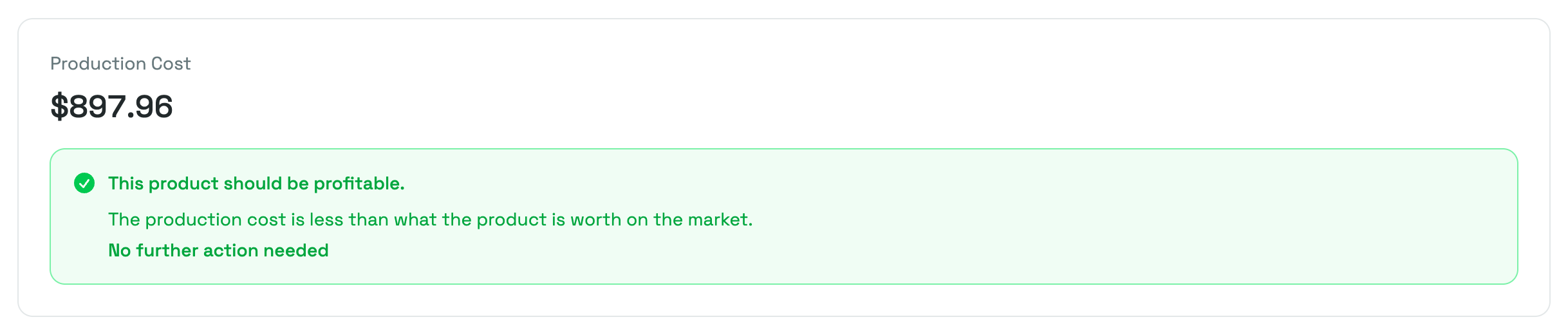
The Production Cost card at the bottom of the page is the point of the whole exercise: it is what this product costs you to make, before any profit.
Your time is priced at your burn rate, so more hours on a task means a higher cost, and every material total is added on top. Each time you add, edit or remove a task or a material, the production cost is recalculated straight away.
Underneath the number, Priscale tells you what it means by comparing the production cost to the product's market value, which is what a product like yours is worth on the open market:
- With no tasks and no materials, the production cost is zero and means nothing yet. Priscale says so rather than calling the product profitable.
- With no market value set yet, there is nothing to compare against, so Priscale asks you to set one before it will judge profitability.
- If the market value is above the production cost, the product should be profitable.
- If the production cost has reached or passed the market value, you'll be told to lower the production cost or charge more than the market value, because otherwise you lose money on every sale.
TIP
The market value is set on the next step of the flow, so it's normal for the assessment to ask for one the first time you build a product. Product market value covers how to pick it.
WARNING
Each product keeps the burn rate it was created with, so an old product doesn't silently change cost when your expenses change. If your organization's burn rate has moved since, an Update Burn Rate button appears at the top of the page. Clicking it recalculates this product's task costs and production cost at your current rate.
Where fees fit in
Fees are not part of a product. A saved fee, like rush delivery, travel or permits, is a flat charge you add to an estimate, and estimates belong to services. A product is priced as a finished thing, so anything you'd otherwise charge as a fee has to be part of its tasks and materials, or part of the price you choose.
Next steps
With the production cost settled, the rest of the flow is about the price:
- Product market value shows what a product like yours sells for elsewhere, and gives the production cost something to be measured against.
- Pricing a product covers choosing the price itself on the pricing spectrum.
- Managing products explains statuses and the product detail page.
Related pages
- Burn Rate explains the hourly number your task time is priced at.
- Tasks and Materials cover building up your saved lists so products come together faster.
- Determining market value is a practical guide to working out what your product is worth.