

Managing products
A product is something you make and sell more than once: a batch of signs, a gift box, a cabinet, a maintenance kit. Priscale treats it as a recipe rather than a job. You describe what goes into one of them, see what it costs you to make, and settle on the price you want to charge for it from then on.
That is the main difference from a service. A service is one job for one customer, with a budget, a start and due date, and an outcome you record when it ends. A product has none of those. It has no deadline, no budget from a customer, and it is never quoted on an estimate. It just has a cost, a market value, and a price you approve.
This page covers the products list, creating a product, the statuses a product moves through, and what the product detail page shows you.
The products list
Products in the sidebar opens the list. Three tiles across the top count your products by status: Draft, Planned, and Approved.
Below the tiles, the table lists every product with its Name, Customer, Status, and how many Tasks and Materials it is made of. Clicking Name, Status, Tasks, or Materials sorts the list by that column, and the search box filters by name. Until you have added anything, the page simply says No products yet.
Clicking a row opens that product. Where it takes you depends on its status: a product you can still change opens on its Adjust Product workspace, and an approved one opens on its read-only View Product page. The menu at the end of each row has the same Open, plus Delete.
To remove several at once, tick the checkbox on each row, then use the Actions menu that appears and choose Delete. Priscale asks you to confirm first. Deleting an approved product also removes the price it logged from your Market Prices, so the going rate it contributed disappears with it.
TIP
If your plan limits how many products you can have, a small counter beside Create New shows how many you have used and how many your plan includes, for example 3 / 5. It turns amber as you approach the limit and red once you reach it. Plans with no product limit show no counter. Deleting a product frees a slot, and Plans and billing covers how to move to a larger plan.
Creating a product
Click Create New to open the Create Product panel. It is deliberately short, because everything that gives a product its cost and its price comes later.
Customer
A product can be linked to a customer, but it does not have to be, and most products are not. Leave it empty for anything you sell to whoever walks in the door, and pick a customer only when the product is made for one particular buyer. Open the Customer list to search your customers, or choose Create new customer to add one without leaving the panel. The field can be cleared again at any time.
If you do pick a customer, Priscale suggests a product name for you, using their company name when they belong to one. It is only a suggestion, so replace it with the name you actually use for the product.
Product
- Product Name is the one field you have to fill in. Name it the way you would say it out loud to a customer, since it is what you will scan for in the list later.
- Tags are optional, up to three per product. They are not just labels: tags help Priscale find comparable prices when it works out market value. See Tags for how to build a useful set.
- Description is optional, and worth writing for the details that are easy to forget between batches, like a finish, a size, or a supplier you settled on.
Finish with Create Product to open the new product straight away, or Save & Create Another to keep the panel open with a fresh form.
TIP
Notice what the panel does not ask for: no budget, no dates, no choice between quoting and pricing. A product is priced once and then sold again and again, so there is no deadline to miss and nothing to send a customer for approval.
The product lifecycle
Every product carries a status, shown as a badge in the products list and, once the product is approved, again at the top of its Product Information card. Unlike a service, a product's status is driven by its price, not by the work you add to it.
- Draft is where every new product starts, and where it stays while you add tasks and materials. Adding them does not move it along; only choosing a price does.
- Planned means you have picked a price on the Pricing Spectrum. The product is still fully editable, and you can keep changing your mind about the price.
- Approved means you locked that price in. The product becomes read-only, and its price is recorded as a paid market price you can reuse when pricing similar work later.
Draft and Planned are the two editable states. Once a product is approved, its form, tasks, and materials are locked, and Priscale tells you so if you try to save a change.
Approving a product
Approving is the last step, and it happens on the product's Adjust Price page rather than in the list. Two things have to be true before the Approve button appears: the product needs a price selected on the Pricing Spectrum, which is what puts it in Planned, and the spectrum has to be there at all, which only happens once the product has at least one task or material and a market value. Pricing a product walks through that page in full.
Priscale confirms before it approves, because approval does two things at once. It locks the product, and it logs your chosen price as a paid market price. From then on that price counts as a real, approved going rate and shows up in your Market Prices alongside prices from past work and competitors.
WARNING
Changing your mind on an approved product is allowed, and it is the intended way to reprice. Selecting a different price on the Pricing Spectrum sends the product back to Planned and its logged price stops counting as an approved going rate. Repricing keeps the old price as history rather than erasing it, so your market price record stays honest. Deleting the product is the one thing that does remove its logged price.
The product detail page
An approved product opens on View Product, the read-only record of what it is and what you charge for it. The steps down the left side move you between that record and the two pricing pages behind it, Market Value and Adjust Price, covered in Product market value and Pricing a product.
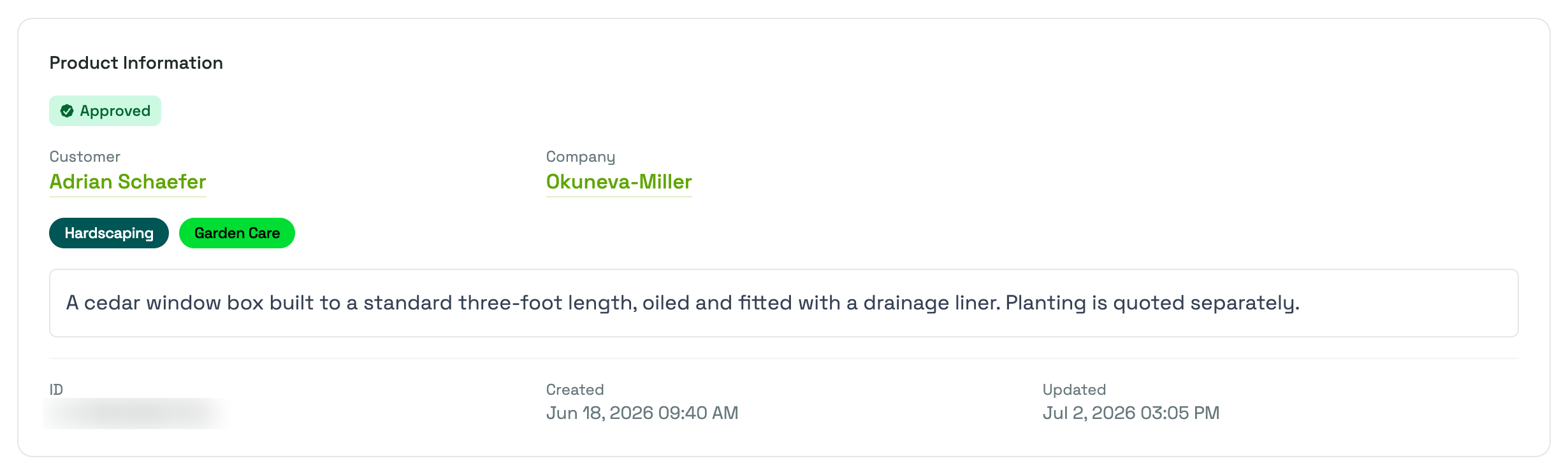
Product Information opens the page with the status badge, followed by the Customer and, when they belong to one, the Company, both linked to their own pages (Customers and Companies). Below them come any tags and the description you wrote. At the bottom of the card is a reference ID you can copy, plus when the product was created and last updated.
Pricing gathers three numbers side by side:
- Market Value is what a product of this scope is worth on the open market.
- Production Cost is what it costs you to make one.
- Final Price is the price you approved, marked with an Approved badge.
There is no budget figure here, because nobody handed you one. A product's price sits between the floor of what it costs you and the ceiling of what the market will bear, and those two numbers are the whole context.
Tasks and Materials close the page, listing what the product is actually made of. Tasks show their time and cost, materials their unit cost, quantity, and total. If a product was approved without either, the card simply says so. See Building a product for how those lists are assembled while the product is still editable.
Alongside the page title you will find Delete, which removes the product, and Product Workflow, a short reminder of the five steps a product passes through, from its information to the price you approve. On an editable product a third button, Update Burn Rate, appears whenever the product is still costed at a different burn rate than the one your organization uses now; using it recalculates the product's cost at the current rate.
Related pages
- Building a product covers the tasks and materials behind a product's production cost.
- Product market value covers where a product's market value comes from.
- Pricing a product explains the Pricing Spectrum and how you land on a final price.
- Market Prices is where an approved product's price is recorded.
- Burn Rate explains the hourly figure your product's task costs are based on.
- Managing services covers the one-off jobs a product is the counterpart to.