

Organization
The Organization page is where your business lives inside Priscale: the name that appears on your estimates, the industry you work in, and the plan your account runs on. The page has two parts: your business details on top, and billing underneath.
Opening the page
Open the menu with your name and picture at the bottom of the sidebar (or your initials in the header on a small screen), and choose Organization. The page opens with the heading Organization and the subheading "Your business details and subscription plan".
WARNING
The Organization page belongs to the owner of the account. If you signed up for Priscale, that is you. Anyone else using the account does not see the Organization item in their menu and cannot open the page, so billing decisions stay with the owner.
Your business details
The General Information card holds everything Priscale knows about your business:
- Name is your business name. It is shown on your estimates and throughout the app, so it is worth writing it the way your customers see it.
- Industry records the kind of work your business does. It is the answer you gave during setup, and it is shown here so you can keep it close to what you actually do.
- Currency is the currency your prices, expenses, and estimates are shown in.
- Country is the country your business operates from.
- Description is an optional summary of what your business does. It can be left empty, in which case a dash is shown.
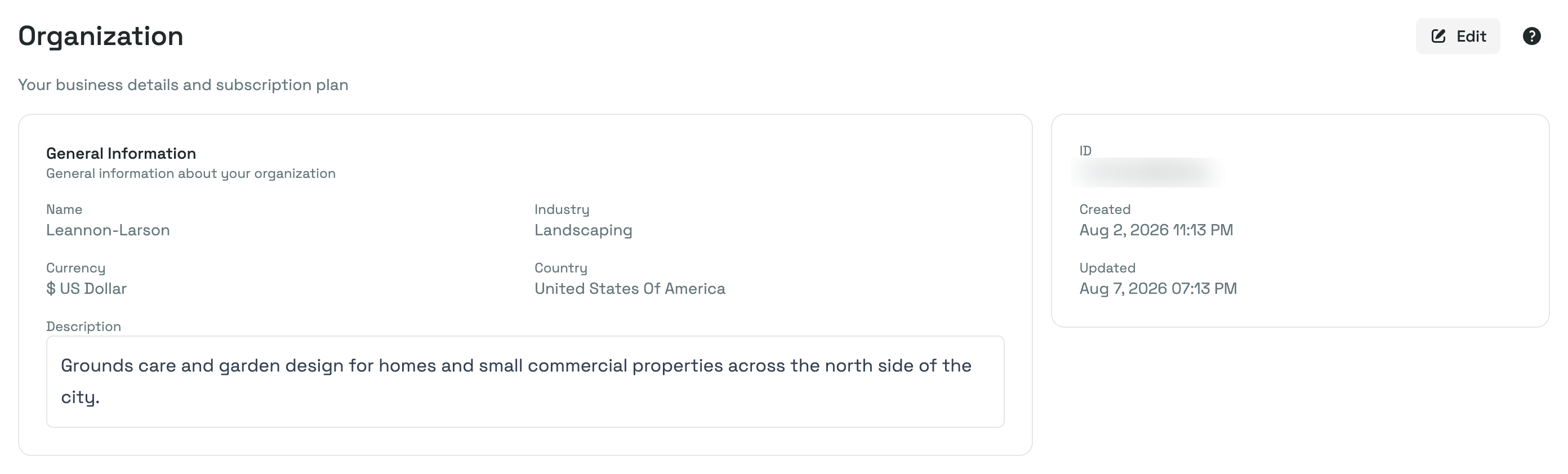
A second, narrower card sits beside it with a reference ID for your organization, which you can copy with one click if support ever asks for it, plus the dates your organization was Created and last Updated.
Editing your details
Select Edit at the top right of the page. A panel slides in titled Edit Organization, with three fields:
- Name, which is required.
- Industry, marked (optional) here. Type a few letters to search the list, or clear it if you would rather leave it unset.
- Description, also optional, with a small toolbar for bold, italic, strikethrough, bullet and numbered lists, and links.
Choose Save changes to keep your edits, or Cancel to close the panel and leave everything as it was. Priscale confirms with "Company information updated." and the card behind the panel refreshes right away.
TIP
If your industry is not in the list, type its name and pick the Request "…" option that appears at the bottom once you have typed at least two letters. The Request a New Industry window checks for similar options first, and if none of them fit you can submit anyway. Your industry is selected for your account immediately and appears with a Pending approval badge in the industry list while it is reviewed, so nothing is held up while you wait.
Country and currency
Country and Currency are shown for reference only. They are set for you when your account is created, and there is no field for them in the Edit Organization panel, so they cannot be changed from this page today. Priscale currently serves businesses in the United States, working in US dollars.
Choosing the language you read the app in is a separate setting and is not affected by any of this. It lives on the Appearance page.
Your plan
Underneath your business details is the Billing card, described as "Your plan and where to change or cancel it". What it shows depends on where your account stands.
While you are on your free trial
Your trial starts the moment you create your account, and you do not need to enter payment details to begin. The Billing card tells you when it ends, in the form "Your free trial ends 6 days from now", and shows you how to subscribe before that happens:
- A Billing cycle control with Monthly and Yearly options.
- A Compare plans table with the three plans side by side, each column headed by the plan name and its price for the cycle you picked. The rows cover the way each plan calculates your burn rate, how many services and products it allows, and whether Expenses, Employees, Competitors and Market Prices are included or locked, with a line underneath confirming that everything else is included on every plan.
- One button per plan, each labeled with the plan name followed by its price at the cycle you picked, such as Part-Timer with its monthly price beside it. Switching the cycle to Yearly re-prices all three buttons.
The table follows the Billing cycle control, so switching to Yearly re-prices its columns along with the buttons underneath, and you can weigh the plans against each other without leaving the page.
Choosing a plan button takes you to a secure checkout page hosted by our payment provider, where you enter your card details. Priscale never handles your card itself. When you come back, the page confirms with "Payment received. Your access updates in a few moments." If you change your mind partway through, you come back to a note reading "Checkout canceled. You have not been charged."
Subscribing early costs you nothing. If you subscribe before your trial ends, the days you have left carry over, so your first charge lands when the trial would have finished rather than at checkout. Only when your trial is down to its final day or two does billing start right away.
See Plans & billing for what each plan includes and how monthly compares to yearly.
Once you are subscribed
The card shows a green Subscribed badge, a badge with your plan name, and a badge with your billing cycle, followed by a single Manage Subscription button.
Manage Subscription opens the billing portal our payment provider hosts for your account. Everything about an existing subscription happens there: switching to another plan, changing between monthly and yearly billing, updating the card on file, and canceling. The page says as much underneath the button: "To switch plans or change how often you are billed, use Manage Subscription."
If you cancel, the card shows a Subscription canceled notice telling you the date your access runs until, and pointing you back to Manage Subscription to resume your plan before then. Until that date arrives, nothing about your account changes.
If your trial or subscription has ended
The card shows a warning explaining that you can still view your data but not change it, and the Billing cycle control, the Compare plans table and the plan buttons all come back so you can subscribe or resubscribe, with the plans laid out side by side to compare again. Your data is safe throughout: nothing is deleted, and everything is there waiting the moment you subscribe again.
Your business details are the exception to that read-only state. You can still edit them, so if your business name changes while your account is unsubscribed, you can still update it.
TIP
If you try to open a feature your current plan does not include, Priscale brings you to this page with a note saying which plan you need. Whichever applies to your account is right there on the Billing card: Manage Subscription if you are already subscribed, and the plan buttons if you are not, so you can act on it without hunting for the billing screen.
Related pages
- Plans & billing compares the plans, monthly versus yearly billing, and the billing portal in detail.
- Quick Setup is where your business name and industry were first entered.
- Profile settings covers your personal details, which are separate from your organization's.