

Burn Rate
Your burn rate is how much your business burns per hour just staying alive: the cost of existing before you make a cent of profit. It is the floor under every price Priscale recommends, which makes the Burn Rate page one of the first places to visit and one of the few worth revisiting as your costs move.
The page has three parts. On the left, Priscale states how the number is calculated for you and asks for what that calculation needs. On the right, the Burn Rate Result card shows the resulting hourly figure. Underneath, a row of breakdown charts shows the numbers that produced it.
TIP
Your burn rate is a cost, not your price. Every hour of work has to bring in at least this much before there is any profit in the job. What you charge on top is a separate decision, covered in Determining market value and Pricing a service.
How your plan calculates your burn rate
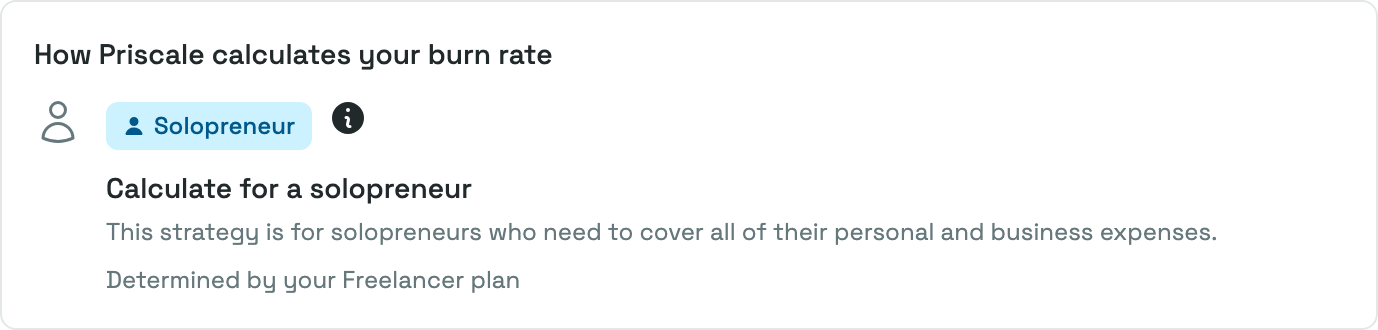
A person freelancing on weekends and a company with six people on payroll do not have the same costs to cover, so Priscale does not work their burn rate out the same way. There are three calculations, and your plan decides which one you get. There is nothing to choose here and no setting to change: the card under How Priscale calculates your burn rate simply states the one you are on, with the line Determined by your … plan underneath it, and the form below asks only for what that calculation needs.
| Your plan | Your calculation |
|---|---|
| Part-Timer | Side Hustler |
| Freelancer | Solopreneur |
| Business, and any free trial | Growing Business |
The How it works button at the top of the page opens a How burn rate is calculated summary of all three, so you can see what the other plans do without leaving the page. The small information icon beside the calculation's badge shows the same explanation for yours on the spot. Plans & billing covers the rest of what each plan includes.
Side Hustler, on the Part-Timer plan
For people with a full-time job who run this business on the side for extra money.
It asks for two things:
- What's your revenue goal for the year? The extra money you want this business to bring in over the year.
- Time you have available to work, set with the three sliders described below.
Your revenue goal is divided by the hours you have available, and that is your burn rate. Expenses are not part of this calculation at all, because your day job is already covering the household. That is also why the Part-Timer plan does not include the Expenses or Employees pages: this calculation never reads them.
Solopreneur, on the Freelancer plan
For people whose business is their full-time job and main source of income, paying both the personal and the business bills.
It asks for:
- Your expenses, both personal and business, recorded on the Expenses page.
- Time you have available to work, set with the three sliders.
Everything you have to cover this year, personal and business together, is divided by the hours you have available. Recording only the business half is the most common mistake here: when you work for yourself there is no separate paycheck paying the rent, so leaving personal costs out gives you a burn rate that is too low and prices that are too cheap.
Growing Business, on the Business plan
For companies with multiple employees, where the business pays its own expenses and everyone's pay. Every free trial gets this calculation too, which is why a brand-new account starts here.
It asks for:
- Your expenses, personal and business, on the Expenses page.
- Your team, on the Employees page, including yourself. Each employee record holds their pay along with the days and hours they work and how much of that time is genuinely billable.
Your total payroll for the year is added to your total expenses for the year, and the result is divided by everyone's billable hours added together. The Burn Rate Result card spells this out under How this is calculated, showing the payroll, the expenses, the total to cover this year, and the billable hours it was divided by.
This calculation does not use the availability sliders, so they are not on the form. The hours come from your team's records instead, which is why adding or removing an employee changes the number right away.
TIP
A Growing Business burn rate often comes out lower than people expect, and that is not a mistake. The more billable hours your team has, the thinner each hour's share of the same costs.
Time you have available to work
On the Side Hustler and Solopreneur calculations you set your hours with three sliders: Hours per day (1 to 24), Days per week (1 to 7), and Months per year (1 to 12). Cards underneath mirror your picks as Hours Per Day, Days Per Week, and Months Per Year, and the Work Hours Per Year figure on the result card shows the yearly total they add up to.
Priscale works that total from a standard 52-week year, so the number does not drift depending on which year you set it in. Eight hours a day, five days a week, twelve months a year comes to 2,080 hours.
WARNING
These sliders are not a wish list. They are the hours you can realistically put on a bill, and Priscale divides your costs by them. Set them too high and your burn rate looks artificially cheap, which makes every price built on it too low. Leave room for quoting, invoicing, driving, and admin.
On the Growing Business calculation, the equivalent number is the billable hours on your employee records, and the same warning applies to the billable percentage you give each person. Nobody bills eight hours out of an eight-hour day.
Your available hours do more than divide your costs. On the Side Hustler and Solopreneur calculations, they are also the year's sellable time behind the Available hours bar in the sidebar, which tracks how much of the year you have already committed. Only the Growing Business calculation counts your employees' billable hours there instead, so on that calculation the bar appears once your team is on file. See Dashboard for that.
Save your changes
Changes to this form are not live. The Set Burn Rate button stays disabled until something on the page differs from what is saved, and hovering it while there is nothing to save explains as much. Press it and Priscale saves the settings, recalculates, and confirms with "Burn rate updated."
Right after a plan change the button is live the moment you arrive, even if you have not touched anything, because the calculation itself is what changed.
Expenses and employees are different: because they live on their own pages, changing them recalculates your burn rate on its own. You do not need to come back here and press anything.
Read the result
The Burn Rate Result card shows a badge with the calculation your saved settings were worked out with, a one-line explanation of it, the figures that went into it, and then the number itself under Your hourly burn rate is.
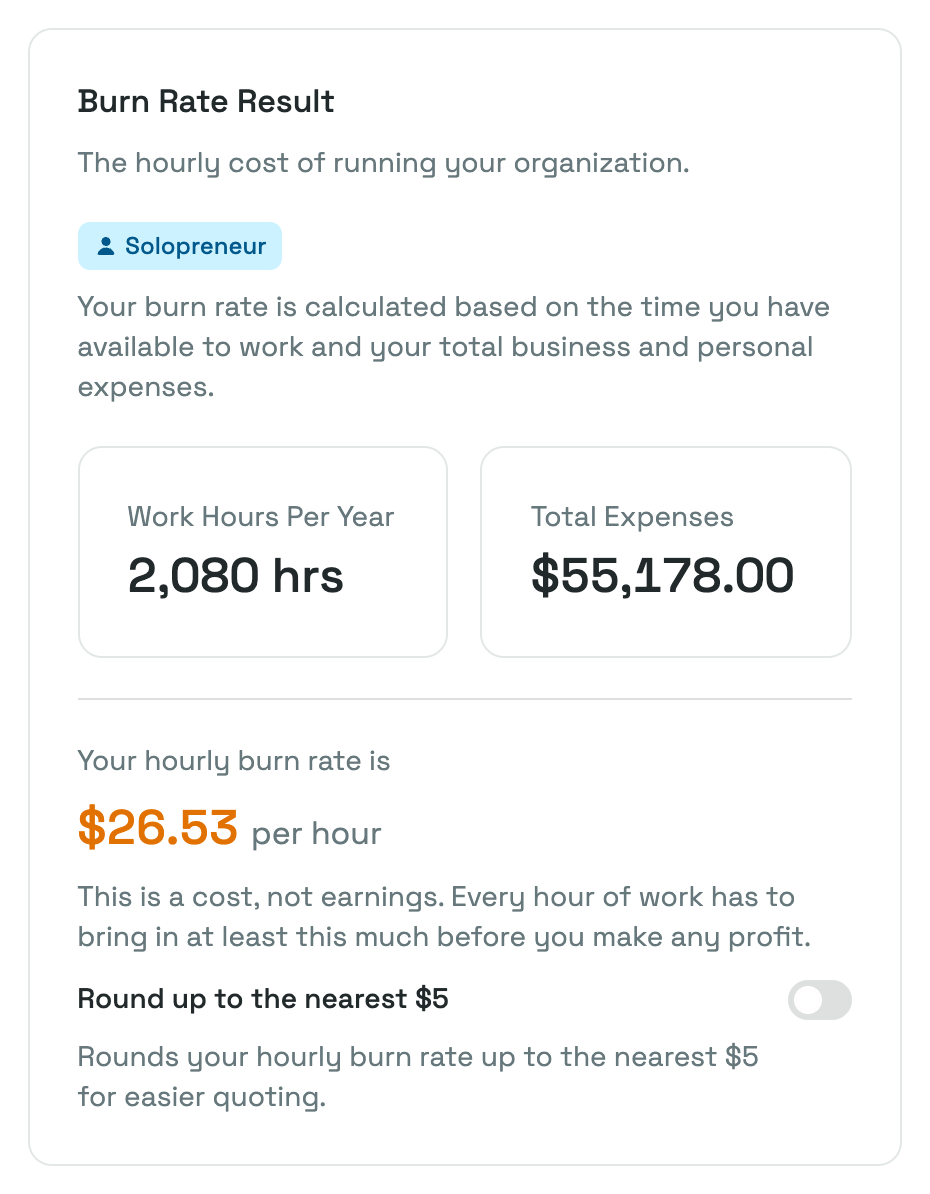
Which figures appear depends on your calculation:
| Figure | Side Hustler | Solopreneur | Growing Business |
|---|---|---|---|
| Work Hours Per Year | Yes | Yes | — |
| Total Expenses | — | Yes | Yes |
| Total Billable Hours | — | — | Yes |
| Total Payroll | — | — | Yes |
The card always reflects what you have saved. Right after a plan change, that means it keeps showing your old figure and its old badge until you press Set Burn Rate, which is deliberate: the last number you saved is still the one your prices were built on.
When the number cannot be calculated yet
If something is still missing, an Almost there notice takes the place of the figure and everything under it, including the rounding switch, and tells you what to add: your first expense on the Solopreneur calculation, your first employee on the Growing Business one, or the rest of the form otherwise. Fill the gap and the burn rate calculates automatically, with no extra step here.
Where your burn rate is used
Nothing on this page is decoration. The hourly figure travels through the rest of Priscale:
Every task you put on a service carries a duration, and that duration becomes money at your burn rate. Add up the task costs and the materials and you have the service's production cost, which is the break-even point the pricing spectrum is built around. See Building a service and Pricing a service.
Round up to the nearest five
Under the result sits a switch labeled Round up to the nearest $5, in your own currency. The switch only appears once your burn rate can be calculated. Turn it on and your hourly burn rate is rounded up to the nearest multiple of five, and a rate that already lands exactly on one stays as it is. Rounding makes quoting easier to talk about and gives you a small cushion on every hour you sell.
The switch takes effect immediately, without pressing Set Burn Rate. When rounding changes the number, the true figure stays visible underneath as Before rounding, so you always know what the rounding added.
That padding is real money, and Priscale keeps track of it rather than hiding it: on the Dashboard, the lighter Rounding slice on top of the Revenue vs Profit chart's profit bar is the profit that came from rounding rather than from the price you set. With rounding off, that slice never appears. See Dashboard.
The breakdown charts
The charts below the form show what went into the number, and which ones appear depends on the calculation your plan gives you.
- Personal Expenses Breakdown and Business Expenses Breakdown split each side of your spending into Recurring and Non-Recurring, with the count of each underneath. They appear on the Solopreneur and Growing Business calculations, which are the ones that read your expenses. Only expenses that apply to the current year are counted.
- Working Time Breakdown compares your Working hours for the year against the Not Working rest of it, and repeats the sentence describing your sliders. It appears on the Side Hustler and Solopreneur calculations, and Side Hustler also shows the Revenue Goal below it.
- Employee Billable Hours Breakdown splits your team's year into Billable and Non-Billable hours and shows your employee count and Yearly Payroll. It appears on the Growing Business calculation only.
A chart with nothing behind it yet shows a button that takes you where the data is entered, such as Create Business Expenses or Create Employees.
Keeping your burn rate current
Your burn rate is a snapshot in two senses, and they behave differently.
Your organization's own rate follows your costs. Add an expense, give someone a raise, change your availability, and it recalculates.
The services you have already priced do not. Each service keeps the burn rate it was carrying when you built it, deliberately: an old job should not silently change price every time your costs move. When the two no longer match, an Update Burn Rate button appears with the other actions at the top of that service or of an estimate built from it, and an estimate also shows an Outdated Burn Rate callout naming both figures. Pressing it asks you to confirm, then recalculates that service's task costs and production cost at your current rate.
WARNING
Fix the order, not just the number. If your expenses, payroll, or hours have changed, update your burn rate here first, then update the affected service, then check its price. An out-of-date rate makes every price look better than it really is.
Building a service, Pricing a service, and Adjusting an estimate cover what to check after an update.
When you change plans
Because your plan decides the calculation, moving to a different plan changes how your hourly figure is worked out. Priscale does not swap the number quietly. The next page you open brings you here, with a Your plan changed how this is calculated notice at the top of the form naming the new calculation, and the form already showing the fields it needs. Some of them may be empty, since the previous calculation never asked for them.
Fill in what is missing and press Set Burn Rate. Until you do, the rest of the app keeps sending you back to this page, and the result card keeps showing the figure you last saved. If you are not the person who can edit the burn rate, Priscale asks you to have an owner or administrator set it up again.
A few things worth knowing:
- Only the values your current calculation uses are kept. Saving anything other than Side Hustler clears the revenue goal, and saving Growing Business drops your saved availability, since it takes its hours from your team instead. Come back to one of those later and you will be asked for those numbers again.
- Your expenses, employees, companies, services, and estimates are untouched. Only the way the hourly figure is worked out changes, and a plan that no longer includes Expenses or Employees still shows you everything you already recorded.
- Services you already priced keep their old rate until you update them, as described above.
Changing plans is the right move when your situation genuinely changes: side work becoming your main income, or a solo business taking on its first employee. Plans & billing covers how to switch, and Workflows by business type walks through the setup order each of the three kinds of business expects.
Related pages
- Expenses is where the personal and business costs behind two of the three calculations are recorded, on the Freelancer and Business plans.
- Employees covers the pay and billable hours the Growing Business calculation divides by, on the Business plan.
- Plans & billing is where the calculation you get is decided.
- Quick Setup is where your first burn rate is calculated.
- Workflows by business type shows what to set up first for each kind of business.
- Pricing a service shows what your burn rate does once there is work to price.
- Dashboard covers the available-hours bar and the Rounding slice.