

Managing estimates
An estimate is the price you put in front of a customer: the tasks, materials, and fees behind one job, gathered into a single document you send out for review. You will find all of them under Estimates in the sidebar.
This page covers the estimates list, how an estimate is created from a service, the statuses it moves through, the four outcomes it can end on, and what the View Estimate page shows you.
The estimates list
Three tiles across the top summarize where your estimates stand:
- Open estimates counts the ones still in play: drafts you are putting together and estimates already out with a customer.
- Past due counts the ones whose expiration date arrived before you had an answer.
- Acceptance rate is the share of decided estimates that ended as accepted. It shows a dash until at least one estimate has an outcome.
Below the tiles, the table lists every estimate with its Name, the Service it came from, the Customer, its Status, when it Expires, when it was Completed, its Outcome, and when it was Created. Name, Status, Expires, Completed, and Created sort the list when you click them, and the search box filters by the estimate's name or the customer's first or last name.
Clicking a row opens that estimate. Where it takes you depends on its status: an estimate you can still change opens on its Adjust Estimate workspace, and a finished or past-due one opens on its read-only View Estimate page.
The menu at the end of each row offers Open and Delete. To remove several at once, tick the checkbox on each row, then use the Actions menu that appears and choose Delete. Priscale asks you to confirm before removing them.
TIP
Estimates have no plan counter of their own: each service holds at most one estimate, so how many services your plan includes is also as many estimates as you can have. If you cannot create an estimate, the service you want to price probably has one already, or your services list is at its plan limit — Plans and billing covers how to move to a larger plan.
Creating an estimate
An estimate is never built from scratch. Every one of them comes from a service you set to Quote it with an estimate when you created it, and a service can only ever have one estimate. If a service you expect to see is missing from the list below, it is either priced without an estimate or already has one. Managing services covers that choice and how to change it.
Click Create New to open the Create Estimate panel:
- Service is the job this estimate prices. Only services set up to be quoted with an estimate, and that don't have one yet, are listed.
- Estimate Name is prefilled from the service you picked, and you can overwrite it.
- Expiration Date is the day the estimate stops being valid for your customer. It is required, and it cannot be in the past.
- Notes For Customer is optional and visible to your customer on the estimate, so it is the place for anything you want them to read alongside the price.
Finish with Create Estimate to close the panel, or Save & Create Another to keep it open with a fresh form.
The moment the estimate exists, the service's tasks and materials are copied onto it, so you have something to price straight away. Those copies are the estimate's own: adjusting a task or material here does not change the service it came from. Fees, agreements, and payment links are added on the estimate itself, and Adjusting an estimate walks through all of it.
WARNING
The Service and Customer on an estimate are set when it is created and shown as read-only details afterwards. They come from the service as it was at that moment, and they do not change later. The Company beside them is simply whichever company that customer belongs to right now, so moving the customer to a different company changes it here too. Changing the customer on the service afterwards will not move the estimate to the new customer, so an estimate created for the wrong customer has to be deleted and created again (Customers and Companies cover the records behind those names).
The estimate lifecycle
Every estimate carries a status, shown as a badge in the list, in the Estimate Details card while the estimate is still editable, and in the Estimate Information card once it is finished.
- Draft is where every new estimate starts. Nothing has left your account yet, and you can change anything on it.
- In Progress is an estimate with work priced on it: ready to go out, or already out with a customer. Sending it for review is the usual way it gets there, and from then on a customer is holding a link to it, so the estimate is waiting on an answer. Sending estimates covers that step. If you later remove the last recipient, the estimate drops back to Draft.
- Complete means the estimate has an outcome and is closed. A complete estimate can no longer be changed.
- Past Due means the expiration date arrived while the estimate was still out for review. Priscale moves it there on its own, overnight, marks the outcome as Ghosted — the same assumption a past-due service gets, that a quote which quietly ran out of time never got an answer — and the links you sent stop working. Only estimates that have been sent go past due; a draft that sails past its expiration date simply stays a draft until you do something with it.
Draft and In Progress are the two states you can edit. Once an estimate is Complete or Past Due, its details, tasks, materials, and fees are locked and its pages become read-only until you re-open it.
Re-opening an estimate
Complete and Past Due estimates can both be undone with the Re-Open button beside the estimate's title.
- Re-opening a Complete estimate clears its outcome and makes it editable again. Priscale warns you first, because the review links you already sent stop working.
- Re-opening a Past Due estimate asks for a New Expiration Date, which must be today or later, clears the Ghosted outcome it was carrying, and then puts the estimate back to work.
In both cases the estimate lands back on In Progress if it still has at least one task, material, or fee, and on Draft if it has none. An In Progress estimate that got there this way has no live link on it any more, so either way you will need to send it out again for a customer to answer it.
Recording the outcome
Every finished estimate, complete or past due, carries one of four outcomes:
- Accepted means the customer said yes to your price.
- Denied means the customer said no.
- Ghosted means the customer never came back to you.
- Canceled means the job was called off.
There are four ways an outcome gets set:
- Your customer approves. A recipient you allowed to approve can accept the estimate from their review link, and it completes itself as Accepted without you having to touch it. There is no decline button on their side, so a "no" is something you record yourself. Sending estimates covers the Can Approve Estimate setting that decides who can approve.
- You record it yourself. While the estimate is still editable, Complete Estimate at the top of the page asks for an outcome and closes the estimate with it. Canceled and Ghosted are always available; Accepted and Denied only appear once the estimate has actually been sent for review, since there is nothing for a customer to have accepted before that.
- Every link lapses. If all the review links you sent expire without an answer, Priscale completes the estimate overnight as Ghosted.
- The expiration date passes. The overnight move to Past Due records Ghosted at the same time, matching what happens to a past-due service. Re-opening the estimate clears it again.
Completing an estimate as Denied or Canceled also switches off any review links still out there, so nobody can answer an estimate you have already closed.
What the outcome changes
The outcome is not only record-keeping. Two things follow from it.
The service closes with it
A service set to Quote it with an estimate is finished by its estimate: when the estimate completes with an outcome, the service it came from is completed with the matching one. You never record the result twice. Sending the estimate back to an editable state puts the service back to in progress along with it, and so does deleting the estimate from its Adjust Estimate workspace: the service returns to in progress, ready for a fresh estimate.
Accepted prices become market data
An accepted estimate adds its total to your market price history as a going rate that a real customer agreed to, tagged like the service behind it. Any other outcome leaves the record in place but stops it counting as an accepted price, and re-opening an accepted estimate does the same until it is accepted again.
TIP
Record ghosted and denied estimates honestly rather than leaving them open. Your acceptance rate and your market prices are only as good as the outcomes behind them, and a run of denials at a similar price is the clearest signal you will get that your number has drifted. Determining market value covers what to do with that signal.
The View Estimate page
A finished estimate opens on this read-only record of what you quoted. The steps down the left side move between it and Send Estimate, where the review links and the customer's copy of the estimate live.
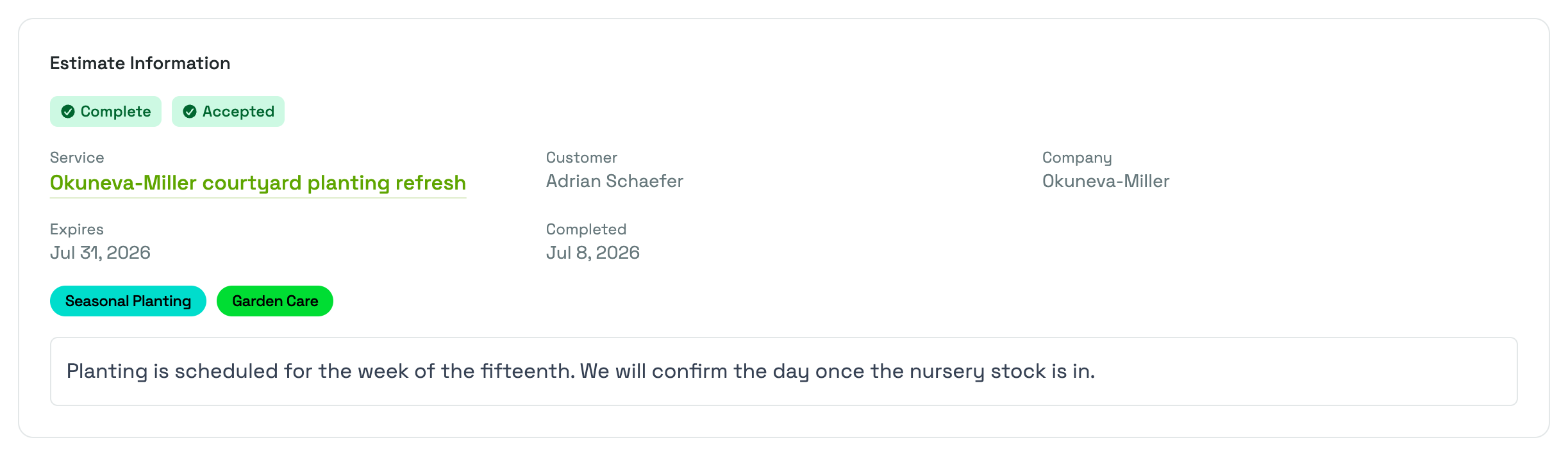
Estimate Information opens the page with the status and outcome badges, then the Service the estimate came from (linked to its own page), the Customer and, when they belong to one, their Company. Alongside them sit the date the estimate Expires and, once it is finished, the date it was Completed. Any tags on the service follow, and below them the notes you wrote for the customer.
Pricing breaks the quoted total into the three parts it is made of, Tasks, Materials, and Fees, with the Total the customer was shown at the end.
Tasks, Materials, and Fees close the page with the line items behind those numbers: tasks with their time and cost, materials with their unit cost, quantity, and total, and fees with their details and amount. If the estimate went out without one of them, the card simply says so.
Beside the estimate's title you will find Delete, which removes the estimate along with the review inquiries sent for it, and Re-Open when the estimate is complete or past due.
Related pages
- Adjusting an estimate covers the tasks, materials, and fees that make up the price.
- Sending estimates covers review links, recipients, and what your customer sees.
- Managing services explains the service an estimate is built from, and how its own status follows the estimate.
- Determining market value puts the prices your accepted estimates record into context.