

Agreements
An agreement is a piece of standard wording you send with an estimate: a warranty, your payment terms, a cancellation policy, the conditions a customer accepts when they approve your price. Write it once, save it, and add it to any estimate from then on.
This page covers creating and managing your saved agreements, adding them to an estimate, and what your customer reads on their end.
What an agreement holds
An agreement is deliberately simple. It has two parts:
- A Name, which is the heading your customer sees above the wording. Keep it descriptive, like "Warranty" or "Payment Terms", because it is what identifies the section on the estimate.
- The Content, which is the wording itself. The editor keeps basic formatting such as bold text, headings, and lists, and that formatting carries through to what your customer reads.
Both are required, and agreement names have to be unique within your business. If you reuse one, Priscale tells you that an agreement with the same name already exists.
TIP
Agreements carry no money. They never change an estimate's total, its profit, or your target price. They only decide what your customer reads alongside the numbers.
Creating an agreement
Agreements live under Presets in the sidebar.
- Open Agreements and select Create New.
- Enter a Name.
- Write the Content. This is the text that will be included with your estimates, so write it the way you want the customer to read it.
- Select Create Agreement, or Save & Create Another if you are writing several in one sitting.
The wording is capped at 5,000 characters, and the formatting you apply counts toward that cap, so a full contract's worth of text will not fit. If your terms are long, split them into a few focused agreements, like one for payment and one for warranty, and add whichever ones a given estimate needs.
The list you build up shows each agreement's Name, how many Estimates use it, and when it was Created. Search by name at the top, and sort by name or creation date by selecting a column heading.
Adding an agreement to an estimate
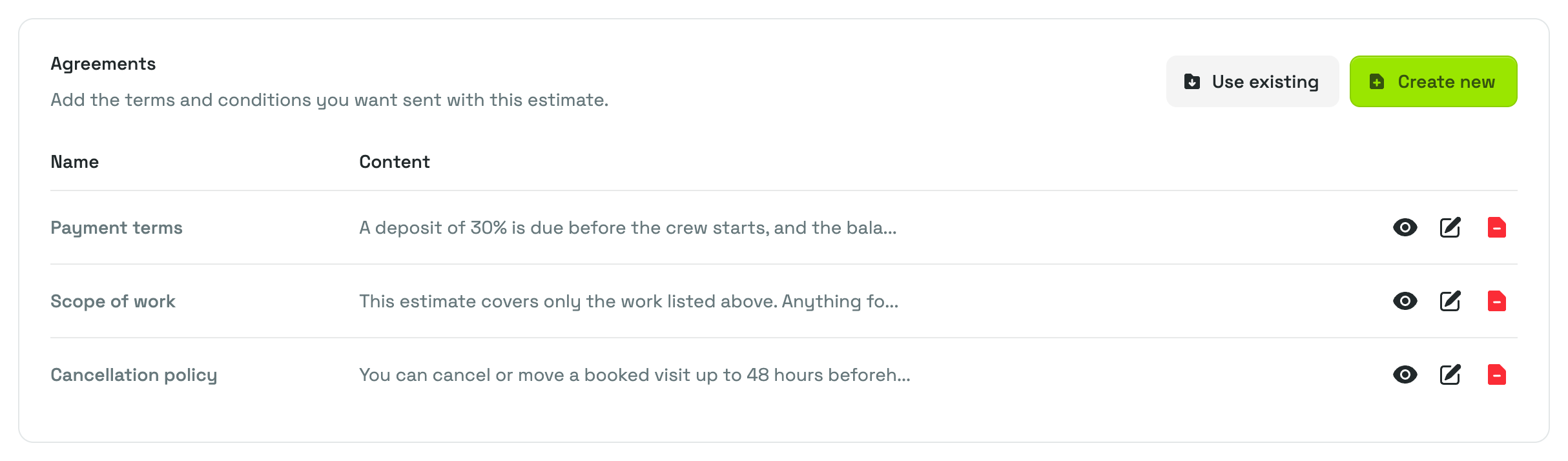
Agreements are attached on the Adjust Estimate page, in the Agreements card, alongside the tasks, materials, and fees that make up the price.
- Use existing pulls in one of your saved agreements. It appears while you still have a saved agreement that isn't on this estimate yet.
- Create new writes an agreement straight onto the estimate. It is saved to your list at the same time, so the next estimate can pull it in.
What lands on the estimate is a copy of the wording, not a live reference to your saved version:
That copy is yours to tailor. Each row on the card carries three actions:
- View (the eye button) shows the full text as your customer will read it.
- Edit (the pencil button) changes the name and the wording of the copy on this estimate.
- Remove takes the agreement off this estimate.
None of it touches your saved version or any other estimate.
WARNING
Agreements can only be added, edited, or removed while an estimate is still open for changes. Once an estimate is Complete (including a canceled one) or Past Due, its agreements are locked as they were sent, which keeps a record of exactly what the customer agreed to.
Adjusting an estimate covers the rest of that page. Payment links are separate: they are not part of an agreement and are added from their own card, covered in Payment links.
What your customer sees
Your agreements are part of the estimate document, so they travel with it wherever it goes.
On the private review page the recipient opens from their email, the agreements appear in an Agreements section under the prices and any notes you wrote, each one with its name as a heading and its full wording underneath. The same section prints on the estimate PDF. An estimate with no agreements simply has no such section.
When a recipient you allowed to approve selects Approve, the confirmation states that they have reviewed all listed information and agreements before they commit. That is the moment your terms matter, which is a good reason to check the wording on the estimate before you send it.
Sending estimates covers the whole customer side: the email, the review page, approval, and the PDF.
Reviewing an agreement and where it is used
Select any agreement in the list to open it. The Agreement Information card shows its Name and the full Content as it will be sent, and the panel beside it carries the agreement's ID, which you can copy if you ever need to reference it with support, along with the Created and Updated dates.
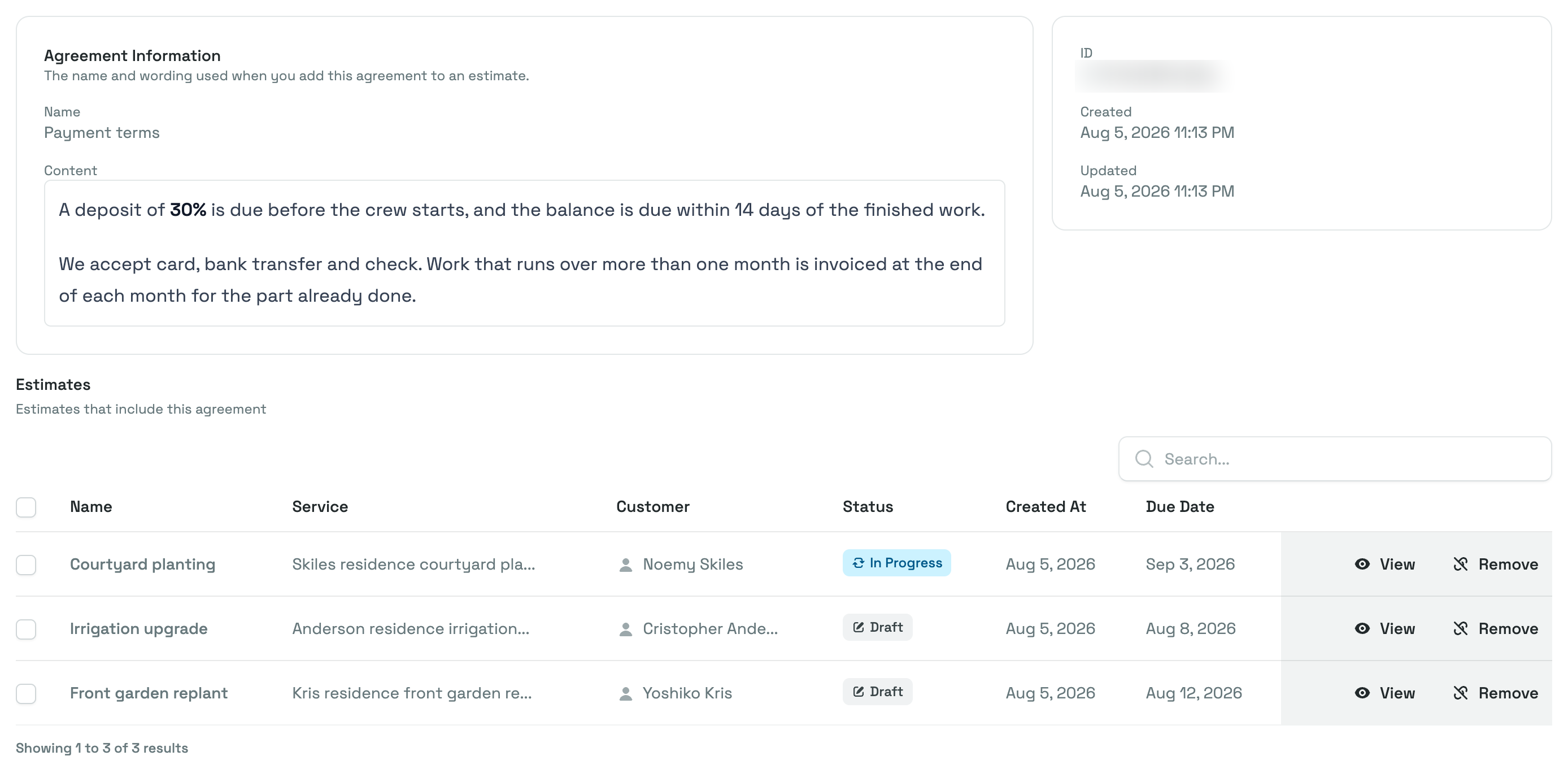
Underneath, Estimates lists every estimate that includes this agreement, with its name, service, customer, status, and dates, and its own search box. It answers the question that matters when you are about to change your terms: who has already been sent the old wording.
From that table you can:
- Select View on a row to open that estimate.
- Select Remove to take this agreement off that estimate. The action is unavailable on an estimate that is no longer open for changes.
- Tick several rows and use Actions, then Remove, to detach it from all of them at once. Estimates that are locked are skipped.
Editing and deleting agreements
Edit reopens the name and wording, from the agreement's own page or from the row menu in the list. Estimates that already use the agreement keep the wording they were sent with, so correcting a typo or tightening a clause changes what future estimates carry, never what a customer has already read.
WARNING
An agreement can only be deleted while no estimate uses it. If it is attached to even one estimate, the agreement can't be deleted, and Priscale explains why, which protects the record of what was sent. Remove it from those estimates first, using the Estimates table on the agreement's page, then delete it. An estimate that is no longer open for changes has to be re-opened before its agreement can be removed, with Re-Open beside the estimate's title. See Managing estimates for what re-opening does.
To delete several at once, tick their checkboxes in the list, then choose Actions and Delete. Any agreement in the selection that is still in use is skipped, and the rest are deleted.
Related pages
- Adjusting an estimate covers the Agreements card and everything else that gets sent with an estimate.
- Sending estimates shows how your agreements reach the customer and what approving means.
- Fees covers the other saved list an estimate draws from, for the charges that do affect the price.