

Create your account
Everything in Priscale lives inside your account: your organization, your burn rate, your estimates and your customers. Setting one up takes a couple of minutes. You can either register with your email address and a password, or continue with a Google or GitHub account you already use. This page covers both routes, plus verifying your email, signing back in, and getting back into your account if you forget your password.
Whichever route you take, you end up in the same place: Quick Setup, the short wizard that gets your organization ready to price work.
TIP
The sign-up and log-in pages match your browser's language automatically, so a Spanish browser sees the Spanish app right away. Prefer the other language? Select English or Español beneath the card; your choice sticks for the rest of your visit. Once you sign in, your account's own language setting (see Appearance) takes over.
Sign up with your email address
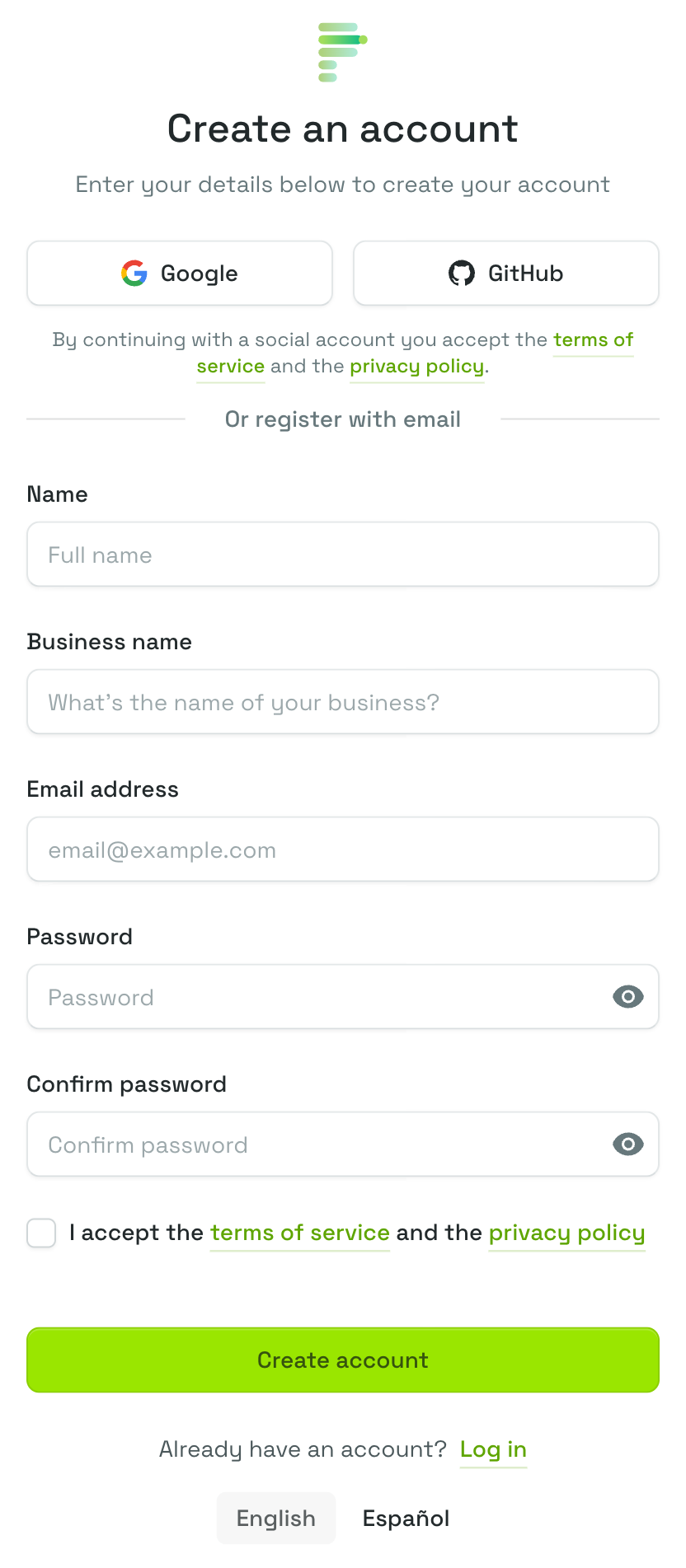
Open the sign-up page and fill in the Create an account form:
- Name is your own full name. It is what Priscale calls you around the app.
- Business name is the name of your business. It becomes the name of your organization, and you can change it later in your organization settings.
- Email address is where verification, password reset and notification emails are sent. Each email address can be used for one Priscale account.
- Password and Confirm password take the same password, typed twice. The eye icon at the end of each field lets you check what you typed.
- Tick I accept the terms of service and the privacy policy. Both links open in a new tab, so your form stays filled in.
- Select Create account.
Choosing a password
Your password needs to be at least 12 characters long and include upper and lower case letters, numbers and symbols. Priscale also checks it against known data breaches, so a password that has leaked somewhere else is rejected even if it meets every other requirement.
TIP
A short phrase you can remember, with a number and a symbol in it, beats a scrambled password you have to write on a sticky note. If you use a password manager, let it generate one for you.
Sign up with a social account
At the top of the sign-up page there are two buttons: Google and GitHub. Selecting one takes you to that provider's sign-in screen, and once you approve access you come straight back to Priscale. A line under the buttons notes that continuing with a social account accepts the terms of service and the privacy policy.
Signing up this way has a few advantages:
- There is no password to choose or remember. The provider handles signing you in.
- Your email address is already confirmed, so you skip the verification step entirely.
- You can add the other provider later and use whichever is handiest.
Because a social sign-up does not ask for a business name, Quick Setup asks for it on the Business Information step, where the field is called Company Name.
WARNING
Continuing with a social account means your Priscale account starts without a password. If you later want to sign in with your email address instead, set a password from your connected accounts page first.
If you already have a Priscale account and then continue with a social provider that uses the same email address, Priscale links the two together and signs you in. You do not end up with a second, separate account.
Verify your email address
When you register with an email address and password, Priscale sends a verification email right away and shows the Verify your email page. Open the email and select the verification link, and you are taken on to Quick Setup.
Until your address is verified you cannot use the rest of the app, so it is worth doing straight away.
If the email has not arrived after a minute or two:
- Check your spam or junk folder, and any promotions tab.
- Select Resend verification email on the Verify your email page. A confirmation message appears when the new email is on its way.
- Make sure the address you registered with is spelled correctly. If it is not, select Log out and register again with the correct address.
Sign in
Go to the sign-in page, enter your Email address and Password, then select Log in.
A few things worth knowing:
- Remember me keeps you signed in on that device, so you do not have to sign in again every time you come back.
- The two social buttons sit above the email fields. Select the provider you signed up with, or any provider you have since connected, to sign in without typing a password.
- If your device supports passkeys, a Log in with a passkey button appears at the top of the page. Passkeys are set up in your security settings once you are signed in.
- If two-factor authentication is turned on for your account, Priscale asks for the Authentication code from your authenticator app after your password. If your phone is not to hand, choose log in with a recovery code and use one of the recovery codes you saved when you set two-factor up.
TIP
If several sign-in attempts fail one after another, Priscale pauses further attempts for a short while. That is a deliberate protection against someone guessing your password. Wait a minute and try again, or reset your password if you are no longer sure of it.
Reset a forgotten password
- On the sign-in page, select Forgot your password?
- Enter your email address and select Email password reset link.
- Open the email and select the link. It takes you to the Reset password page with your email address already filled in.
- Enter your new password twice and select Reset password.
The same password requirements apply as when you registered. Reset links expire after a while and can only be used once, so if the link no longer works, request a fresh one from the same page.
If no email arrives, check your spam folder, and confirm you are using the address your account was created with. If you originally signed up with a social account, sign in with that provider instead, then set a password from your connected accounts page.
The automated security check
The sign-up, sign-in and Forgot your password? forms run a quick automated security check that keeps bots out. It normally completes on its own. If a message asks you to complete the security check, do so and submit the form again.
What comes next
Once you are in, Quick Setup walks you through your organization's details and the expenses and team behind your first burn rate. It finishes on your Burn Rate page, where your first number is waiting with the breakdown behind it. From there on, the dashboard is your home base.
Your new account starts on a free trial, and no card is needed to get going. Plans & billing covers what each plan includes and how to subscribe when you are ready.
Related pages
- Connected accounts lets you link or unlink Google and GitHub, and set a password if you signed up socially.
- Security settings is where you change your password, turn on two-factor authentication and manage recovery codes.
- Profile settings is where you update your name, email address and timezone.
- Appearance lets you switch the theme and change your language.