

Pricing a service
Pricing a service is about finding a number that works for both your business and your client. Priscale does that on the service's Adjust Price page, the last step of the service flow, under the heading "Find the correct price for this service." The page takes the numbers you already gathered, turns them into a list of possible prices, and highlights the ones that suit the situation you are in. You still make the call; the page makes sure you make it with your costs in view.
If you want the price ladder itself explained in its own right, The Pricing Spectrum covers how it is built and how to read it, on services and products alike.
Before you can price a service
Adjust Price needs two things before it can build anything:
- At least one task or material on the service, which is what your production cost is calculated from.
- A market value for the service.
If either is missing, the page shows a More information needed notice with shortcuts straight to the pages that fill the gap: Add Tasks / Materials and Set Market Value. See Building a service for the first and Service market value for the second.
Once both are in place, the page builds the price list on its own the first time you open it. The client's budget is used as well, so a service priced without a realistic budget will give you a narrower picture. Understanding client budgets covers how to get that number out of a client.
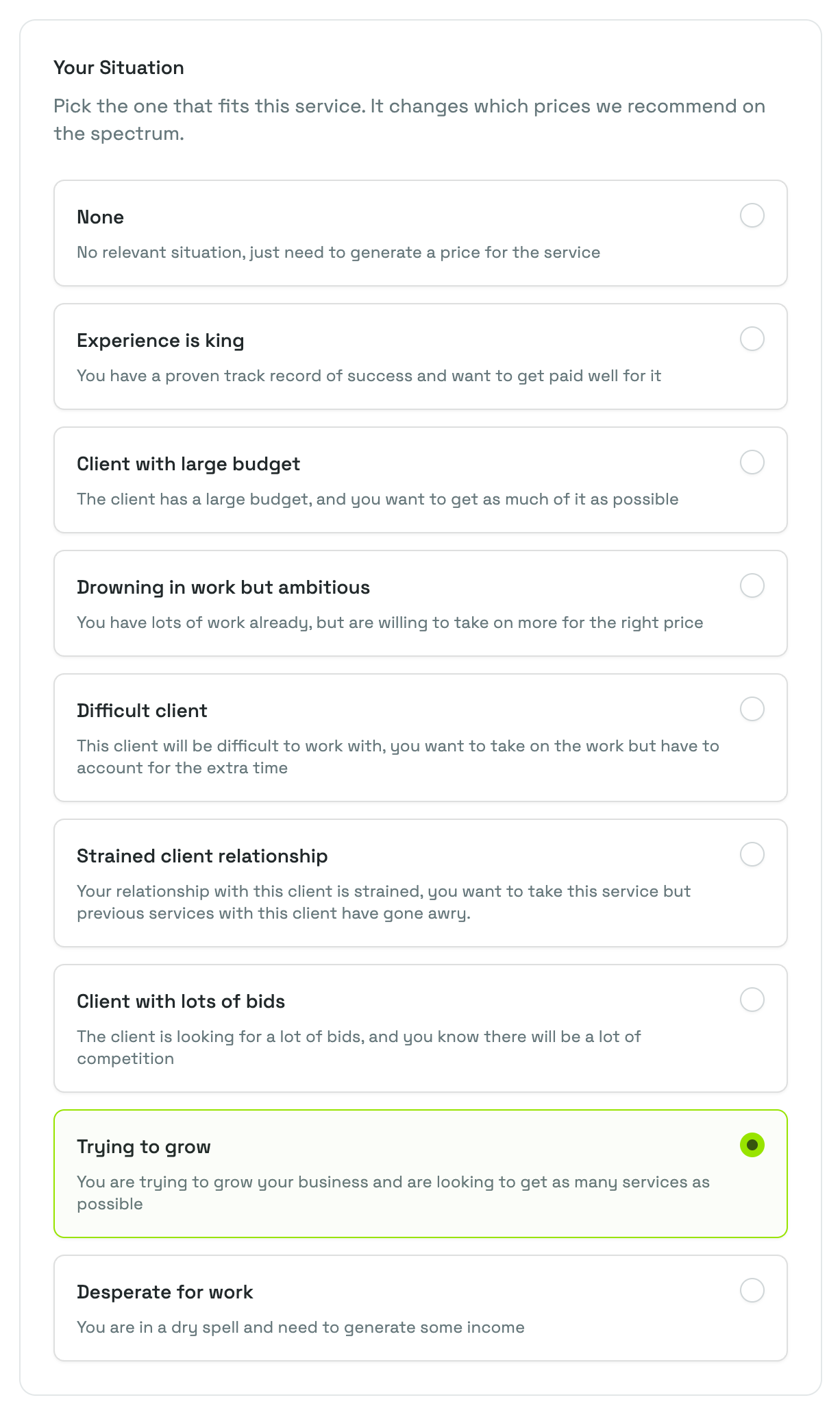
Pick your situation
The Your Situation card asks you to pick the one that fits this service. Your choice does not change any of your numbers. It changes which prices on the spectrum are marked Recommended.
The options are:
| Situation | What it means |
|---|---|
| None | No relevant situation, you just need a price |
| Experience is king | You have a proven track record and want to get paid well for it |
| Client with large budget | The client has a large budget and you want as much of it as you can get |
| Drowning in work but ambitious | You have plenty of work but would take on more for the right price |
| Difficult client | You want the work but have to account for the extra time and stress |
| Strained client relationship | Previous work with this client went badly and you want to save the relationship |
| Client with lots of bids | The client is collecting many bids and there will be real competition |
| Trying to grow | You want as many services as possible without giving away your profit |
| Desperate for work | You are in a dry spell and need income |
Pick one and the spectrum updates immediately. A short explanation of the situation and the pricing advice behind it appears above the spectrum, and the prices that match that advice get a Recommended tag.
A few things worth knowing about the recommendations:
- A recommended price is never below your production cost. Even the situations that tell you to price low stop above your break-even point.
- None marks nothing. The spectrum still works; you simply choose freely.
- Client with large budget only marks prices when the budget you recorded sits above the service's market value. If the budget is at or below market value, there is no gap to aim at and nothing is marked.
- You can change your situation at any time. Your chosen price stays where it is; only the tags move.
Read the pricing spectrum
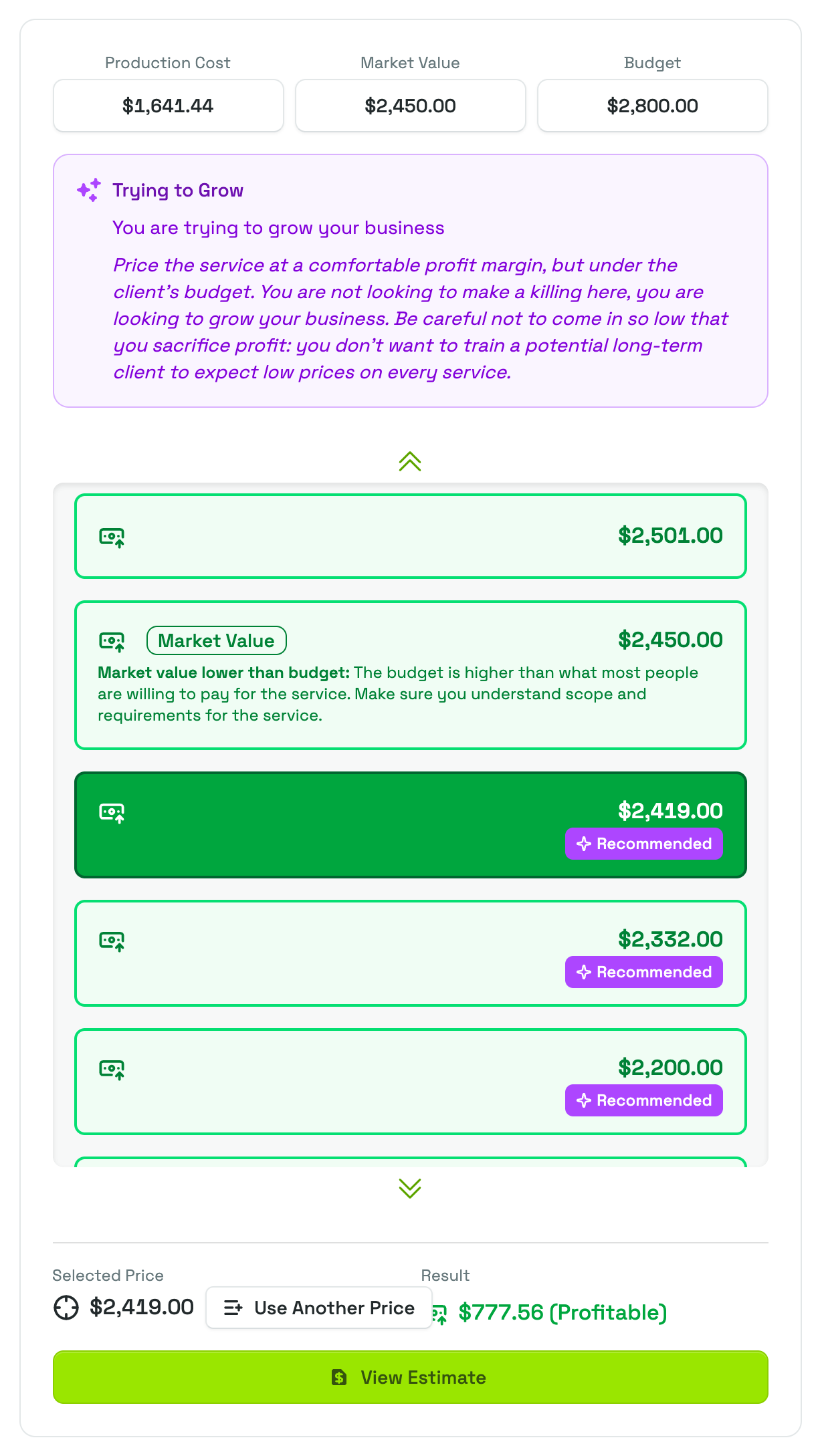
The pricing spectrum card sits below Your Situation, or beside it on a wide screen. It holds three parts, top to bottom:
- Your key variables, three amount buttons captioned Budget, Market Value, and Production Cost. The name is the small caption; the button itself shows the amount. They are arranged from the lowest amount to the highest, so their left-to-right order depends on your own numbers. Pressing one scrolls the list below straight to that price, so you can see where it falls among the others.
- The recommendation for the situation you picked, with the reasoning behind it.
- The price list, the spectrum itself: a scrollable ladder of prices with the highest at the top, running down past your key variables toward zero. Prices cluster closely around your budget, market value, and production cost, and spread out in between, so the range you actually care about has the most options in it.
Every price is colored and marked for how it lands against your production cost, and the three named prices carry warnings when your numbers contradict each other. The Pricing Spectrum covers how to read all of it, warning by warning.
TIP
Your production cost is the floor and your market value is the reality check. The useful prices almost always live between them, and where you land in that range is exactly what Your Situation is there to help you decide.
Choose your price
Press a price on the ladder to select it. Two figures appear under the spectrum:
- Selected Price, the number you chose.
- Result, what you make or lose on the service at that price, labeled Profitable, Break Even, or Unprofitable.
If you land below your production cost, the page says so plainly with an Unprofitable Price notice: this price is below your production cost and you will lose money on this service. Nothing stops you from choosing it, and sometimes there is a good reason to. The notice is there so the decision is a deliberate one.
To use a number that is not on the ladder, start by selecting any price, which brings up Selected Price and Result. Next to Selected Price you will find Use Another Price: press it, enter your own figure as the Custom Price, and press Set Price. It becomes your selected price, joins the spectrum as its own entry, and gets the same profitability treatment as every other price. This is also how you nudge a chosen price up or down to a round number your client will read more easily.
WARNING
A service that has been completed can no longer be changed, and its price becomes read-only. Settle on the price while the service is still in progress.
What your price feeds next
Your selected price is the service's price from that moment on, and several parts of Priscale read it:
- On the service itself it appears as the Final Price.
- On an estimate it becomes the Target Price, the number the estimate's tasks, materials, and fees are measured against as you build it.
- On the Dashboard, Pipeline adds up the price of every service still in progress, and services you complete as accepted this year roll into Total Revenue and the Revenue vs Profit chart.
If the service allows an estimate and does not have one yet, a Create Estimate button appears under the result. It asks for an Estimate Name and a Due Date, then drops you into the new estimate with your price already set as its target. If an estimate already exists, the button reads View Estimate instead.
TIP
To complete a service as accepted or denied, it needs a price first. If it does not have one, Priscale closes the completion window and tells you to come back to Adjust Price and pick a price. Completing a service as ghosted or canceled does not need a price.
When your burn rate changes
Your production cost is built from the time your tasks take, charged at the burn rate the service was carrying when you built it. That rate is a snapshot: it does not follow your organization's burn rate around on its own, so a service you priced months ago may still be costed at a rate you no longer run on.
When the two no longer match, an Update Burn Rate button appears with the other actions at the top of the page. Priscale asks you to confirm, recalculates every task's cost and the service's production cost at your current rate, and drops you back on Adjust Service so you can review the new numbers.
Two things to watch after an update:
- The spectrum is rebuilt around the new production cost, so the prices on the ladder shift.
- Your selected price does not move. Come back to Adjust Price and check the Result, since a price that was comfortably profitable at the old rate may be thinner at the new one.
WARNING
An out-of-date burn rate makes every price on this page look better than it is. If your expenses, payroll, or available hours have changed, update your Burn Rate first, then update the service, then price it.
Related pages
- The Pricing Spectrum explains the price ladder itself, on services and products alike.
- Managing services covers the wider service flow this page sits at the end of.
- Determining market value helps you set the number the whole spectrum is anchored to.
- Understanding client budgets covers how to find out what the client can actually pay.