

Tasks
Most service businesses do the same handful of jobs over and over. Saving those jobs once, with the time they take, means you never type them again: every new service, product or estimate can pull them straight in. The Tasks page, under Presets in the sidebar, is where that saved list lives.
Saved tasks matter for pricing, not just for typing speed. The time on a task becomes money at your burn rate, so a task whose time you have refined over a few jobs makes every quote built from it more accurate.
What a saved task stores
A saved task holds three things, and that is deliberately all it holds:
- Name is what you will pick from the list later, so make it specific enough to recognize months from now. Two saved tasks can't share a name; if you reuse one, Priscale tells you a task with the same name already exists and asks for another.
- Time to Complete is how long the job usually takes you. This is the preset time, the starting point filled in whenever you add the task to work.
- Description is optional, and it is where the detail goes: what the job includes, what it doesn't, anything a future you will be glad to have written down. You can format it with bold, italic and strikethrough, bulleted and numbered lists, and links.
A saved task carries no cost of its own. Cost comes from the time, priced at the burn rate of the service or product it sits on.
TIP
Time is entered as two fields, hours and minutes — no writing durations out in words. An hour and a quarter is 1 in the hours field and 15 in the minutes field, and long jobs fit too: the hours field takes up to 999.
Saving a task
There are two ways a task ends up on your list, and both leave you with the same thing.
From the Tasks page
Select Create New to open the Create Task panel, fill in the Name, the Time to Complete and, if it's useful, a Description, then select Create Task. If you have a few to enter, Save & Create Another saves this one and keeps the panel open with empty fields so you can keep going.
While you build a service, product or estimate
You don't have to come here first. On the Tasks card of a service, product or estimate, Create new writes a task on the spot and saves it to this list at the same time. The work you were doing gets the task, and the next job you price can pull the same task in with Use existing without you ever visiting the Tasks page.
That is why the list often fills itself: build a few services normally, and your saved tasks accumulate as a side effect.
Adding a saved task to your work
On the Tasks card of a service, product or estimate, Use existing opens a picker of your saved tasks. Choose one and Priscale fills in its preset time for you, which you can change before adding it if this particular job needs more or less.
What lands on the service, product or estimate is a copy. The saved task keeps its preset time no matter what you do to the copy, and the copy keeps the time you gave it no matter what you later do to the saved task.
TIP
A task that is already on the service, product or estimate you're working on is filtered out of the Use existing list, so nothing gets added twice. Use existing only appears while you still have a saved task that isn't on that service, estimate or product yet; when there is nothing left to reuse, Create new is the only way to add a task.
The Tasks list
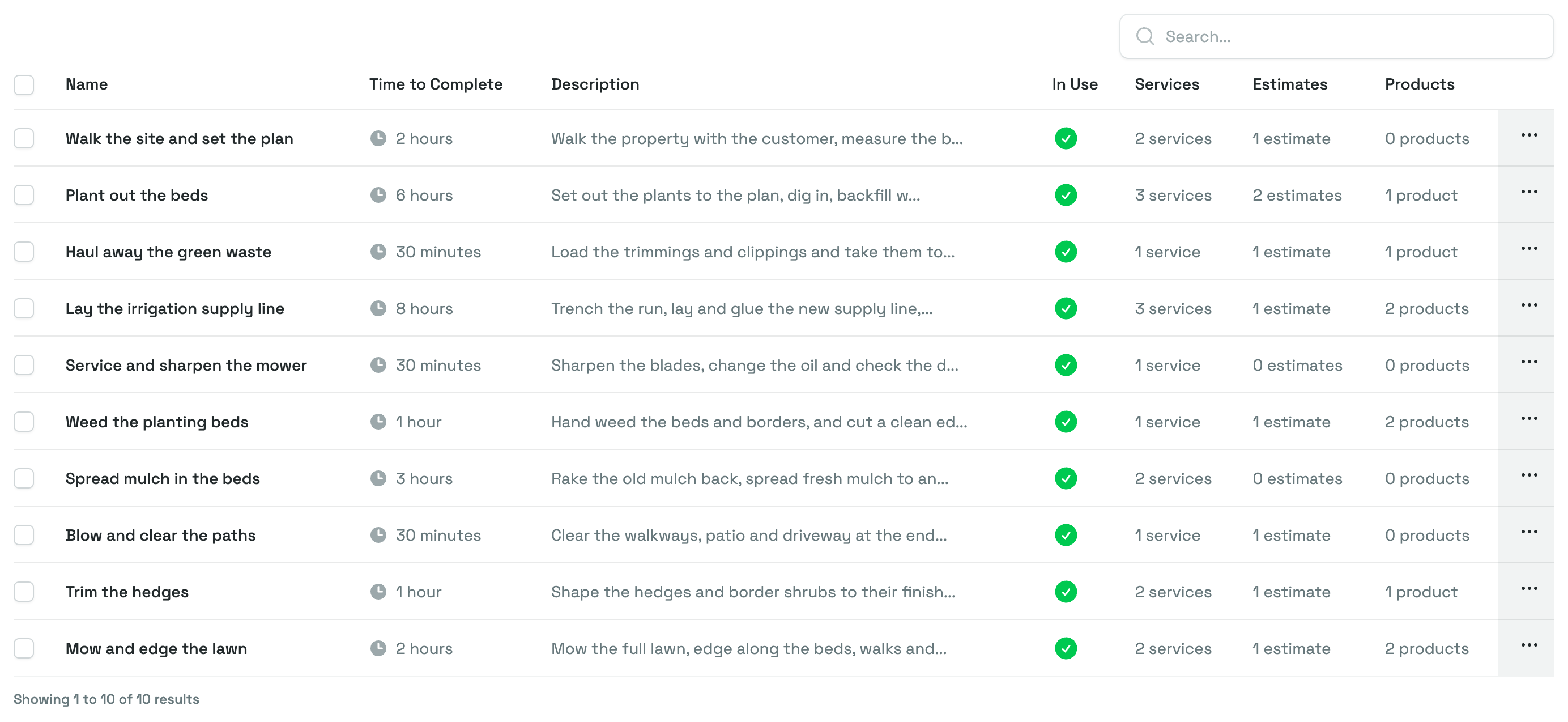
The list shows every task you have saved, with its Name, its Time to Complete, the start of its Description, whether it is In Use, and how many Services, Estimates and Products it is currently on.
- The search box filters by name.
- Clicking the Name heading sorts the list by name.
- Clicking a row opens that task. The row's menu also offers Open, Edit and Delete.
- To remove several at once, tick their checkboxes and choose Actions → Delete.
Until you have saved anything, the page shows a No tasks yet note instead of the table.
A task's own page
Opening a task shows everything about it in one place.
Task Information lists the Name, the Time to Complete and the Description exactly as they will be used the next time you add the task to something. Alongside it sits the task's ID, which you can copy if you ever need to point support at this exact task, plus the Created and Updated dates.
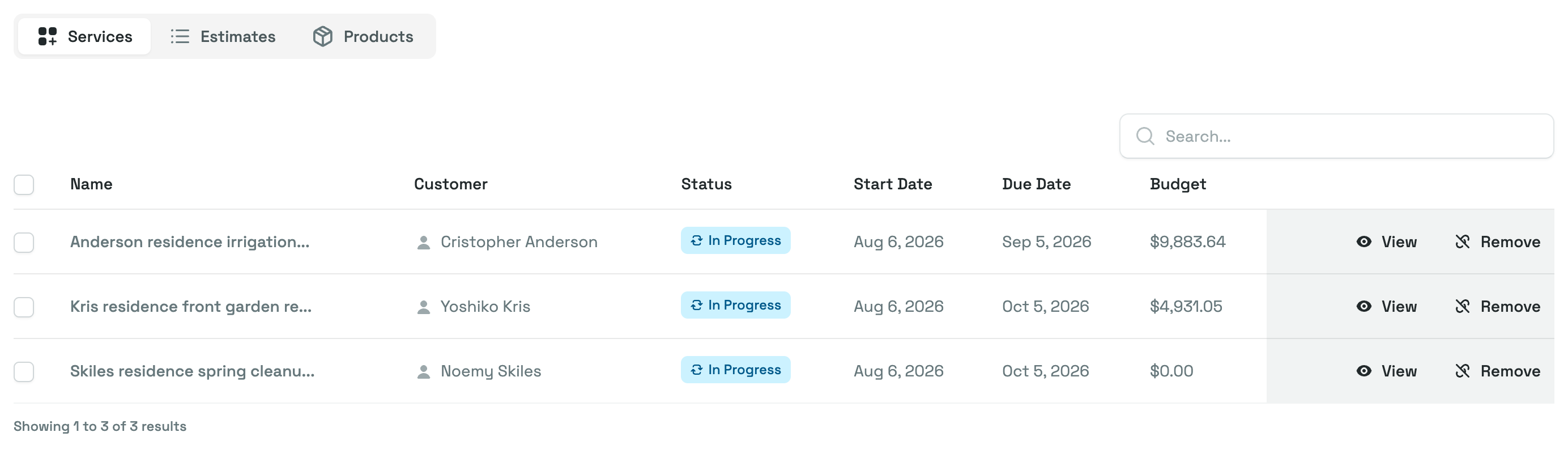
Below that, three tabs answer the question this page exists for: where is this task actually being used?
- Services lists the services the task is on, with each one's customer, status, dates and budget.
- Estimates lists the estimates it appears on.
- Products lists the products it is part of.
Each tab has its own search box. View on a row opens that service, estimate or product, and Remove takes the task off it, which is also how you free a task up so it can be deleted. Tick several rows and use Actions → Remove to detach the task from all of them at once.
A service, estimate or product that can no longer be edited keeps its copy of the task. On those rows the Remove button is greyed out, so there is nothing to press. Bulk removal skips them too, and tells you the task can only be removed from a service, estimate or product that can still be edited.
Editing and deleting a task
Edit, from the task's page or from the row menu in the list, reopens the same three fields. Saving updates the saved task only.
WARNING
Editing a saved task never changes work you have already built. Services, products and estimates that use it keep the name, time and description they were given when the task was added, so correcting a preset time won't quietly reprice a service you quoted last month. To change a task on a particular service, edit it there.
Delete removes a task from your saved list, and it is only allowed while the task is unused. If the task is on any service, estimate or product, Priscale tells you that only unused tasks can be deleted and keeps it. Deleting several at once follows the same rule: the unused ones go, the ones in use are left alone.
To delete a task that is in use, open it, work through the Services, Estimates and Products tabs to remove it from each one, then delete it. Removing a task from a service, estimate or product only affects that one; your other work keeps its own copies.
If the only places still using a task can no longer be edited, its copies can't be removed, so that task stays on your saved list.
Related pages
- Materials covers the saved list of things you buy or rent, which works the same way as tasks.
- Fees covers the flat charges you add to an estimate rather than to the work itself.
- Building a service and Building a product show tasks in use, and how their time turns into a production cost.
- Burn Rate explains the hourly number that turns task time into cost.