

Managing services
A service is one job for one customer: the work you scoped, what it costs you to deliver, and the price you settled on. The Services page is where all of them live, from the ones you are still putting together to the ones you finished last year.
This page covers the services list, creating a service, the statuses a service moves through, how you record the way a job ended, and what you see on a finished service's detail page.
The services list
Services in the sidebar opens the list. Three tiles across the top summarize where things stand:
- In progress counts the services you are actively working on.
- Past due counts the ones whose due date passed before you finished them.
- In-progress budget adds up the budget of everything in progress, so you can see the money currently in motion.
Below the tiles, the table lists every service with its Name, Customer, Status, Start and Due dates, whether it Uses Estimate, how many Tasks and Materials it has, and its Budget. Most column headers sort the list when you click them (every one except Customer), and the search box filters by the service's name or the customer's first or last name.
Clicking a row opens that service. Where it takes you depends on its status: a service you can still change opens on its Adjust Service workspace, and a finished one opens on its read-only View Service page.
To remove several at once, tick the checkbox on each row, then use the Actions menu that appears and choose Delete. Deleting a service also deletes any estimate attached to it, so Priscale asks you to confirm first. The menu at the end of each row offers Open and Delete for that one service, and deleting from there asks you to confirm as well.
TIP
The small counter beside Create New shows how many services you have used and how many your plan includes, for example 3 / 5. It turns amber as you approach the limit and red once you reach it, and from then on new services are turned away with a note that you have reached your plan limit. Deleting a service frees a slot, and Plans and billing covers how to move to a larger plan.
Creating a service
Click Create New to open the Create Service panel. It is split into two short sections.
Customer & Budget
Every service belongs to a customer, so this is the one thing you have to pick before anything else. Open the Customer list and search for the person you are working with, or choose Create new customer to add them without leaving the panel. Once a customer is selected, Priscale suggests a service name for you, using the customer's company name when they belong to one.
Next comes the budget. The switch above the field starts on I don't know the budget, and the field below it is then labeled Your best budget guess. Flip the switch to I know the budget once the customer has given you a figure, and the field becomes Budget provided by customer.
A budget is required either way. Guessing is fine and expected at this stage; you can come back and correct it at any point while the service is still open.
TIP
While the switch is on I don't know the budget, Priscale shows a short reminder to scope the work first and ask for the budget directly afterwards. Understanding client budgets goes through the tactics for getting that number out of a client.
Service
The second section describes the job itself.
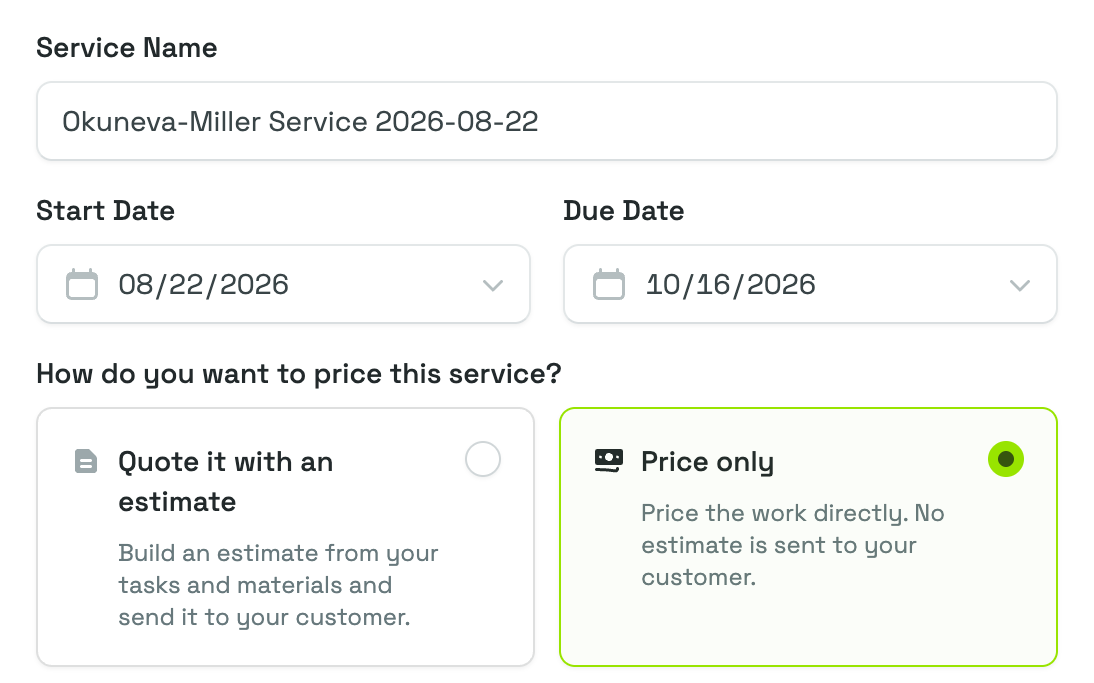
- Service Name is what you will recognize it by in the list. Priscale prefills it, and you can overwrite it.
- Start Date defaults to today, and Due Date is when you expect the work to be finished. The due date cannot be earlier than the start date, and it is what Priscale watches to decide whether a service has gone past due.
- Tags are optional, up to three per service. They are not just labels: tags help Priscale find comparable work when it estimates market value.
- Description is optional, and useful for the details you will want in front of you months later.
How do you want to price this service?
Between the dates and the tags sits the choice that shapes the rest of the job. Pick one of two cards:
- Quote it with an estimate builds an estimate from your tasks and materials and sends it to your customer for review. Choose this when the customer needs a document to say yes to.
- Price only prices the work directly, with no estimate sent to the customer. Choose this when you are simply working out what to charge.
Either way you go through the same pricing work; the difference is whether the customer ever sees the result. See Managing estimates for what happens on the estimate side.
Finish with Create Service to open the new service straight away, or Save & Create Another to keep the panel open with a fresh form.
WARNING
You can change the pricing choice later from the service's own form, but switching a service from Quote it with an estimate to Price only deletes the estimate attached to it. Priscale tells you when that happens.
The service lifecycle
Every service carries a status, shown as a badge in the list and at the top of the service itself.
- Draft is where every new service starts. It is a shell: a customer, a budget, dates, and nothing to cost yet.
- In Progress is reached the moment you add the first task or material. From here on the service has a production cost, it counts toward your pipeline, and it can be priced and finished.
- Complete means the job is closed and recorded, with an outcome attached. A complete service can no longer be changed.
- Past Due means the due date arrived while the service was still in progress. Priscale moves it there on its own, overnight, and marks the outcome as Ghosted, on the assumption that a job that quietly ran out of time never came back.
Draft and In Progress are the two editable states. Once a service is Complete or Past Due, its form, tasks, and materials are locked, and its pages become read-only until you re-open it.
Recording how the work ended
While a Price only service is in progress, a Complete Service button sits at the top of the page. It asks a single question: how did this end?
Choose one of four outcomes:
- Accepted means the customer said yes and the work is yours.
- Denied means the customer said no.
- Ghosted means the customer never came back to you.
- Canceled means the job was called off.
The outcome is more than record-keeping. Accepted services are what your revenue and profit figures are built from, and an accepted estimate is what adds a price to your market price history. Denied outcomes matter too: they are the record of what the market turned down. That is why Priscale asks you to price the work before you can complete it with either outcome. If you have not picked a price yet, it points you to Adjust Price to choose one on the Pricing Spectrum first. Ghosted and canceled outcomes don't require a price first, so you can record them straight away.
A service set up with Quote it with an estimate is completed by its estimate instead: when the estimate completes with its own outcome, the service is closed with the matching one. You never have to record it twice.
TIP
Be honest with the outcomes, particularly the denied ones. A run of denials at a similar price is the clearest signal you will get that your number has drifted away from what the market will pay. Determining market value covers what to do with that signal.
Re-opening a service
Both finished states can be undone from the same Re-Open button.
- Re-opening a Complete service clears its outcome and returns it to an editable state so you can change it. If the service has a completed estimate attached, Priscale asks you to edit or delete that estimate first.
- Re-opening a Past Due service asks for a New Due Date, which must be today or later, and then puts the service back to work.
In both cases the service lands back on Draft or In Progress depending on how much of it is filled in, and the pages become editable again.
The service detail page
A finished service opens on View Service, the read-only record of the job. The steps down the left side (View Service, Market Value, Adjust Price) move you between that record and the pricing pages behind it, which are covered in Service market value and Pricing a service.
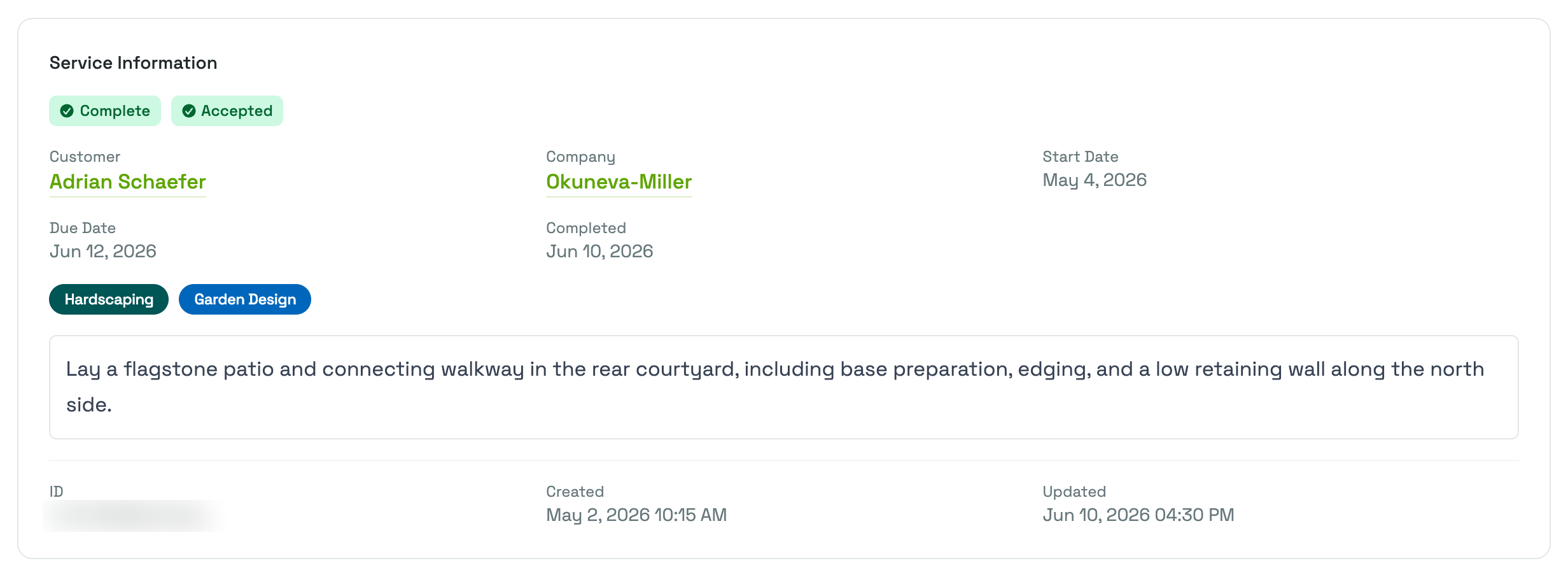
Service Information opens the page with the status and outcome badges, followed by the Customer and, when they belong to one, the Company, both linked to their own pages (Customers and Companies). Alongside them sit the Start Date, Due Date, and the date the service was Completed, then any tags and the description you wrote. At the bottom of the card is a reference ID you can copy, plus when the service was created and last updated.
Pricing gathers the four numbers that matter, side by side:
- Budget is what the customer had to spend, as you entered it when you created the service.
- Market Value is what the work is worth on the open market.
- Production Cost is what it cost you to deliver.
- Final Price is the price you settled on for the job.
Reading them together is the point of the card: the price you chose, in the context of the floor underneath it and the ceiling above it.
Tasks and Materials close the page, listing what the job was actually made of. Tasks show their time and cost, materials their unit cost, quantity, and total. If a service was finished without either, the card simply says so. See Building a service for how those lists are assembled while the service is still open.
Alongside the page title you will also find Delete, which removes the service and any estimate attached to it, and Service Workflow, a short reminder of the five steps a service passes through, from its information to its price and the optional estimate.
Related pages
- Building a service covers the tasks and materials behind a service's production cost.
- Pricing a service explains the Pricing Spectrum and how you land on a final price.
- Service market value covers where a service's market value comes from.
- Managing estimates picks up where Quote it with an estimate leaves off.
- Understanding client budgets helps you fill in the budget field with something real.