

Product market value
Market value is what a product of this scope is worth on the open market. Priscale keeps it on its own step of every product, so you decide what the item is worth out there before you decide what to charge for it. This page covers the mechanics: where the step lives, the two ways to fill it in, and what happens downstream once it's set.
Where the market value lives
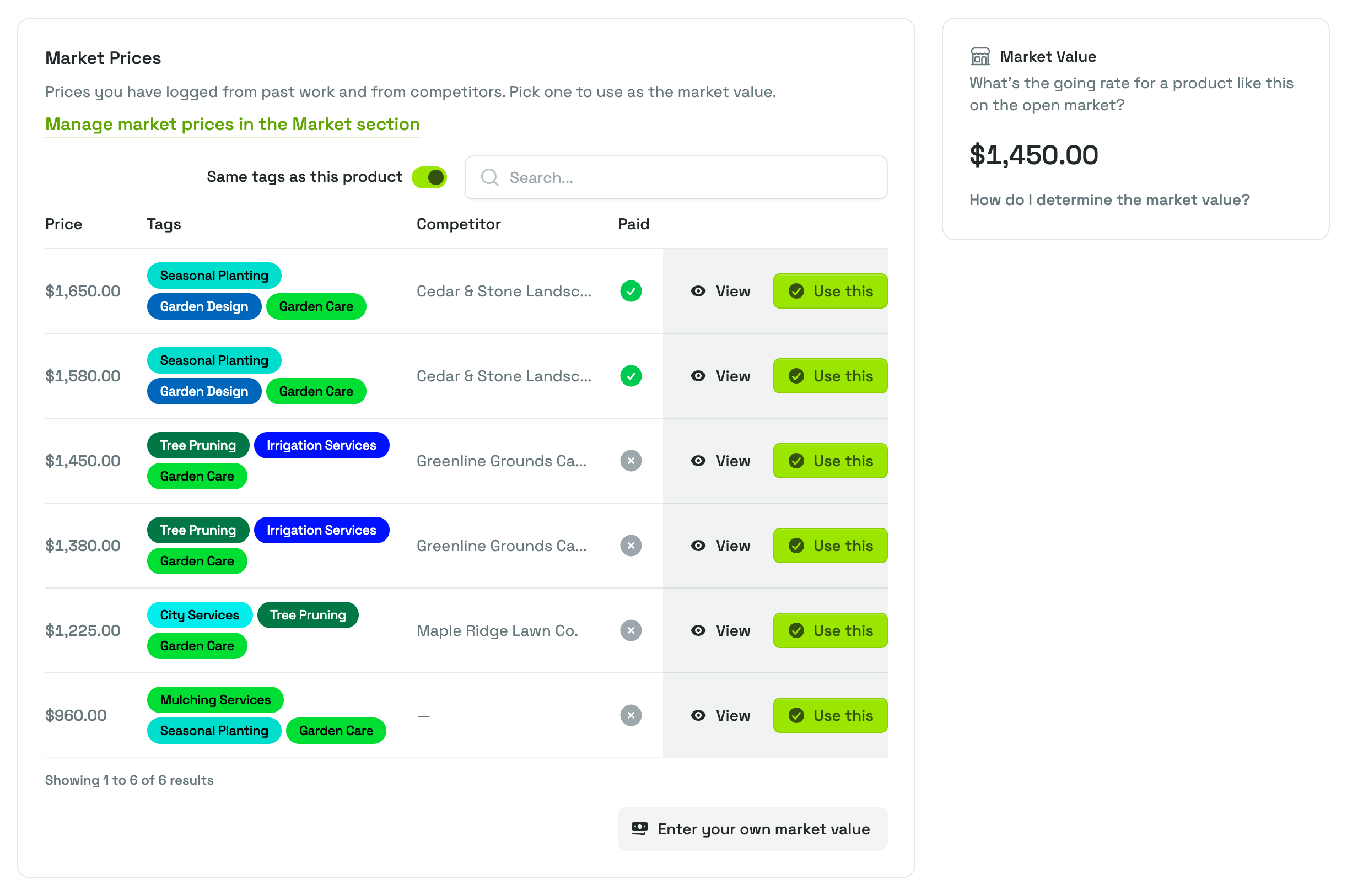
Every product moves through three steps, shown alongside the product: Adjust Product (or View Product, once the product is approved), then Market Value, then Adjust Price. Open the Market Value step and you get two cards side by side:
- Market Prices lists the prices you have already logged from past work and from competitors, so you can adopt one of them.
- Market Value shows the number currently set for this product. If you haven't set one, it reads "No market value yet. Pick a price from the table or enter your own."
Set the market value
There are two ways to fill in the value, and you can switch between them at any time while the product can still be changed. Whichever you use, the newest choice replaces whatever was there before, and Priscale confirms it with a "Market value updated" message.
Setting the market value does not move the product forward on its own. A product's status is driven by its price: it stays a Draft until you select a price on Adjust Price, which makes it Planned.
Pick a price you have already logged
The Market Prices card lists the prices you have recorded, highest first. Each row gives you:
- Price, the amount that was quoted or paid.
- Tags, the labels attached to that price, so you can tell at a glance what kind of work or goods it covers.
- Competitor, the competitor the price came from, if you recorded one.
- Paid, a green check when a customer actually paid that price. When nobody did, the mark is a grey ✕: on prices you logged by hand it means the price was only a competitor's offer, and on prices that came from an estimate or a product it simply means unpaid. Hover the mark for the reminder "Did a customer pay this price?"
Use View to open a price and read the full record before you commit to it. When you have found the right one, select Use this and it becomes this product's market value straight away.
Two controls decide how much of your history you are looking at:
- The Same tags as this product switch limits the table to prices that share at least one tag with the product. It appears only when the product itself has tags, and when it does, the table opens already filtered: the switch is on. Turn it off to see every price you have logged.
- The search box narrows the list by competitor name.
The table shows ten prices per page; use the pager below it to reach the rest.
If nothing has been logged yet, the card shows No market prices yet instead of a table. Add prices from the Market section first, then come back; Manage market prices in the Market section takes you there.
TIP
Prices with a green Paid mark are the strongest evidence you have, because someone actually paid them. A competitor's advertised price tells you what the market is being asked for, which is useful but not the same thing.
Enter your own market value
When no logged price fits, select Enter your own market value. Type the amount in the Market Value field and select Save Market Value. This is the right route when you know the going rate from experience, from a supplier or industry report, or from a conversation with a client, and you have nothing recorded that matches.
WARNING
You can change the market value for as long as the product is a Draft or Planned. Once it is Approved, the page shows "This product is approved, so it can no longer be changed", the Use this buttons are greyed out, and the Enter your own market value button and the How do I determine the market value? link no longer appear.
This isn't a dead end. Selecting a price again on Adjust Price returns an approved product to Planned, and the Market Value step opens back up.
How market value feeds the price
The market value is one of the two key figures behind the pricing spectrum on the Adjust Price step, together with the production cost of the tasks and materials that go into the product. The spectrum uses those two numbers to lay out a range of prices to choose from and to show you where each one sits against them.
Two things follow from this:
- A product can't be priced without it. Go to Adjust Price before the market value is set and you get a "More information needed" notice, saying to add at least one task or material and set a market value first. A Set Market Value button in that notice brings you back here.
- Changing it updates the spectrum. If you revise the market value later, the pricing spectrum for that product picks up the new figure on its own. You do not have to rebuild anything, though it is worth reopening Adjust Price to check that the price you selected still sits where you want it.
For how to arrive at a number you can defend, rather than how to record it, see Determining market value. While the product can still be changed, the Market Value step links to that guide too, under How do I determine the market value?
What your plan includes
Logging market prices is part of the Freelancer and Business plans. On the Part-Timer plan the Market Prices card is still there and you can still adopt any price already on it with Use this, but you cannot log new ones: the Market Prices item in the Market section carries a lock, and an Upgrade to unlock this feature notice appears below the cards, saying the feature requires the Freelancer plan or higher. Account owners get a View plans button with it.
Entering your own market value works on every plan, so you can always set a market value by typing your own number.
See Plans & billing for what each plan covers and how to change yours.
Related pages
- Managing products covers creating a product and moving it through its steps.
- Building a product covers the tasks and materials behind the production cost.
- Pricing a product explains the pricing spectrum this value feeds.
- Market prices covers logging the prices that show up in the table here.
- Tags explains the labels that make the Same tags as this product filter useful.