

Competitors
Knowing who you compete with is the fastest way to learn what your market charges. The Competitors page, under Market in the sidebar, keeps a list of the other businesses in your area, shows where they are on a map, and ties each price you log back to the business that charged it.
What the Competitors page shows
At the top of the page you get three counts that summarize your list at a glance:
- Competitors — how many businesses you have recorded.
- On the map — how many of them have a location Priscale could place on the map.
- Market prices logged — how many of your market prices name a competitor.
Below the counts sits the competitors map, and below that the list itself. The list can be searched by name, city, or state, and sorted by Name, City, State, or Created. Clicking a row opens that competitor. To remove several at once, tick their checkboxes and choose Actions → Delete.
Adding a competitor
Select Create New to open the Create Competitor panel and fill in what you know:
- Name is the only required field. This is what appears in your list, on the map, and in the competitor picker when you log a market price.
- Search for a location looks up a business or an address as you type. Pick a result and Priscale fills in the address fields below it. If you haven't typed a name yet, the result's own name is filled in for you as well: a business name for a business, the street address for an address result. You can overwrite it. The search covers addresses and businesses in the United States, so outside the US you fill the address fields in by hand.
- Address, City, State, and Zip Code are optional, and you can edit them after a search result fills them in, or type them by hand instead.
- Notes is a free-text field for anything worth remembering: who they serve, how they quote, what they're known for.
Select Create Competitor to save, or Save & Create Another to keep the panel open and add the next one straight away.
TIP
Use the location search when you can. Priscale will also try to match an address you type by hand, but a picked result puts the pin on the exact spot every time.
Every competitor you save can be changed later. Open the competitor and select Edit to reopen the same fields, or Delete to remove the record.
The competitors map
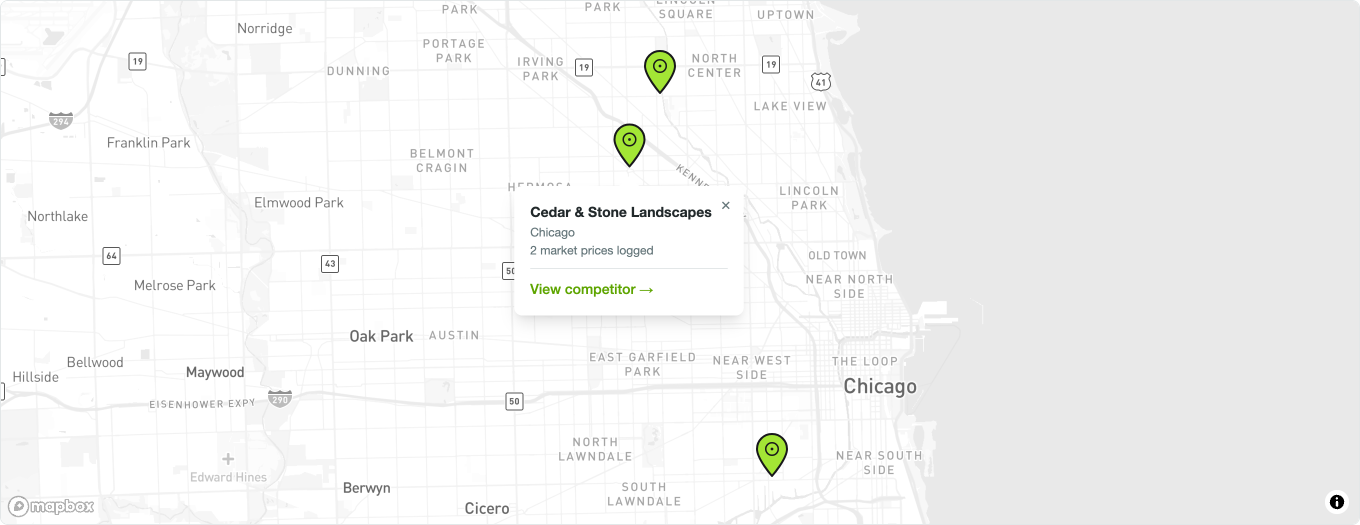
The map plots every competitor whose location Priscale could pin down. It centers itself on your competitors automatically, so you land on the area you actually work in rather than on an empty world view.
- Each competitor with a location appears as a pin, with the tip of the pin marking the spot.
- Where several competitors sit close together, they collapse into a single numbered circle. Click it to zoom in until the individual pins separate.
- Clicking a pin opens a small panel with the competitor's name, its city, and how many market prices you have logged for it, plus a View competitor link that opens the full record.
A competitor only gets a pin once Priscale can resolve its address to a real spot. Competitors saved with a name and nothing else stay in the list but not on the map, and if you clear the address fields on an existing competitor, its pin comes off the map. Occasionally an address is too vague or unusual to be matched; the competitor is still saved, so you can refine the address later or pick the business from the location search to place it.
A competitor's own page
Opening a competitor shows everything you have recorded about that business:
- Competitor Information lists the name, address, city, state, zip code, and your notes.
- Market Prices lists every price you have logged for this competitor, with the amount, its tags, whether a customer actually paid it, when you logged it, where it came from, and the service it relates to. You can search this list by service or by tag. To remove several of these prices at once, tick their checkboxes and choose Actions → Delete; prices that came from an estimate or a product are skipped.
The Competitor Information card also ends with the competitor's ID, which you can copy if you ever need to reference the record with support, and the Created and Updated dates.
Select Create New above the Market Prices list (or Create Market Price from the empty state) to log another price for this competitor. The competitor is already filled in, so you only need the amount and any details you want to add. This panel doesn't offer the Service field: if you want the price linked to one of your own services, log it from the Market prices page instead.
How competitors connect to market prices
A market price can name the competitor that charged it. When you create or edit a price on the Market prices page, the Competitor field lets you pick one from your list, or add a new one on the spot with Create new competitor. The field is optional: a price you overheard without knowing the source is still worth logging.
Naming the competitor is what makes the connection work in both directions. The price shows up on that competitor's page, it counts toward the Market prices logged total, and it appears in the pin's panel on the map.
Each price also records whether a customer actually paid it. Customer paid this price means a real transaction happened at that amount. Competitor offer only means the competitor listed or quoted the price, but you don't know that anyone paid it. Both are useful, and telling them apart keeps a wishful list price from carrying the same weight as proven revenue. Adding tags to the price narrows it further, so a competitor's emergency weekend rate isn't compared against your standard weekday work.
WARNING
Deleting a competitor does not delete the prices you logged for it. Those prices stay on your Market prices list, just without a competitor attached, so your market value keeps its history.
Plan availability
Competitors are available on the Freelancer and Business plans. On Part-Timer the page is still visible, but it is locked: an Upgrade to unlock this feature notice appears instead of the Create New button, and the account owner gets a View plans button that goes straight to the plan comparison. See Plans & billing for what each plan includes.
Related pages
- Market prices covers what a price records and how those prices become the market value shown on your services and products.
- Tags explains how tagging keeps prices comparable to the right kind of work.
- Determining market value is the wider guide to working out what your work is worth, where competitor research sits alongside industry surveys and client conversations.