

Sending estimates
Sending is the last step of an estimate. Once the numbers are where you want them, the Send Estimate step puts your price in front of the customer: each recipient gets their own email with their own private link to a page where they can read the estimate and, if you allow it, approve it on the spot. This page covers who you can send to, how those links behave, what each status and notification tells you, what your customer sees on their end, and the estimate PDF.
TIP
Sending for review is available on every plan, including Part-Timer, with no limit on how many times you send. Each plan's services cap still governs how many estimates you can have, since each service holds at most one. See Plans & billing for what each plan includes.
What is on the Send page
Open an estimate and pick Send Estimate in the estimate flow. The page stacks three things:
- The Target Price panel, the same summary you use while adjusting an estimate. It tells you at a glance whether the estimate is Good to send, still short of your target, or Above your target price. The shortcuts that distribute a change across the estimate are turned off here, but the target figure itself is still an Adjust target link that takes you to the service's pricing page if you need to change the target.
- The Review Inquiries card, where you send the estimate out and follow every recipient afterwards.
- A preview of the estimate exactly as it will be printed, with a View PDF button under it.
Sending only makes sense while an estimate is still open, so the Send For Review button, the row actions, and the View PDF button appear only on an estimate that can still be edited. On a completed, canceled, or past-due estimate the preview is still there, but the card becomes a read-only record of what was sent.
Sending an estimate for review
Until the first link goes out, the card holds nothing but No one has been sent this estimate yet and a prompt to send the estimate out for review. Here is how to do that.
- In the Review Inquiries card, select Send For Review. The panel that opens names the Customer the estimate was built for, and their Company when they belong to one, so you can confirm you are on the right estimate before you type any addresses.
- Under Available Company Customers, tick anyone who should receive it. That section holds the customers Priscale can already reach: those with an email address on file who have not been sent this estimate yet. Each one is listed with the address it would go to, and each one you tick becomes a recipient below. When the estimate's customer does not belong to a company, the section is titled Available Customers and offers only that one person. When there is nobody left to tick at all, the section is not shown and the panel opens with a blank recipient row already waiting, so the next step becomes your starting point.
- Use Add Recipient to add anyone who is not in that section, then fill in their Name and Email. While the Recipients list is still empty it reminds you where recipients come from: pick a customer above, or add one by hand.
- For each recipient, set Link Expires and decide whether Can Approve Estimate is on.
- Select Send.
Priscale confirms with Estimate Sent For Review and mails each recipient their own link. The estimate itself moves to In Progress, so it stays editable while you wait for answers.
If something in the list is not right, nothing goes out until it is. Every recipient needs a name, an email address, and an expiry date, and the whole batch waits on the one entry that is incomplete rather than going out in part. The same address entered twice, or an address that already has a link for this estimate, is turned away with a note saying so. Choosing Send with no recipients at all sends nothing and tells you as much, and a list that would push the estimate past five people is refused as Too Many Recipients, which restates the maximum instead of sending part of it.
TIP
One estimate goes to at most five people, and that limit counts everyone who has already been sent this estimate. The Review Inquiries card states it under its heading: Send this estimate to up to 5 people, each with their own private link. Once you have added every recipient you still have room for, the Add Recipient button disappears and the panel notes how many inquiries have already been sent. Each address can only appear once per estimate; if you need to reach the same person again, see Resending a link.
How long a link lasts
Link Expires is the date the recipient's link stops working, and you set it per recipient. It has to be today or later, and for security it can never be more than three months out, which the field repeats under itself as you fill it in. Customers you tick from the list start at three months by default; recipients you add by hand start empty, so pick a date that matches how long you are willing to hold the price. A date outside that window is not accepted, and the panel says which way it missed: too early, or further out than three months.
WARNING
The link's expiry date is not the same as the Expires date printed on the estimate itself, which is the estimate's own due date. A recipient can still open a live link after the estimate has expired, so keep the two dates in step if you want them to end together.
Who is allowed to approve
Can Approve Estimate decides whether that one recipient sees an Approve button on their page. It is off by default, which makes their link read-only: they can study the estimate and forward it internally, but they cannot commit to it. Turn it on for the person who actually signs off, and leave it off for everyone who is only being kept in the loop. You can change your mind later with Edit on the recipient's row, as long as they have not answered yet.
Following what happens next
Every recipient becomes a row in the Review Inquiries table, with columns for the Recipient, their Link, whether they Can Approve, their Status, and the Outcome. Hovering over a cell opens the detail behind it, and some of those details double as shortcuts:
- Recipient gives you the full Name and Email, plus the Customer and the Company the person is filed under when they came from your customer list. Selecting the address copies it, so you can paste it into a reply without going to look the record up.
- Link holds the Sharable Link and its Expires date. Selecting the link copies it and confirms with Link copied to clipboard., and Open link below it opens the recipient's page in a new tab whenever you want to read what they are reading.
- Can Approve is a plain yes-or-no marker, and hovering it spells out whether that recipient can approve the estimate.
- Status and Outcome explain the current state in a sentence and carry the times behind it: when the estimate was Viewed, and when the recipient Completed their answer.
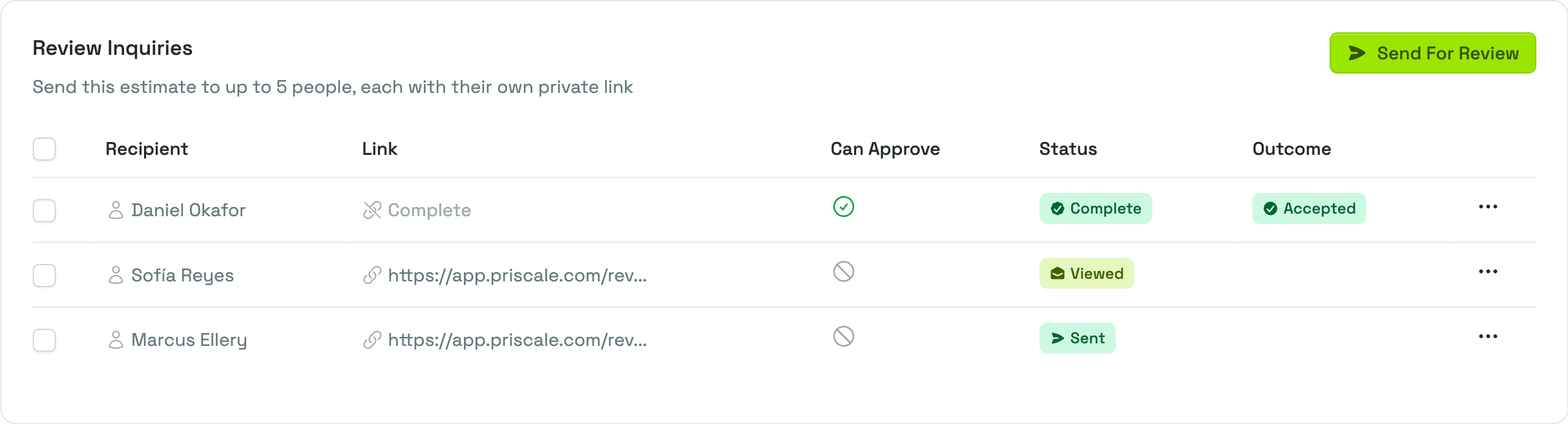
The Status column follows one recipient's link from the moment you send it:
- Sending means the email is on its way out. It usually lasts seconds.
- Sent means the email left Priscale and the link is live.
- Error means the email could not be delivered. The usual cause is a wrong or dead address, so check the spelling before trying again.
- Viewed means the recipient opened their link, and the popover records when. Only the recipient's own visit counts: opening the link yourself while you are signed in to Priscale never marks it viewed, so you can safely check what they will see.
- Complete means the recipient answered, and the Outcome column shows what they said. Accepted is what an approval on the review page produces.
- Expired means the date you set passed without an answer. If every link on an estimate expires that way, the estimate itself completes with a Ghosted outcome, described in Managing estimates.
- Archived appears on old links after the estimate moves on without them, for instance when a completed estimate is put back into progress. Archived links no longer open.
Once a link stops working, the Link column stops showing an address and shows the reason in its place: Disabled, Expired, or the status that closed it. Hovering there tells you which of those it is in a sentence, whether the link was switched off, whether its date has passed, whether the email never reached the recipient, whether the review is finished and no longer takes an answer, or whether the inquiry has been archived. Disabled and expired links keep their Expires date on show, so you can still see when they were meant to lapse.
Four of those statuses also raise a notification for everyone on your team: Sent, Error, Viewed, and Complete. Sending, Expired, and Archived do not notify anyone. Notifications land in the notifications bell that sits beside every page, and selecting one brings you straight back to this page. Notifications on the Dashboard page has the exact wording of each one, including the two different messages Complete can produce.
Managing a link after it goes out
The row menu on each recipient handles everything after the send:
- Disable Link switches a link off without deleting it. The recipient can no longer open the page, and the Link column reads Disabled. Enable Link puts it back.
- Edit changes the recipient's name and their Can Approve Estimate setting. The email address and the expiry date are fixed once the email has gone out.
- Delete removes the recipient and their link permanently. Deleting the last recipient on an estimate returns that estimate to Draft.
To remove several recipients in one go, tick their checkboxes first. A Bulk actions menu appears in the card header as soon as at least one row is selected.
Resending a link
There is no resend button, and there are two ways to get a link back in front of someone. The direct one is to copy the Sharable Link from the Link column, which takes one selection, and send it yourself, through whichever channel the customer actually reads; it is the same private link that was emailed. The other is to delete that recipient's row and send the estimate again to the same address, which mails a fresh link. Use the second one after an Error, once you have corrected the address.
What your customer sees
Your recipient does not need a Priscale account and never signs in. The email announces that the estimate is ready for review, shows the estimate's ID, gives them a View Estimate button, and tells them the date the link expires. The button opens their private page.
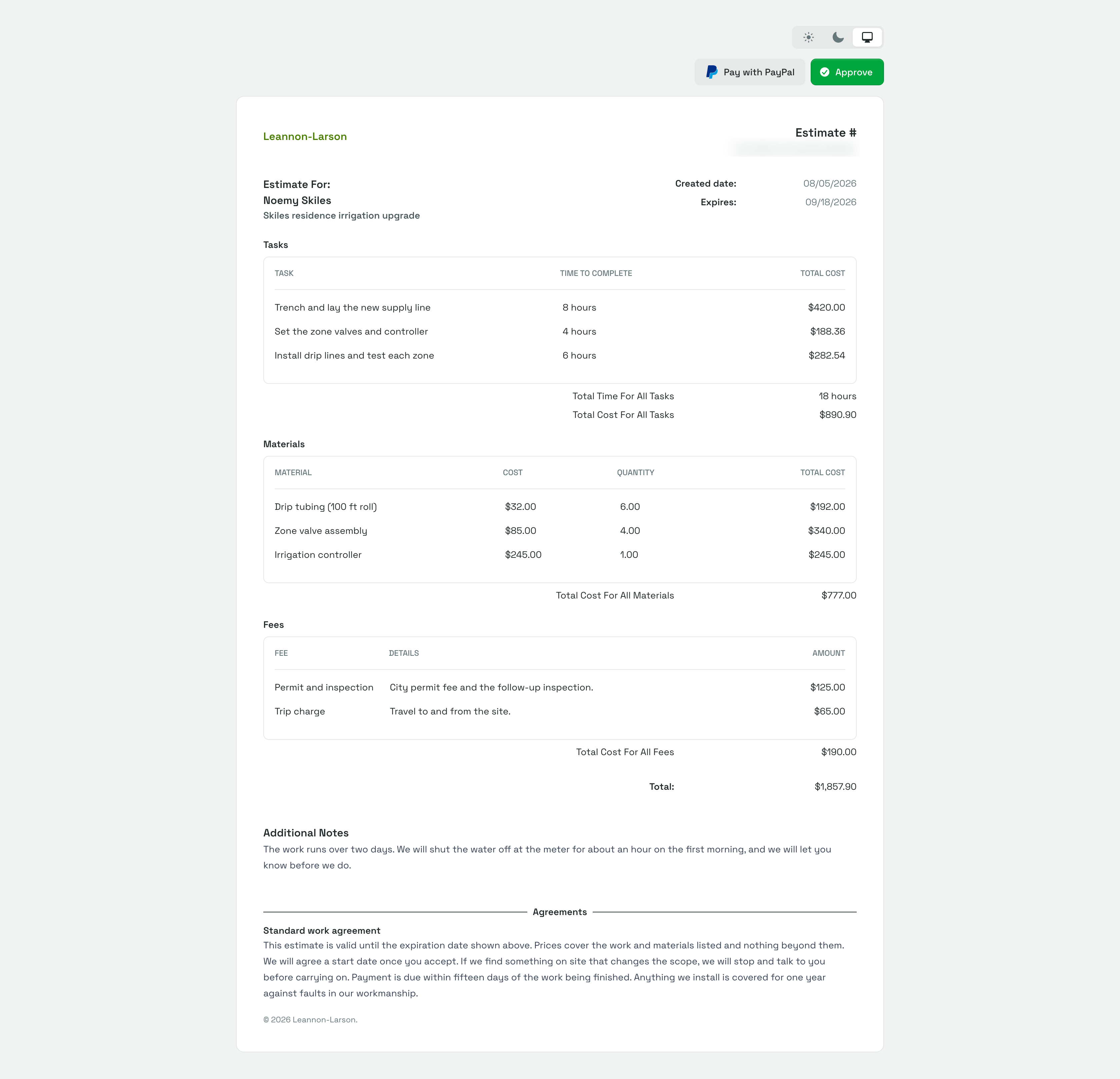
On that page they see the estimate exactly as it prints, plus a light and dark switch for comfortable reading. Above it sit the actions you gave them:
- A Pay with button for each payment link attached to the estimate, which opens your payment page in a new tab. Payment links covers setting those up and what the buttons say.
- Approve, when you turned on Can Approve Estimate for that recipient.
Choosing Approve opens a short confirmation naming the email address the approval will be recorded under, and noting that approving means they have reviewed all listed information and agreements. Once they confirm, the button reads Approved, their row on your side turns Complete with an Accepted outcome, the estimate is completed as accepted, and your team gets the notification.
If they open a link that has expired, been disabled, or been archived, they get a neutral Expired Link page telling them to ask whoever sent it for a new one. A link that has been altered or copied incorrectly shows Invalid Link instead. Neither page reveals anything about the estimate.
The estimate PDF
View PDF opens the printable estimate in a new tab, ready to save or print. Your recipients read the same estimate document on their own page, with one difference: the Payment section described below is added on the printed or downloaded PDF only, since recipients get Pay with buttons above the document instead. The document carries your business name and the estimate's ID, the customer, their company, and the service the estimate came from, along with the created date and the date the estimate expires.
Below that come only the sections the estimate actually has: Tasks with the time to complete and cost of each, Materials with unit cost, quantity, and total, and Fees with their details and amounts, each with its own subtotal, followed by the Total. Additional Notes and Agreements print underneath in full, and any payment links you attached are listed in a Payment section, so the addresses are there on paper too. None of your internal costing shows up here; the customer sees the prices you are charging.
TIP
The email carries a link rather than an attachment, so the customer always reads the current version. If you would rather hand over a file, download it with View PDF while the estimate is still open, and send it yourself.
Related pages
- Adjusting an estimate covers getting the numbers and the attached agreements right before you send.
- Managing estimates explains the estimate lifecycle and the outcomes an estimate can end with.
- Agreements covers the terms that travel with the estimate.
- Payment links covers the Pay with buttons and the Payment section on the PDF.
- Dashboard is where the notifications about your sent estimates land.
- Plans & billing covers the plan limits that apply to estimates.